Add or edit an email gateway
Enter SMTP connection details, check them, and save a gateway for your company.
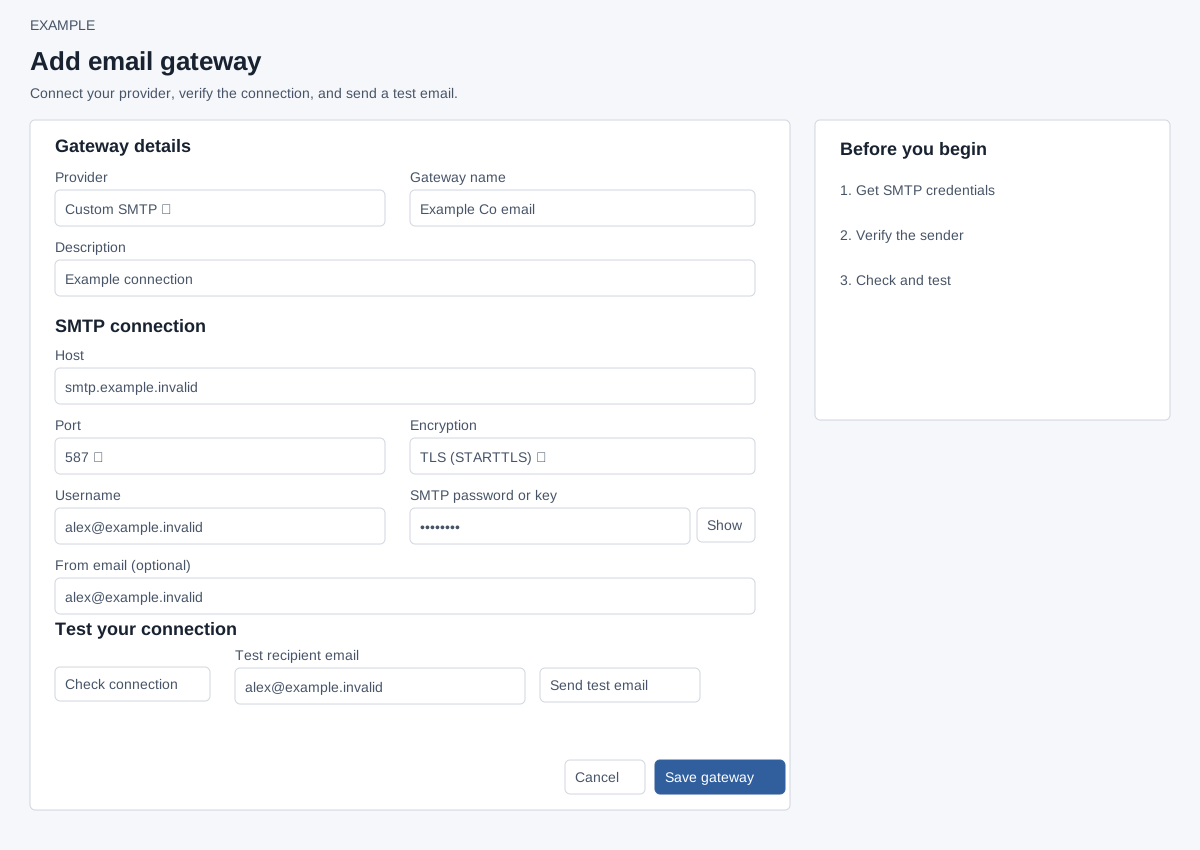
Open and choose a provider
Admin settings → Email gateways → Add email gateway, or Edit on an existing row. Administrators only. Provider offers Custom SMTP, Gmail / Google Workspace, Outlook.com (OAuth required), Microsoft 365 / Office 365, Amazon SES — Mumbai, Ohio or N. Virginia, SendGrid, Mailchimp Transactional (Mandrill), Brevo, Mailgun — US or EU, Postmark — Transactional or Broadcast, and Resend. Presets fill and lock host, port and encryption, and show provider-specific credential guidance and an official setup link. Switching to a different preset clears entered credentials; selecting Custom SMTP permits connection fields to be edited. SendGrid and Resend presets fill a fixed username.
The screen warns that Outlook.com requires OAuth and this password-authenticated SMTP form cannot connect it; Microsoft 365 availability depends on its tenant policy. Provider guidance may change: consult the linked official provider instructions.
Enter fields
| Field | What to enter |
|---|---|
| Gateway name; Description | Required, up to 45 and 200 characters respectively. |
| Host | Required SMTP hostname or IP, without protocol or path. |
| Port; Encryption | Choose 587, Automatic, 465, 2465, 2525 or 2587; an older saved port can also be displayed. Automatic selects 465 for SSL and 587 otherwise. Encryption is TLS (STARTTLS), SSL / TLS (implicit), or None. Diagnostic validation accepts the listed numeric ports, excluding 25. |
| Username; SMTP password or key | Required for a new SMTP gateway; use the provider's SMTP credentials. Show/Hide reveals or masks the entered secret. On edit leave password blank to keep it only if host, username, port and encryption are unchanged; otherwise enter a replacement. |
| From email | Optional to save; a valid sender address is required to send a test. Use a sender authorized by the provider. |
For an existing Gmail integration, provider is disabled and only name and description are editable. Its authorization is managed through Gmail integration; SMTP settings and tests are not displayed here. Gmail and Microsoft mailbox gateways are not available for bulk campaigns, according to the setup page.
Test and save
- Complete the fields. Check connection checks SMTP server and authentication with the entered settings without saving.
- Enter Test recipient email and choose Send test email to send a real test using the unsaved settings. Provider acceptance is not inbox delivery; check inbox and spam.
- Select Save gateway. Success returns to the list with an added or updated notice; Cancel returns without saving the form. A test does not save it.
For errors, verify hostname, supported port, encryption, login, password and authorized sender with the provider. Refresh if prompted for a security token. See test details and recovery.