Contact tasks and reminders
Open the page
Contact conversation → Tasks
Work the queue
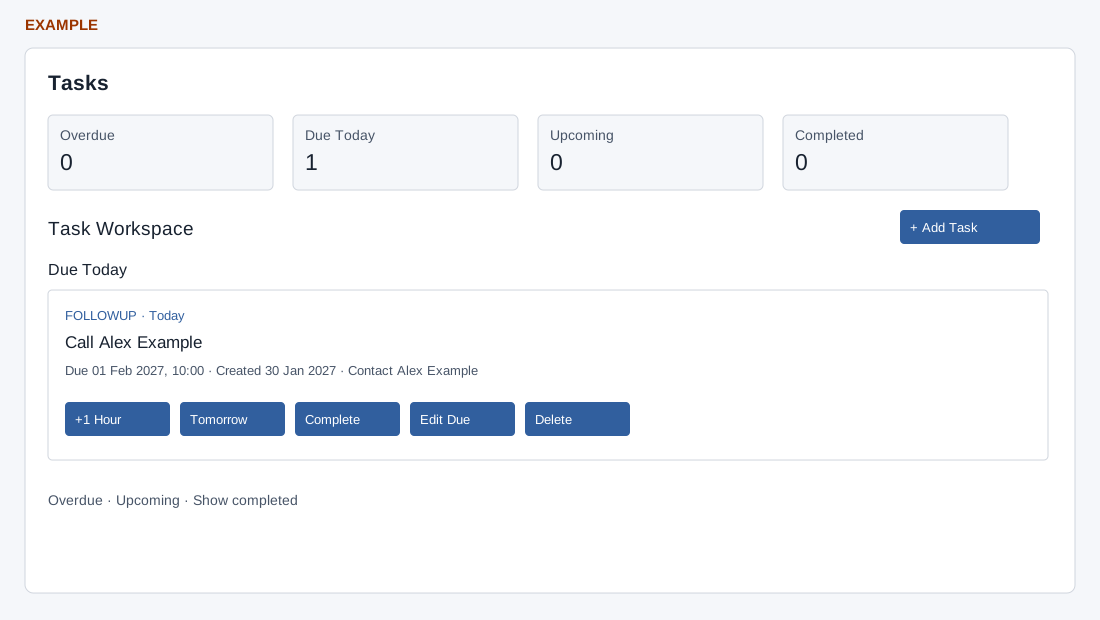
- Task Workspace shows counts for Overdue, Due Today, Upcoming and Completed, followed by a section for each urgency group. Each card can show type, status, subject, remarks, due date, creation date and contact. Choose Add Task to open the parent reminder form; Show completed expands completed work.
- For an eligible open task owned by you, +1 Hour and Tomorrow change the due time; Complete marks it complete, Edit Due changes its date, and Delete removes it. The screen states only the task owner can change an open task.
- Example: after recording the outcome of a proposal follow-up, use Complete; if it is rescheduled, use Edit Due. A reminder added through Add Conversation can also appear as an Upcoming FOLLOWUP task.
Task actions and reminder form
Open a valid company contact in Contact Conversation and select Tasks. CRM access is required. The frame loads up to 200 contact tasks; wider visibility depends on administrator, contact owner, owner’s department manager or CRM read permission. Counts reflect the loaded rows. Overdue means the due time has passed; Due Today covers remaining tasks due today; Upcoming contains the rest. Completed is collapsed until Show completed.
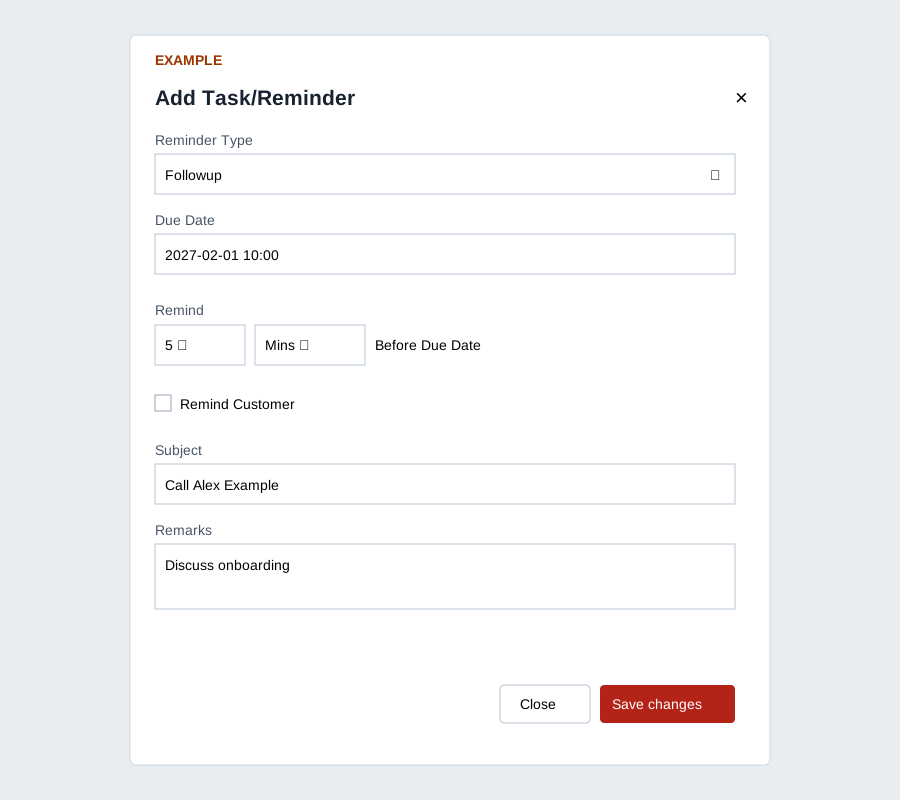
For your own open task, +1 Hour adds an hour and Tomorrow adds 24 hours to the later of its current due time and now; neither means the next calendar morning. Edit Due opens Update Due Date; choose a date/time and Save changes. Complete and Delete each ask for confirmation; deletion warns it cannot be recovered. Success reloads the task frame; due updates, completion and deletion also synchronize the contact follow-up state. Rescheduling updates the due date only; it does not recalculate the task’s saved reminder time, so verify the reminder separately. Other users’ open tasks display an owner-only message.
Add Task opens Add Task/Reminder in the parent contact window. Choose Call, Meeting or Followup (the frame resets to Followup), Due Date, reminder number 1–10 and Mins/Hrs/Days (default 5 Mins), optionally Remind Customer, then Subject and Remarks. Subject and Due Date are required. The displayed 10 option is wired to value 9 in this version. The system does not reliably calculate the selected advance interval; verify the saved reminder time. Remind Customer can send an email immediately and before the due time; only select it when intended. Save changes submits for this contact; Close dismisses. The dialog closes after a response even when it reports an error; check the message and task list before reopening and retrying. Missing Subject or Due Date is rejected before submission.
The frame offers no task reassignment, subject/remarks edit, comments or attachment controls; use the appropriate contact or project workflow for those needs. Example: Alex Example requests a call. Add a Followup with a due date and subject, then verify its card and due bucket. Confirm before completing or deleting and verify the refreshed state.