Deal analytics settings
Configure deal health, structured loss reasons and recovery review so sales teams can distinguish overdue work from opportunities worth revisiting.
Open the page
Account Settings → Features Settings → Deal Analytics. Administrator role and DEALANALYTICS feature access are required.
Check access and configure
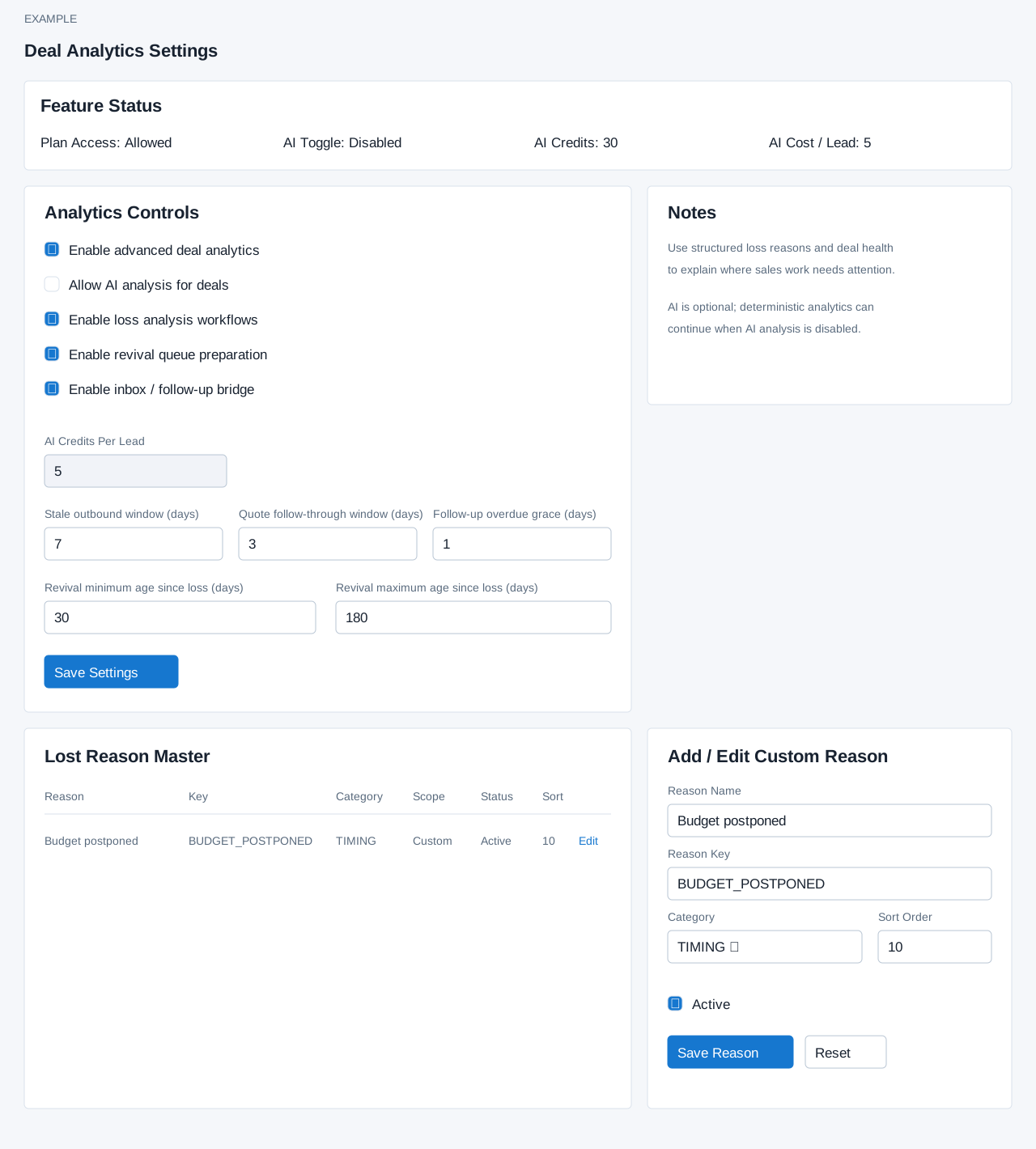
- Review Feature Status, including Plan Access, AI Toggle, AI Credits and AI Cost / Lead.
- Choose Enable advanced deal analytics, optional AI analysis, loss analysis workflows, revival queue preparation and the inbox / follow-up bridge as needed. AI Credits Per Lead is read-only.
- Set Stale outbound window and Quote follow-through window (minimum 1 day), Follow-up overdue grace (minimum 0), and Revival minimum and maximum age since loss (minimum 1 day). Choose Save Settings and check Saved; the form rejects changes when the plan does not permit deal analytics. Turning off advanced analytics also clears its AI analysis setting. Reopen to verify the saved values; saving does not confirm that processing has occurred.
- For example, a team can use a 30–180-day recovery window and review the new Daily Digest Today → Recovery preview when the bridge is enabled.
What each analytics control changes
| Control | Purpose |
|---|---|
| Enable advanced deal analytics | Enables structured loss capture, event logging and deal-health scoring. Switching it off also clears AI analysis when saved. |
| Allow AI analysis for deals | Allows optional AI analysis only when enabled and sufficient AI credits are available. |
| Enable loss analysis workflows | Allows the configured lost-deal analysis workflow. |
| Enable revival queue preparation | Prepares eligible lost deals for recovery review. |
| Enable inbox / follow-up bridge | Surfaces deal signals in the inbox and follow-up workflow. |
| AI Credits Per Lead | Read-only cost; this field cannot be used to change pricing. |
| Stale outbound window | Days without outbound activity before an active deal is stale. |
| Quote follow-through window | Days allowed for outbound follow-through after a quote. |
| Follow-up overdue grace | Extra days allowed after a scheduled follow-up is overdue. |
| Revival minimum / maximum age since loss | The earliest and latest loss age considered for recovery review. Check both ends of the interval. |
Manage loss reasons
- Review Lost Reason Master: Reason, Key, Category, Scope, Status and Sort. In Add / Edit Custom Reason, enter Reason Name, an optional Reason Key, Category (PRICING, ACTIVITY, TIMING, COMPETITION, FIT, PROCESS or OTHER), Sort Order and Active, then Save Reason. Name is required (processed up to 150 characters); the stable key is processed up to 80 characters and an empty key is generated automatically. Sort Order is nonnegative. Lower sort values appear earlier. Select Edit for a custom row; default rows have no Edit button. Reset clears the form and selects OTHER, zero sort and Active. Saving reloads the list.
- Only active reasons are fetched for the master table (up to 500 before duplicate keys are combined). Deactivating a custom reason removes it from this list, so the page offers no visible way to edit it back to active. A custom reason with the same key can replace a default in the displayed list. Example reason: Budget postponed. Review effects on loss reporting before changing an existing reason.
Verify and troubleshoot
After Save Settings, reopen this page to check the stored values; after Save Reason, confirm its name, key, category, custom scope and order in the reloaded table. A save confirmation does not mean a background analysis or recovery job has run. Check plan access, feature switches, credits and the relevant new Digest result separately. If a custom reason disappears after clearing Active, this page has no visible reactivation control; ask support about recovery rather than recreating an apparently duplicate reason.