Your contact forms
Find and create
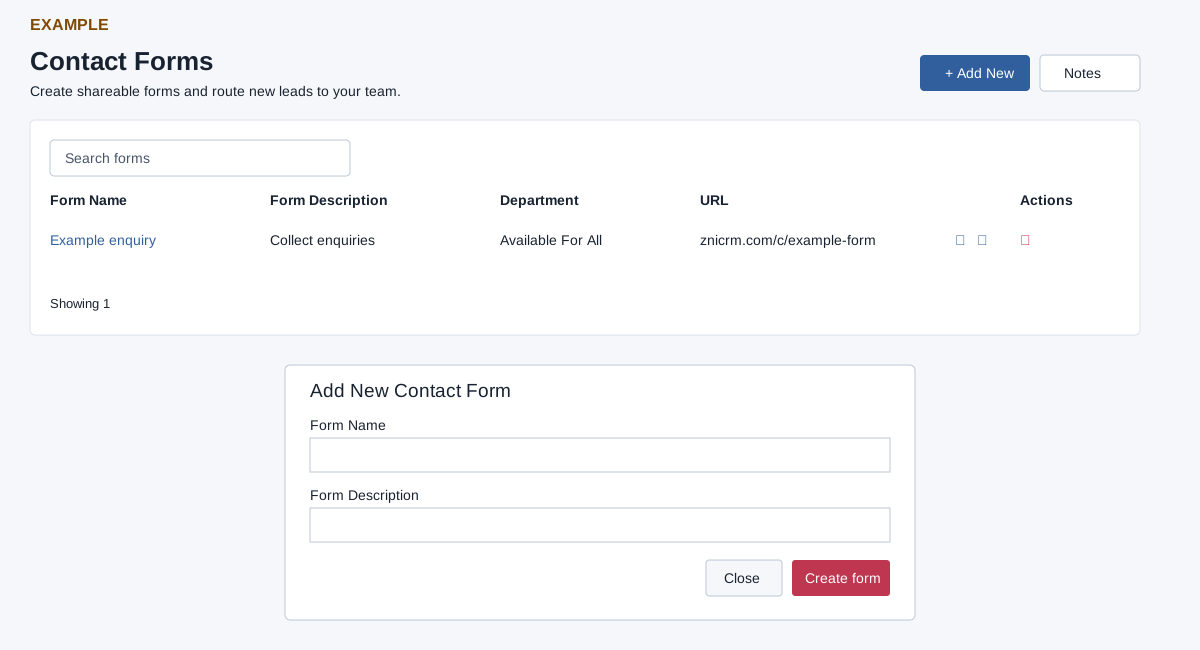
The CRM Contact Forms page lists forms for the current user and requires CRM access. Its table shows Form Name, Form Description, Department, URL and Actions. Search forms filters the loaded rows and updates the count. Select a name to open its builder; Notes opens the personal notes panel.
Select Add New, enter a Form Name (up to 45 characters) and Form Description (up to 90), then select Create form; both are required. Close or × dismisses the dialog. CRM permits one form per user and creates it without a department selection; an existing form can produce the upgrade message. After success the page reloads. Creation inserts the form before populating default fields; if the error says the form was created but fields could not be populated, check the list and add fields manually instead of creating a duplicate. For company-wide administrator forms and department routing, see the administrator form list.
Share, rename the URL or delete
Select the URL suffix to edit it inline and confirm, or cancel. The form URL suffix must contain at least 10 characters and is limited to 45 after unsupported characters are removed; a rejected or unavailable value returns an error. Changing it changes the shareable address. Copy Link requests clipboard access; Open URL opens the public form in a new window. Delete asks for Yes or No: confirmation deletes the form and cannot be recovered from this screen. Check the list after the success message; if a change is rejected, verify ownership and the error before retrying.
Example: create “Example enquiry” with a short description, configure its fields, preview, then copy the resulting URL to a planned channel. A copied URL is not evidence of a submitted lead.