Build your contact form
Open and build
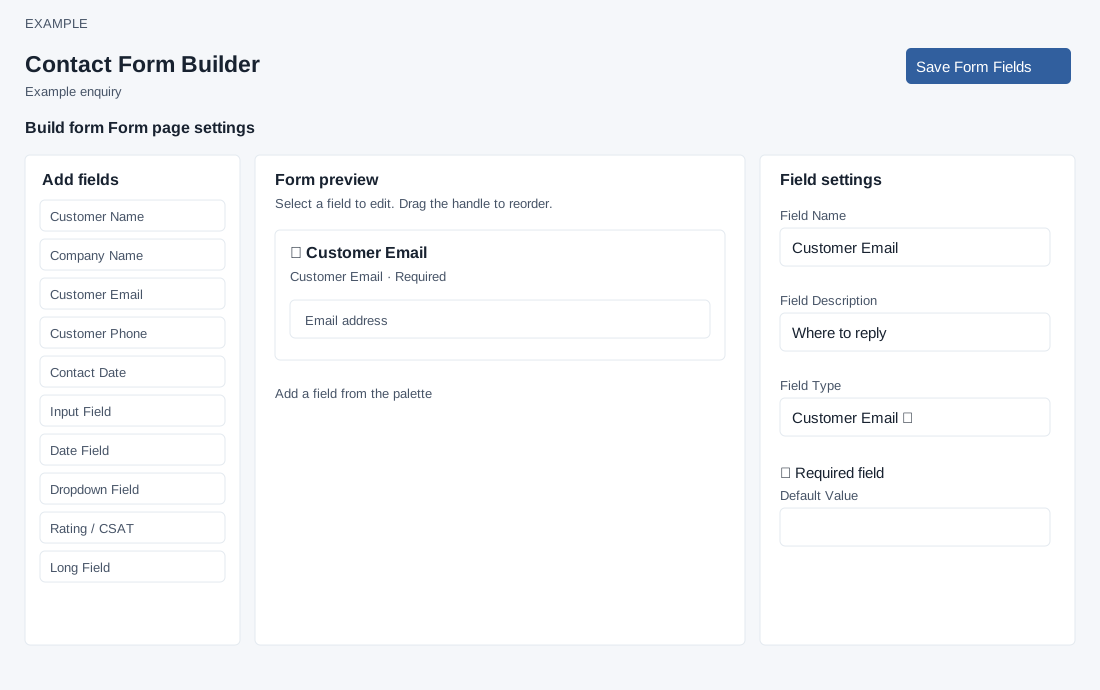
In your contact forms, select a form name. CRM access and a form valid for the current user are checked. Choose Build form, arrange and configure fields using the shared builder, and select Save Form Fields. See contact form field controls for the shared field choices and validation. Select a field to edit its Field Name, Field Description, Field Type, Required field and Default Value; dropdown options are comma-separated. Use the drag handle or up/down controls to reorder and trash to remove a draft field. The builder validates names, descriptions and dropdown options, and shows unsaved or saved status. The system requires a required email or phone unless the form includes a Rating field; that exception does not identify a lead. The screen recommends making Customer Phone or Customer Email mandatory and keeping the form short. Saving replaces the stored field list. If saving fails, the draft remains on the page; correct the error and retry before leaving.
Set page content
Select Form page settings. Edit Page heading, Page description, Form heading and Form description inline, using the checkmark to save each separately. Their limits are respectively 4–90, 4–255, 4–45 and 4–90 characters; the page-description error text says 250 although the check permits 255. Empty values fail. Preview opens the public form; Back to forms returns to the list and Notes opens personal notes. Field save and page-content edits are separate operations.
Example: prepare Example Co’s enquiry form, save the fields, edit the page heading, then preview the public form and verify the changed label. If the save fails, correct the displayed error and confirm ownership; a preview does not establish that an actual submission succeeded.