Contact favourites, tags and account actions
Organize a contact for follow-up and understand the effects of the Account Options menu.
Mark a personal favourite
- Open the contact workspace and select the star beside the contact name.
- Wait for the success notice and the star to become active. Select it again to remove the favourite.
- The favourite belongs to the signed-in user; it does not assign the contact, change its status or make it a favourite for everyone. If an error appears, reload and inspect the star before trying again.
Apply a tag for CRM organization
- In the contact details, select the Tags field. Choose a suggested tag or enter a short new tag and commit it in the field.
- Use fewer than 20 characters. The system normalizes tags to lowercase and removes unsupported characters; a new name creates a user-scope tag when necessary. For example, use renewal to identify contacts needing a renewal review.
- Adding a chip saves immediately. Wait for the result; a failed add can leave the unsaved chip visible, so reload to verify. There is no overall Save button.
- Use a chip's remove control to remove the association from this contact. Global Admin-scope tags cannot be removed through this action. On a rejected removal the interface restores the chip. Removing an association does not delete the tag definition.
Understand Split From Company before confirming
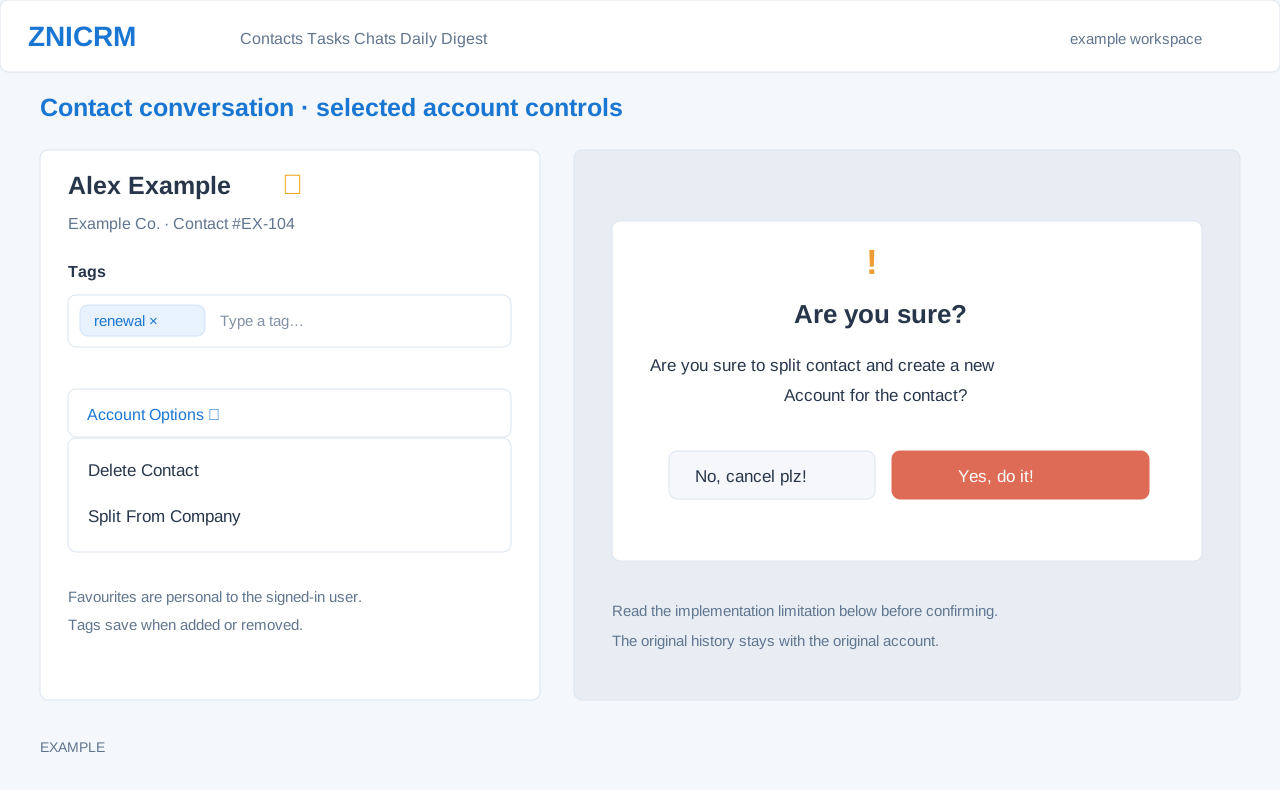
Open Account Options → Split From Company. The dialog asks whether to split the contact and create a new account, with Yes, do it! and No, cancel plz!. The system requires Delete Contacts permission, and the service requires the contact owner or an administrator and at least one saved phone number.
Split limitation: the service removes the first phone entry from the original contact, attempts to replace it with a del_-prefixed value, and creates another contact using the original number, name and the acting user as owner. It uses the phone number as the account name; manual account creation can reuse an existing account with that name. It does not reassign the original contact to the new account or move its history, tasks, deals, other contact details or files. The action also attempts to add an entry to the original timeline. Contact creation can fail; a success response or timeline entry is not proof that the replacement contact exists.
This button cannot reliably move the existing record with its history. Consult your administrator about the intended data operation before confirming. These writes are separate and earlier changes can remain after a failure. If the action has already been used, inspect the original phone data, original timeline and any new contact/account before retrying; a page reload or success response does not establish a complete move.
Delete Contact and the recycle bin
- Choose Account Options → Delete Contact and verify the exact record. The dialog warns that deletion cannot be recovered; Cancel leaves the record unchanged.
- Confirm only when the record should be removed. The service marks the contact for deletion after checking permission and owner/administrator eligibility, and the page returns to Contacts.
- Administrators can inspect marked records in the recycle bin. Permanent removal is a separate action. Check the record's state after an error rather than repeatedly submitting deletion.
Contact workspace · Profile and preferences · All contact topics