Contact conversation workspace
Open the page
Open Contacts, find the contact, then open its record. You can also reach a contact from the new Daily Digest or an account record.
Access and assignment
CRM access is required. The full workspace is shown when you are an administrator, the contact owner, the owner’s department manager or have global CRM read access. If the contact is unassigned, Capture appears when a matching queue item is available; select it to capture and open the assigned record. Otherwise the page asks for assignment from Inbox (the new Digest). Capture can be refused when the configured minimum interval since your last manual capture has not elapsed, or when another user already captured the lead; follow the error and check the new Digest or reopen the record. Communication and reminder buttons are shown when an owner is assigned; profile visibility additionally controls whether phone, SMS, WhatsApp and email fields are shown in their dialogs. An inaccessible contact shows its owner or an unassigned notice; a support department member may also see linked support tickets or a Create Ticket link. A contact marked for deletion carries a warning.
Orient yourself
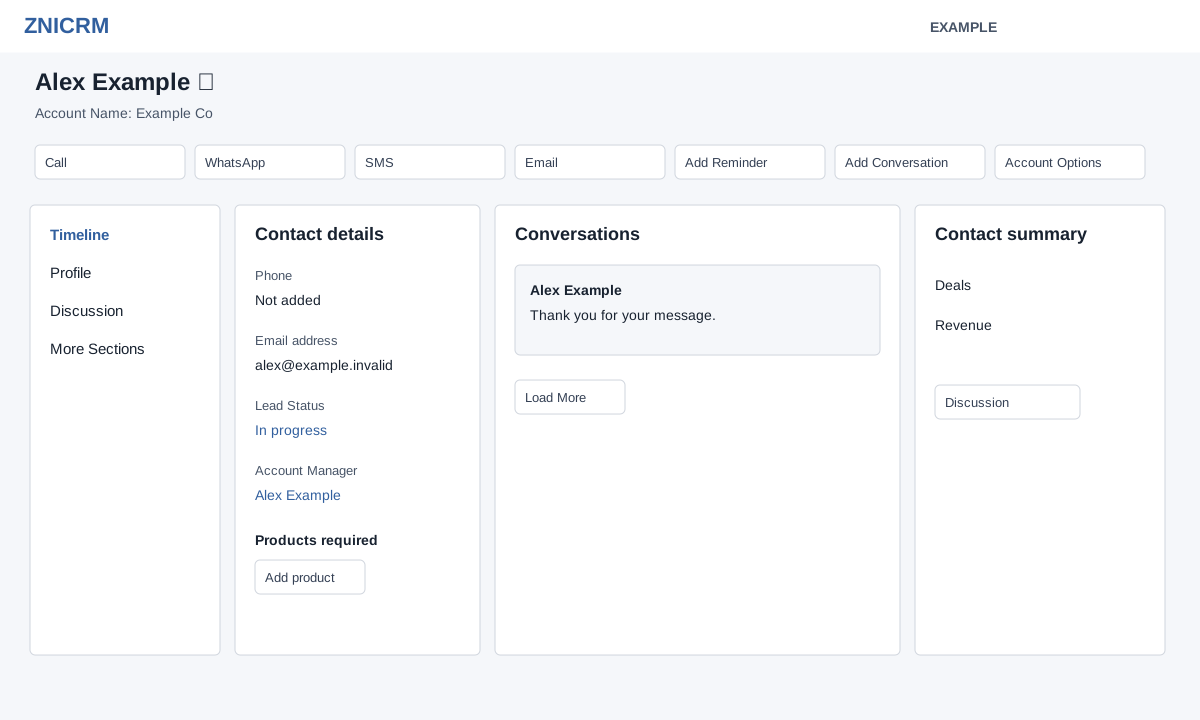
- The header identifies the contact, designation, department, contact ID and account. The star toggles the contact as a favourite. Available controls depend on access and enabled features.
- The left menu opens Timeline, Profile, Discussion, Purchase Orders, Deals, Travel, Proposals, Tasks, Projects, Forms, Footprints and Chats. If a contact report fails to load, its recovery panel offers Retry or Open in new tab. More Sections contains Subscriptions, Assignments, Tickets, Files, Quotes and Invoices. Purchase Orders appears for Vendor accounts; Travel and Projects depend on feature access. Chats opens in a new tab.
- The details area shows lead status, account manager, category, account type, populated configured custom fields, products and tags. Phone, email, country and the Profile tab require View Profile permission. Administrators, the owner or the owner’s department manager can select a new account manager and confirm the transfer; others see the owner as text. Tags add or remove immediately. The summary can include deal value, revenue, travel, discussion and meeting-clock controls.
For personal favourites, tag entry and Account Options, see Contact favourites, tags and account actions.
Choose the next action
- Use Call, WhatsApp, SMS or Email to initiate communication, Add Reminder for a task, or Add Conversation to record an interaction. Account Options contains Delete Contact and Split From Company. Delete asks for confirmation and returns to Contacts on success; its warning says the data cannot be recovered. The system instead marks the contact for deletion, subject to delete permission and owner/admin checks, and the contact can appear in the administrator’s recycle bin. Permanent removal is a separate recycle-bin action. Split asks for confirmation, but the system creates another contact and changes the original phone entry; it does not move the existing contact with its history. Read Split limitations and account actions before confirming either action.
- Example: open contact Alex Example, review the timeline and deal stage, record a call outcome, and schedule the agreed next step.