Contact profile and preferences
Controls and availability depend on permissions, plan and version.
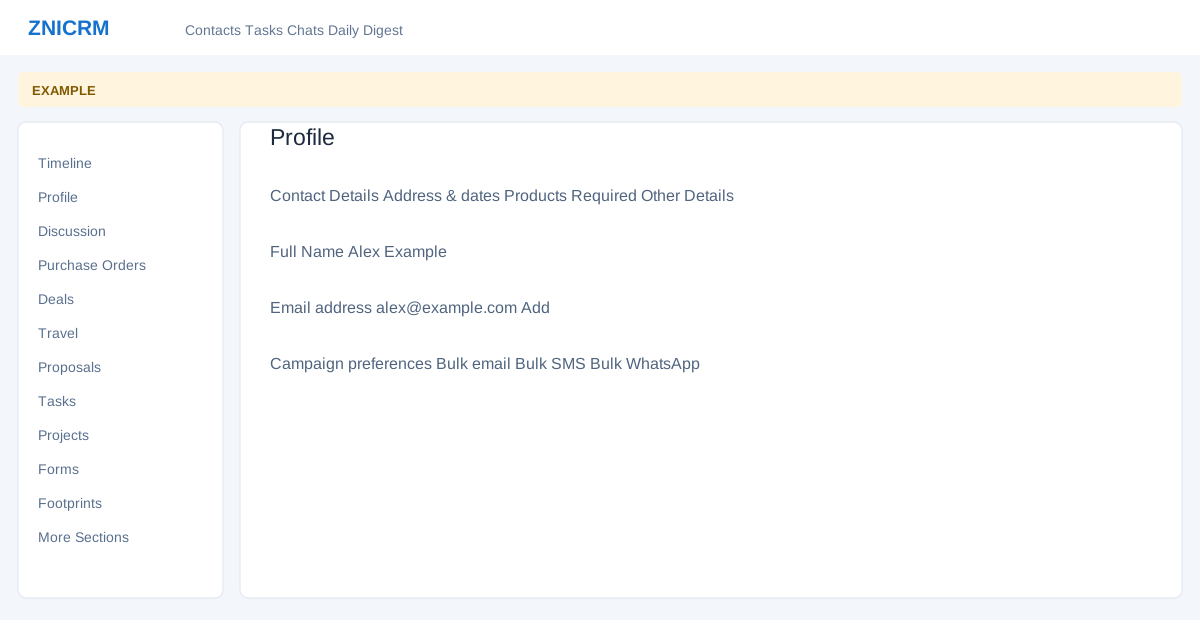
Open the page
Contact conversation → Profile
Update contact details
Profile visibility requires the CRM profile permission. Owner transfer, campaign preferences and removal have additional access requirements described below.
- Choose Contact Details, Address & dates, Products Required or Other Details. The Contact Details panel includes Full Name, Gender (Male, Female or Transgender), email addresses, phone numbers, WhatsApp numbers, Designation, Department, Lead Source and Industry. Select an editable value, enter or choose its replacement, and submit the inline editor. Name, designation, department, gender, lead status, category, industry and source require a nonempty selection or value. Source, status, category and industry choices come from account configuration. A source change also invokes lead scoring; confirm the displayed value after saving or an error. The editable account manager field transfers contact ownership after confirmation and requires an eligible destination; administrators, the current owner or the owner’s department manager may transfer it. Lead status and category update the contact and add system timeline entries; a status change also triggers a configured workflow.
- Use Add next to email, phone or WhatsApp to add a value; add phone and WhatsApp numbers separately; the phone dialog does not add the number to WhatsApp automatically. Select country and enter a local phone number; the code is added automatically. Save changes, then verify the displayed value. Existing values can be rejected as duplicates. For administrators, the remove icon asks for confirmation and deletes an associated email, phone or WhatsApp entry. Changes affect the contact record.
- Campaign preferences control Bulk email, Bulk SMS and Bulk WhatsApp; the system accepts changes to each of the three switches only from the contact owner or an administrator. The WhatsApp switch is disabled in the UI for other users; email and SMS may appear editable but can be rejected. WhatsApp reverts on error; check all three values after an error or reload. Check the contact’s permissions and preferences before changing them.
Address, products and custom fields
- Address & dates includes an account-address selector, Country, Date of Birth and Date of Anniversary. Select an existing shared account address to link it to this contact; the link belongs to the contact, while creating or editing the address itself occurs on the shared Account page and may affect other contacts. Date pickers display day/month/year and submit year-month-day. The current Address & dates panel does not display separate address, city, state or postal-code editors. Add new address opens the account profile. Products Required lists products and provides Add product and remove controls. Search at least three characters and choose a product from the suggestions before Save changes.
- Other Details displays configured custom fields shared by contacts on the same account; changing one can affect what those contacts see. Text fields submit on blur and selection fields on change only when nonempty, so clearing a field this way does not save the blank. The service truncates values to 120 characters and removes punctuation and other non-letter/non-number characters. A success message may appear even if an update failed: reload and verify the saved value, and ask an administrator for help if it differs. The campaign preference switches submit on change. Each edit is a separate request, not one combined profile save; earlier successful edits remain if a later one fails. Reload and verify each value after an error. Example: add a product interest and review the contact’s bulk-message preference before planning a campaign.