Quote and invoice editor
Open the page
Contact conversation → Deals → deal details → Add quote, or open a quote or invoice and choose Edit
Review the document
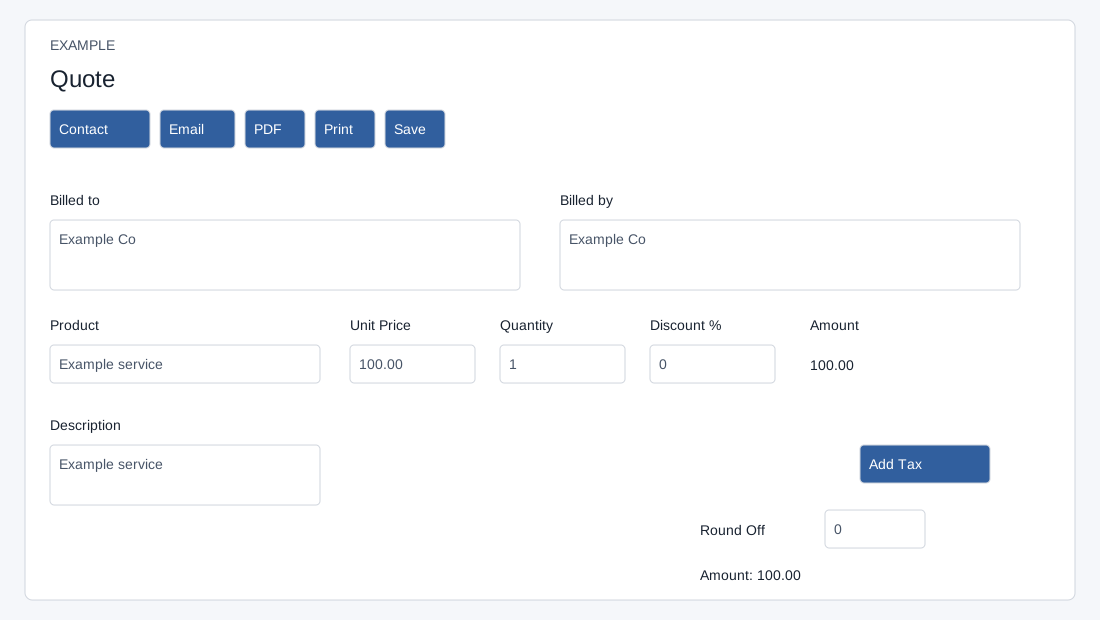
- Select or confirm Customer. Review Date and line items: Product, Description, Unit Price, Quantity, Discount % and Amount. Use the row add and remove controls as needed.
- Choose Add Tax to select a configured tax; inspect tax rows, round-off and the total Amount. Review Terms and Conditions. Products & help opens suggested products and guidance.
- For quotes, the screen can offer Link Quote To Deal, including Create New Deal, and Attach Proposal To Quote. These are selectors, not separate create dialogs; review their creation-time effects below.
Save and follow through
- Select Save when ready. The editor warns that some changes are saved automatically and Cancel exits without saving pending changes while keeping changes already saved automatically.
- For an existing document, available actions can include Email, PDF, Print, POS print, Edit, Create invoice or Create subscription. Invoices can show Payments and receipts, outstanding amount and receipt PDF or print actions. Availability varies by document and permission.
- Example: for a service quote, add one line, verify tax and total, link the intended deal, then review the document before any email or conversion.
Editing, saves and output
INVOICE app access is required, with the relevant create-quote or create-invoice permission for new or edit mode. Select a contact from search suggestions; a company office address must be linked to that contact before creation or editing can proceed. Use the banner’s Open contact link to correct a missing address.
On an existing document, billing address and terms save on blur when nonempty; removing an existing line or tax sends a separate update immediately. Editing an invoice date also updates immediately. Cancel retains these already-saved changes. Line values and taxes are submitted by Save, with round-off limited to −1 through 1 in 0.01 steps. For a new document, Save first creates the document header and then saves items and taxes. Item, tax and gross-total updates run separately; an error can follow a partial update, and the gross-total response is not checked for the success message. A newly created header can remain even when line saving fails. Reopen and inspect before retrying. Product suggestions reject duplicates; at least one row must remain.
In show mode PDF opens the PDF output, Print opens the standard print view, and POS print is offered for invoices. Both print views invoke the browser print dialog; PDF opens an inline PDF. Email immediately requests a send to every stored email address on the contact with a PDF attachment and has no recipient review dialog on this screen. Confirm those addresses and document contents before using it; inspect delivery before retrying an uncertain result. Create invoice converts a quote by requesting a new invoice, copying its items and taxes and using the configured invoice terms. Stockable quantities can issue stock during conversion; review stock and the new invoice before proceeding. Create subscription opens a prefilled draft, which requires a separate create action. For an invoice, Payments and receipts shows receipt, created date, amount, mode, payment date, remarks and PDF/Print actions; Settle invoice opens the settlement workflow.
Products, calculations and stock
For a new document, search Customer by contact email or phone and select a contact suggestion; a company suggestion is rejected. With an existing contact, the Customer search is not shown. Contact opens the record. Billed to is an editable document address; Billed by comes from company information. Date is editable only for an invoice in edit mode and saves immediately. On an existing document, nonempty Billed to and Terms and Conditions save on blur; a blank value is not saved by these controls.
In each line, type at least two characters and select a product suggestion; selecting it fills the product, unit price and description. Products & help can suggest the lead’s required products or, otherwise, most-sold items in the user’s sales scope; Add item is unavailable in read-only mode, for an already-added item or without a valid contact address. Try again reloads failed suggestions. Add row creates a blank row; the trash icon removes a row, but at least one must remain. The product text alone is not enough to save a product: select a suggestion. Duplicate product selections are rejected.
On leaving a line field, Amount is calculated as unit price × quantity, less a percentage discount rounded to two decimals; the resulting amount is then rounded to two decimals. Unit price and quantity are text inputs without a general client-side numeric range check. The system casts unit price to a number and rounds it to two decimals; check the values and totals carefully. The system normalizes a discount outside 0–100 to zero. For a stockable invoice item, quantity must be a non-negative whole number no greater than 2,147,483,647; saving an increase issues the difference from stock, and reducing quantity returns the difference. Deleting an existing invoice line immediately removes it without restoring stock; inspect inventory and arrange any appropriate adjustment. A stock error can prevent item saving. Verify the invoice and inventory after a change; a quote does not issue stock through this invoice-item path. Example: 2 units at 100 with 10% discount produce 180 before tax.
Taxes and total
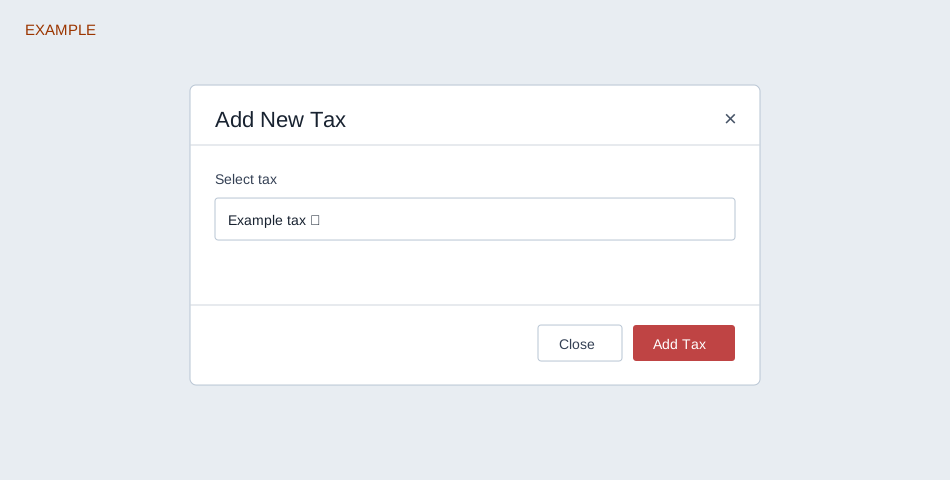
Add Tax opens Add New Tax: choose Select tax and Add Tax, or Close. The rates come from configured taxes; the dialog has no custom-rate or custom-amount input. It rejects duplicate selections. Each displayed tax amount is the discounted line subtotal multiplied by its rate, rounded to two decimals; the total adds the tax amounts and Round Off. For the 180 example, a configured 5% tax is 9 and a zero round-off gives 189. A newly added unsaved tax can be removed locally; deleting an already saved tax sends a separate update immediately. Verify applicable tax rules and the saved total before sending.
Deal and proposal relationships
When Link Quote To Deal is enabled in invoicing settings, new and edit quote screens show the selector. For a new quote, it offers Create New Deal and up to ten open deals for the contact/account; an existing linked deal may be the only displayed choice. Create New Deal is a selection, not a dialog: saving a new quote creates a deal named “Deal for Quote” with a two-week expected close date. Attach Proposal To Quote offers Do not attach any proposal and the contact’s available proposals. A selected proposal is validated and can also be linked to the selected or newly created deal before the quote header is inserted. The document is owned by its creating staff user and records the contact’s current owner separately as the original account manager. If a later step fails, inspect deal and proposal links as well as the quote before retrying.
These selectors are sent when a new header is created. The edit-mode Save sends items, taxes and totals but does not send changed deal or proposal selections; do not assume changing a selector on an existing quote relinks it. Reopen the record and use an appropriate supported deal workflow if a relationship needs correction.