Create a customer subscription
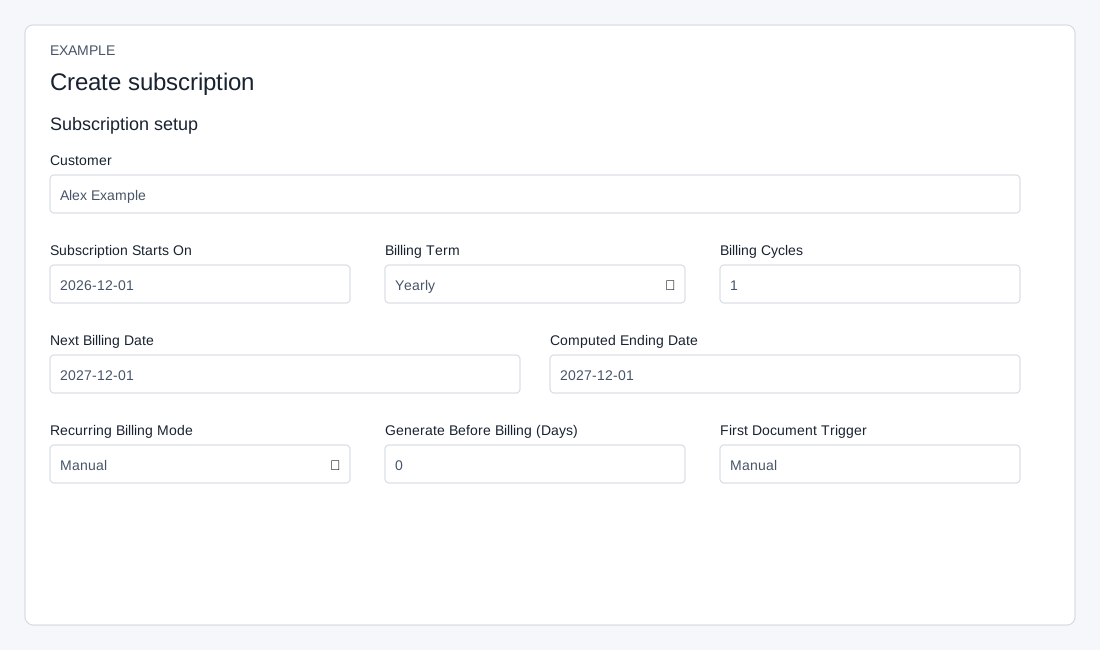
Open the page
Invoicing workspace → Subscriptions → Create subscription. SUBSCRIPTION app access is required.
Choose customer and billing schedule
- Search for and select Customer. Set Subscription Starts On, Billing Term (Weekly, Fortnightly, Monthly, Quarterly, Half Yearly, Yearly or Lifetime), and Billing Cycles. Check the computed Next Billing Date and Ending Date.
- Choose Recurring Billing Mode: Manual, Auto Quote or Auto Invoice. For an automated mode set Generate Before Billing (Days); 0 generates on the billing date. Review First Document Trigger before saving.
Set emails and commercial terms
- Auto Email Documents can send generated documents to the contact’s primary email; select the document template if enabled. Set Reminder Before Due and Reminder After Due and the Reminder Email Template where available. The same cycle document is attached to reminders. Some controls are disabled until an appropriate billing mode is selected.
- Set Grace Period and Cancel At Term End. Under Commercial details, set Seat Quantity, Subscription Discount (None, Percent or Fixed Amount), Discount Value, Proration Mode (Disabled or Daily Proration), Subscription Type and Description. Seat quantity multiplies recurring item quantities; daily proration creates an adjustment on the next cycle document when relevant mid-cycle terms change.
Add items and create
- Review Billing address and enter recurring Product, Description, Unit Price, Quantity and Discount %. The create request does not include the edited billing address, so this control cannot save the edited address to the subscription. Verify the address in the customer record and resulting documents. Use Add item and Remove item to adjust products. The Add Tax control has a known persistence problem described below; do not rely on its displayed row or total. Review Amount, schedule and email settings before Create subscription.
- Example: a yearly service with one cycle, one seat and Manual billing avoids automatic document generation. Creating a subscription changes customer billing records.
Validation and conditional controls
SUBSCRIPTION app access is required. Customer must be selected from search suggestions, not merely typed. Enter a valid YYYY-MM-DD start date, select a configured Subscription Type, supply Description and at least one product chosen from suggestions. Each chosen line requires a nonnegative unit price, quantity above zero and discount from 0 to 100; use plus and trash icons to add or remove rows. Tax selection is from configured taxes. An added tax row may not be included in duplicate checks, totals or creation. Check the resulting subscription and contact support if tax is missing. A tax added this way is not included in the computed total or created subscription. This screen cannot reliably add that tax through this control; do not rely on it. Verify saved tax details and resulting documents with an administrator.
Cycles are clamped to 1–999; generation, reminder and grace days to 0–365; seats to 1–100,000; percent discount to 0–100. Lifetime forces one cycle, Manual mode, zero generation and reminders and disables automatic email. Manual also disables generation and reminder controls and clears their values. Document template is enabled only for automatic email; reminder template requires a nonzero reminder offset. Choosing automated modes and emails can cause later documents or messages; verify settings before creating. If the form reports an error or the response is uncertain, inspect the subscription list before retrying to avoid duplicates.
Creating from an invoice copies its available customer, items and related draft data for review; it does not create the subscription until the button is used. Successful creation returns to the subscription list and can trigger a configured subscription-created workflow.