Contact forms and files
Controls and availability depend on permissions, plan and version.
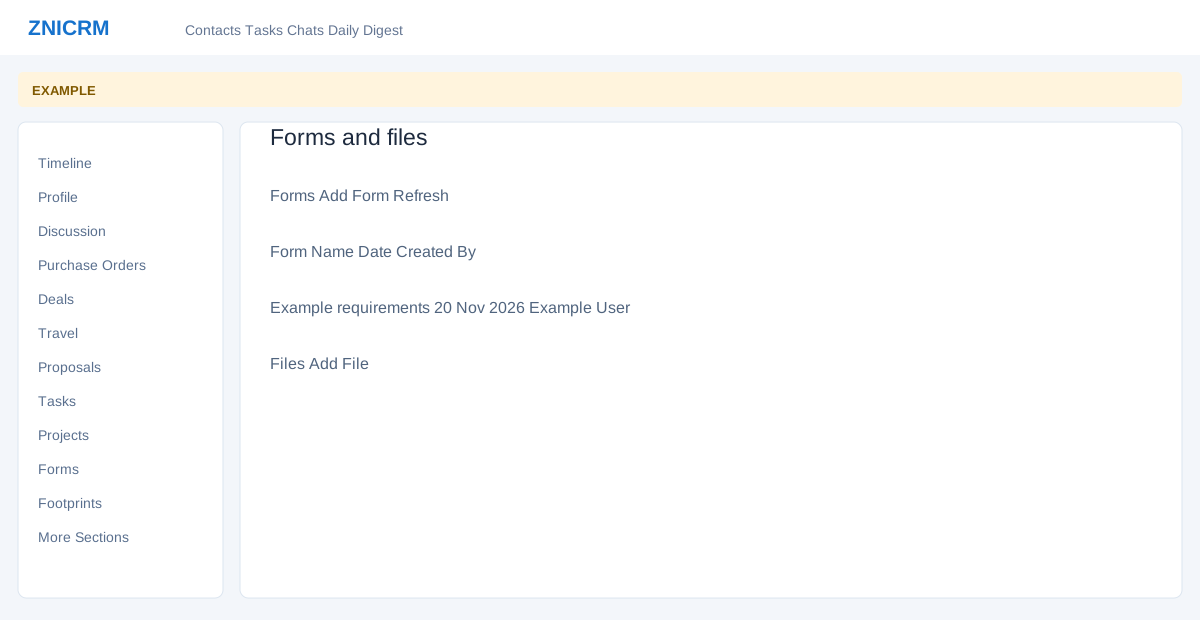
Open the page
Contact conversation → Forms or More Sections → Files
Forms
- The Forms panel lists ID, Form Name, Date and Created By. Choose Add Form to open the form workflow, or Refresh to reload the list. Open an existing form using its row action.
- Select the right form, complete its available fields and save only when the information is ready. Forms can also be linked from deal details.
Files
- Files lists Name, Dated, Size and Created By. Choose Add File to open Upload Files and follow the upload dialog. Open an existing file from its row where available.
- Example: attach a requirements document to the correct contact. Uploading stores a file; check it contains no unnecessary personal information.
Related: Complete a form · Review a response and escalation