Contact assignments
Review bookings linked to a contact and open an assignment for its full details.
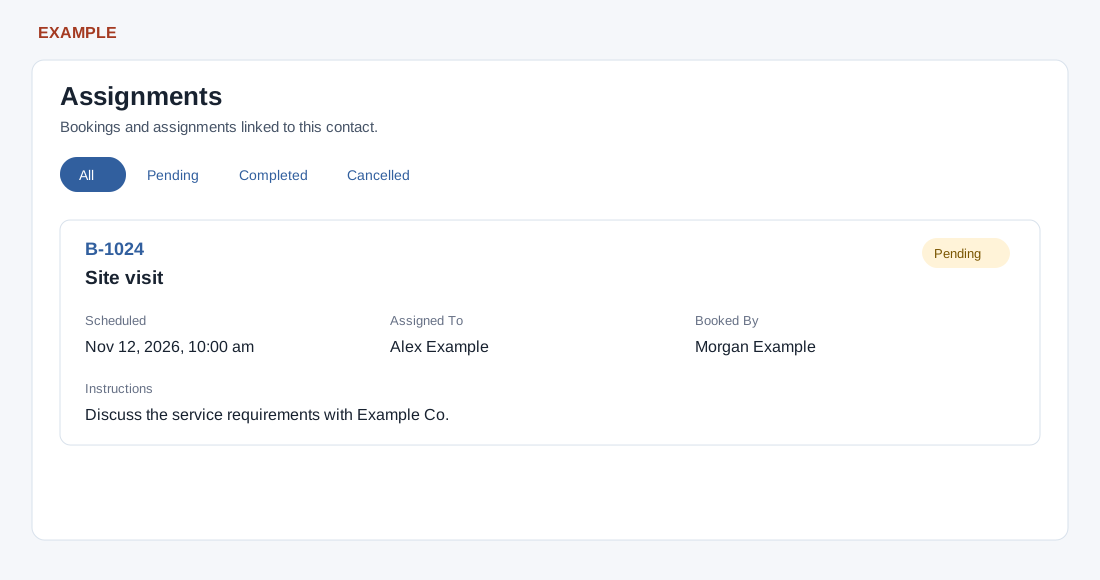
Open and understand the list
Open a permitted contact conversation → More Sections → Assignments. CRM access and a contact in the company are required. Administrators and users with Bookings access see contact bookings across assignees; otherwise users see their own bookings. The frame loads at most 1,000 rows per selected status and orders them by scheduled date, newest first. All combines Pending, Completed and Cancelled; Deleted bookings are excluded. Multiple assignment rows may affect the displayed results and limit.
Filter and open an assignment
- Choose All (the default), Pending, Completed or Cancelled. Each selection reloads this contact’s frame; there is no search or create button here.
- Read the card’s assignment type, status, Scheduled date, Assigned To and Booked By. Instructions appear only when present; a missing scheduled date displays Not scheduled. Select its B- reference to open booking details in a new tab.
- For example, select Pending, find the Example Co visit, and check its scheduled date and instructions before coordinating with Alex Example. Use booking details for the available changes and verify the updated status there and in this frame after reloading. To create one, use the separate booking workflow.
When a booking is missing
Check the selected contact, status and your assignment scope; the page says “No assignments found for this contact” when no matching bookings are shown. Check the 1,000-row limit and use the booking workspace if needed. Opening a reference depends on access to the downstream booking page.