AI Assist in Chats
Use the conversation to prepare a reply, save an internal note, or propose contact updates.
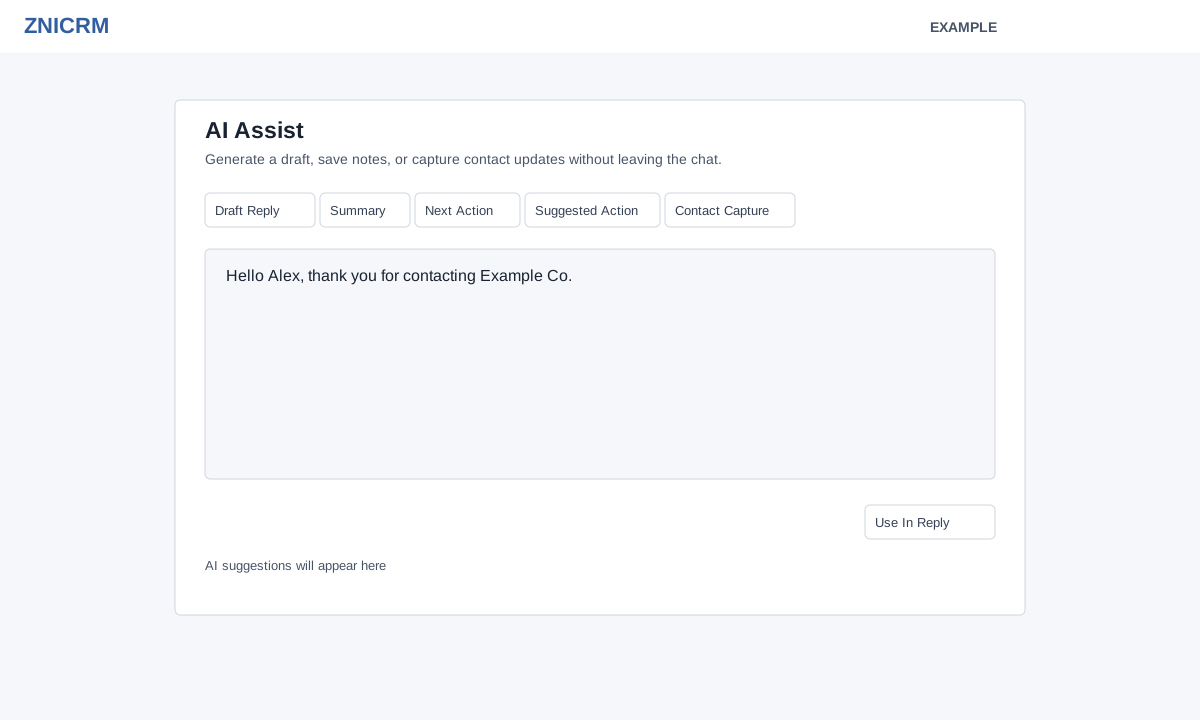
Prerequisites and navigation
Open Chats, select an accessible conversation, and choose Open AI Assist in the side panel. AI Draft in the composer opens the draft flow. Chat and AI Chat access, the chatbot AI setting and sufficient AI credits are needed. The dialog displays the current credit cost per request. Read-only lead-owner views cannot use these controls.
Generate and apply
- Select Draft Reply, Summary, Next Action, Suggested Action, or Contact Capture. A successful generation deducts the displayed credits and returns output in the dialog; an empty AI response returns an error before deduction.
- Review the output carefully. For a draft, choose Use In Reply to put it in the composer, edit it, then explicitly send it. For summary, next action or suggested action, choose Save Note to save it to the chat. For contact capture, review the proposed details and choose Update Contact to apply them. The service may add a valid email or phone, update an empty or phone-like name, or link the contact to another account when a matching profile is found; it does not overwrite an existing ordinary name. If nothing new is applied it reports that result.
- After saving a note or updating contact details the page reloads. Check Saved AI Notes or the linked CRM profile, subject to profile permission. A generated draft is not sent until you send it in the composer.
If AI Assist is unavailable, check the displayed explanation, AI setting, access and credit balance. If the cached result is unavailable, generate it again before saving or applying. If generation or saving fails, review the error and retry only after resolving it. Verify captured information against the conversation before updating the contact.