WhatsApp replies in Chats
Use an approved template when the free-form session is closed, or send supported structured content from an active WhatsApp conversation.
Before sending
Open Chats and select an accessible WhatsApp conversation. You need Chat access and a working WhatsApp integration. Controls depend on the session and sending capabilities. If AI is handling the conversation, Take Over may be needed for manual replies. See WhatsApp integration and WhatsApp templates for setup.
Template reopen
- When the page says the free-form session is closed, choose Open Template Reopen.
- Select an approved template, including its language, and choose Send. The page reloads after success.
- Check the transcript and session status. The template submission does not by itself establish customer delivery or guarantee that free-form replies are immediately available; follow the displayed session status.
The list contains up to 100 approved templates. If the contact or company WhatsApp number is missing, resolve the routing details before sending. When the session is active, use a regular reply; a template already sent in the current session may also lock template reopen. If no suitable template appears, check approval and integration setup. If the send fails, read the error and resolve it before retrying.
Rich Message
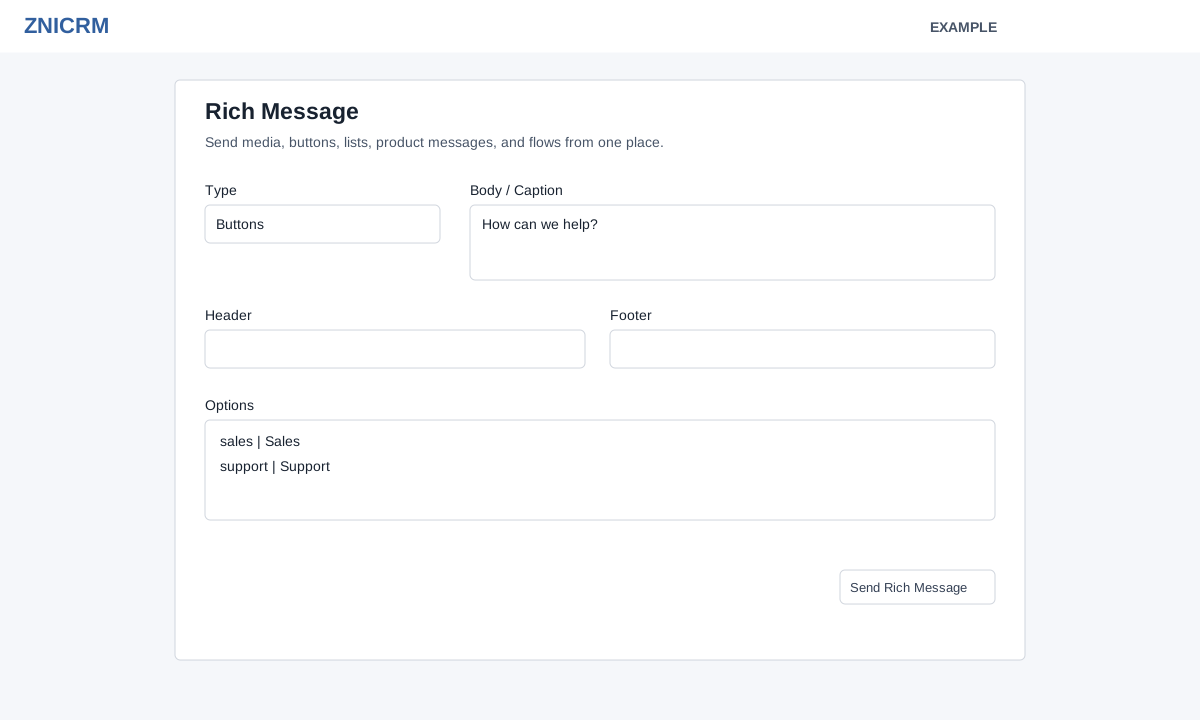
Choose Rich Reply in the composer or Open Rich Message in the side panel. Choose an available Type; the fields change with the selection. Complete the applicable fields, review the content and choose Send. After success the page reloads; inspect the transcript and delivery indicator.
- Image, Video, Document, Audio: Media Link is required; caption is optional. Document also accepts a filename.
- Buttons: enter body text and at least one option as
id | title, one per line. The composer takes up to three valid options with distinct IDs and titles. Header and footer are optional. - List: enter body, List Button Text and at least one row as
Section > id | title | description, one per line; section and description can be omitted. Header and footer are optional. - Flow: enter body, Flow CTA and Flow ID or Flow Name. Mode is Published or Draft; token, start screen, header, footer and Flow Data are optional. Flow Data must be a JSON object.
- Product: enter Catalog ID and Product Retailer ID; body and footer are optional. Product List: enter header, body, Catalog ID and at least one
Section > SKUline; footer is optional. - Location: enter numeric latitude and longitude; name and address are optional. Contact: enter Contact Name and at least one phone, email or URL; organization is optional.
The form validates required inputs, but provider or account restrictions can also reject a message. Correct the displayed error and check the available type, session and integration before retrying. Inspect message status rather than assuming delivery.