WhatsApp management
Connect a business sender and navigate its policies, templates and reporting.
Open and prepare
- Account Settings → Integrations → WhatsApp, or Chat Settings → Manage WhatsApp
- An administrator needs appropriate Meta business access. Availability depends on account permissions and setup.
Connect a sender
- Select Add number to launch Meta embedded signup and complete the provider flow with the authorized business account. This links a real sender; do not use an invented number in a live setup.
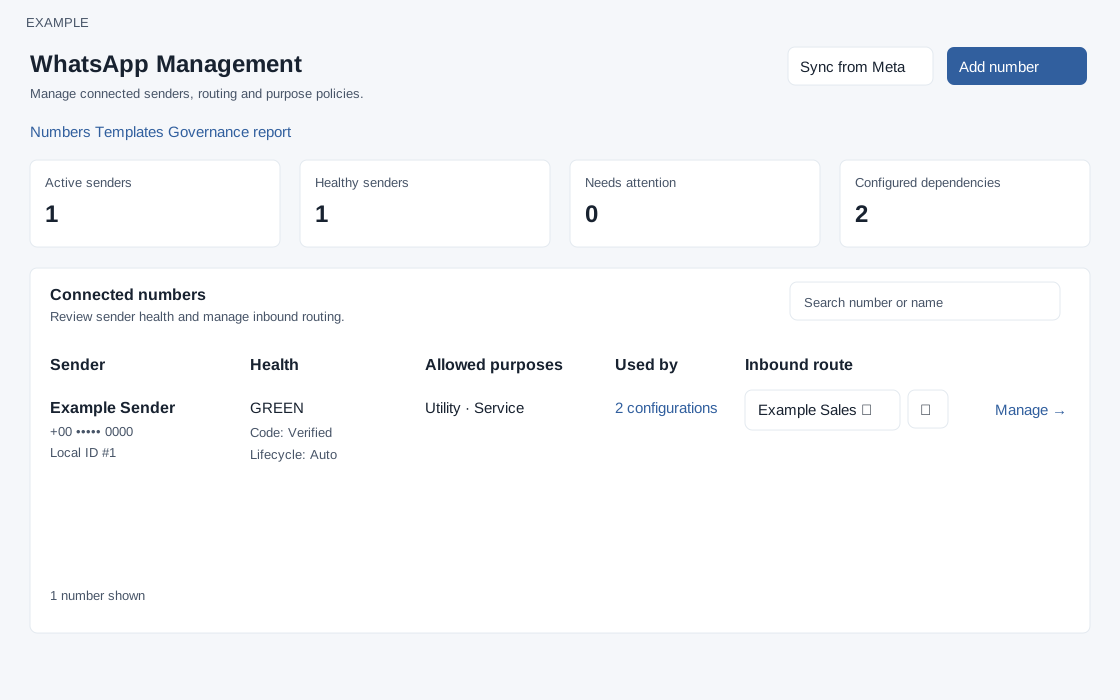
- On Connected numbers, search by number or name and review Sender, Health, Allowed purposes, Used by and Inbound route. Select a department and use the adjacent checkmark Save route action to change where inbound messages are routed.
Explore nested pages
- Open a sender’s management action to review its number policy, diagnostics and lifecycle. Use Used by or View impact for dependency impact. Open Templates for approved templates and mapping, and Governance report for activity.
- The header shows Governance rollout and whether the provider fence is available or safely locked. Sync from Meta refreshes provider information and can update stored state. Run it only when an authorized administrator intends to synchronize.
Marketing setup
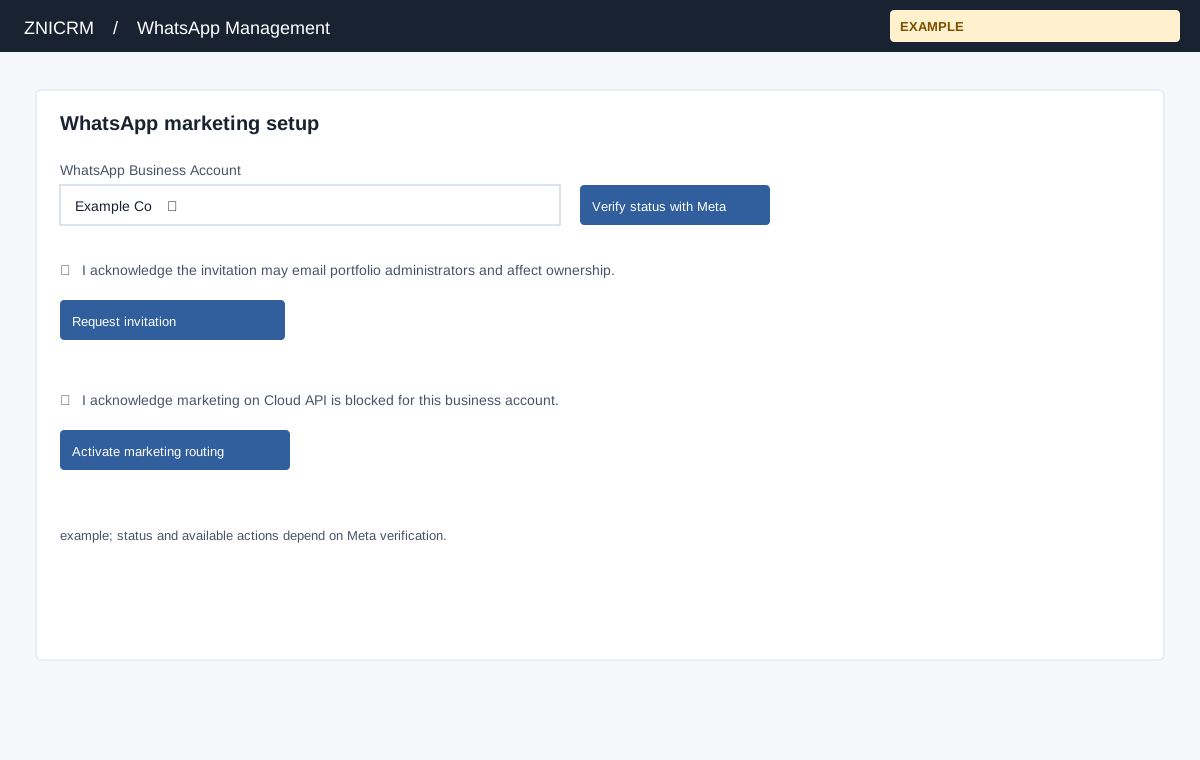
- Expand WhatsApp marketing setup and choose the WhatsApp Business Account. Verify status with Meta. Invitation requested does not mean terms were accepted: a Meta business administrator must accept them and then verify again. The invitation action requires acknowledging that Meta may email all portfolio administrators and that ownership of shared on-behalf-of accounts may migrate.
- Activate marketing routing requires acknowledging that marketing on Cloud API is blocked for the entire business account, including other integrations, while other categories remain on Cloud API. Assess this account-wide effect before proceeding.
The separate Connect WhatsApp screen describes embedded signup and recovery.
Management controls and recovery
WhatsApp must be allowed by the plan and governance viewing permission is required; the separate Connect WhatsApp screen checks administrator role. Its Login with Facebook starts the same embedded signup; Manage numbers returns to the list. On the management page the search matches name, number, health and purpose; Clear search restores the rows. The list shows up to 100 numbers. Select a department and click its checkmark: selecting alone does not save. A department is required. If management data is unavailable, routing controls are disabled.
Sync from Meta refreshes the selected sender or all senders from the management page, then reloads; the application reports existing messaging and configuration unchanged. Check the displayed result and health after reload. The refresh can update stored provider observations; if it fails or the outcome is uncertain, inspect the current sender status before retrying. With one business account the marketing account is displayed; with multiple accounts use the selector. Verify status with Meta refreshes verification. If an invitation outcome is unknown, check the provider account before retrying; the app warns it may already have been sent. If activation cannot be confirmed, verify status before retrying. These screens expose no disconnect or delete button; retirement is a local lifecycle action, not deletion.