Build a custom form
Configure structured forms that staff complete on contact records.
Custom forms list and creation controls
Create and organize
Administrators open Account Settings → Features Settings → Custom Forms. Add New requires Form Name (maximum 45 characters) and Form Description (maximum 90). Department offers For All Departments or a listed department; Escalation offers None or a configured escalation. The current creation script resets every numeric department choice to For All Departments (zero), so verify the saved scope. Create and open builder creates the record and opens the editor. All forms, Enabled and Disabled tabs, name/description search, Department and Clear filters narrow the list. Counts describe the list, and each row shows name, description, department, escalation, status, Open builder and Enable/Disable. Click escalation to edit it separately. There is no delete button on this list. Review any escalation migration notice.
Field types and settings
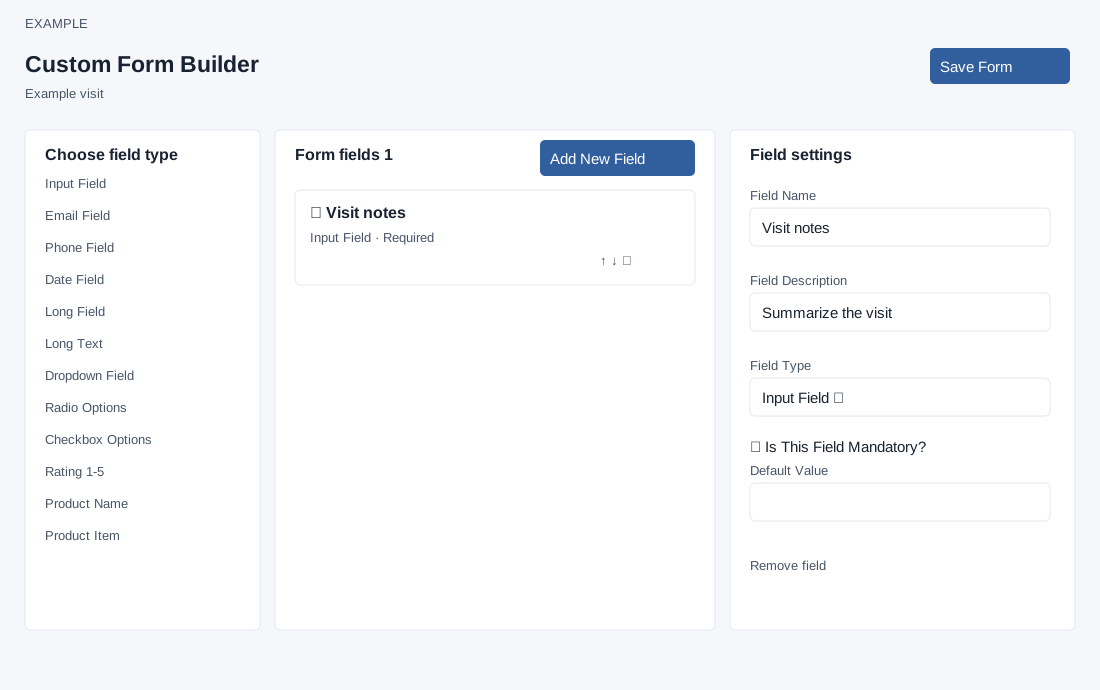
Choose field type expands or collapses the library on narrow layouts; Add New Field adds an Input Field. The types are Input Field, Email Field, Phone Field, Date Field, Long Field, Long Text, Dropdown Field, Radio Options, Checkbox Options, Rating 1-5, Product Name and Product Item. Select a row to edit Field Name and Field Description (both required), Field Type, Is This Field Mandatory? and its default or options. Changes are drafts until Save Form.
Dropdown, Radio and Checkbox options use separate rows: Add option and each trash button add or remove rows. At least one nonblank option is required, commas are not allowed inside options, and the form displays the first 50. Rating has fixed 1 Very Poor, 2 Poor, 3 Average, 4 Good and 5 Excellent, with no default rating selected. Other types offer an optional starting value; Date help specifies YYYY-MM-DD HH:mm. Product types search the catalog when used. Drag rows or use up/down arrows; trash or Remove field removes the selected draft field.
Preview and save
- Choose Preview to open the form preview and Back to builder to close it. Product controls are disabled in this preview. Example: add a required Input Field called Visit notes with a description.
- Select Save Form. At least one field and complete settings are required. Wait for All changes saved. If validation fails, correct the highlighted field; if a request fails, the draft stays available to retry. An unsaved-change warning appears on leaving. If the saved definition cannot be read, the builder displays Form unavailable and does not permit edits; return to the list and seek assistance before retrying.
- Return to the list and confirm the intended enabled status. In a contact, use Forms → Add Form to choose an available active form and record a response; see contact record forms.
Choose a field type and default
| Type | Response control and example | Default or limit |
|---|---|---|
| Input Field, Email Field, Phone Field | Single-line text, email or telephone input; for example, a reference, email address or callback number. | Optional starting text. The response save loop checks required fields for nonempty values; it does not itself validate email or telephone format. |
| Date Field | Date/time picker, such as a planned visit. | Optional starting text; use YYYY-MM-DD HH:mm. Existing values are retained as entered. |
| Long Field / Long Text | Both render as the same four-row multiline text area in the response screen; use either for visit notes. These settings do not change how responses are displayed. | Optional text prefill. |
| Dropdown Field / Radio Options / Checkbox Options | Dropdown and Radio both render as single-select lists; Checkbox renders a multi-select list, not individual checkboxes. For example, provide service choices. | Enter one option per editor row, without commas; at least one nonblank option is required. The saved definition stores comma-separated values and the response displays at most 50. A single one-character option is not rendered by the current response code, so use longer labels. |
| Rating 1-5 | Single select from 1 – Very Poor to 5 – Excellent, for example a visit rating. | Fixed scale; no rating selected by default. |
| Product Name / Product Item | Product Name searches products; Product Item searches items and displays the parent product with the item. Selecting a suggestion inserts ID/name or ID/product name/item name as text; it does not itself add stock or a line item. | Optional starting text. The placeholder says three characters, but typeahead starts at two; suggestion limits are 10 products and 100 items. The response save loop accepts entered text without requiring a selected suggestion. |
Save Form validates a nonempty field list, names and descriptions, supported types and choice options before sending the definition. The complete field list is saved with the form. The staff entry form checks required fields before submission. When forms are submitted through other routes, review the resulting record for all required information. Reopen the builder after saving to verify the definition.