CRM custom fields and categories
Add account-specific fields and lead categories from CRM Customisation.
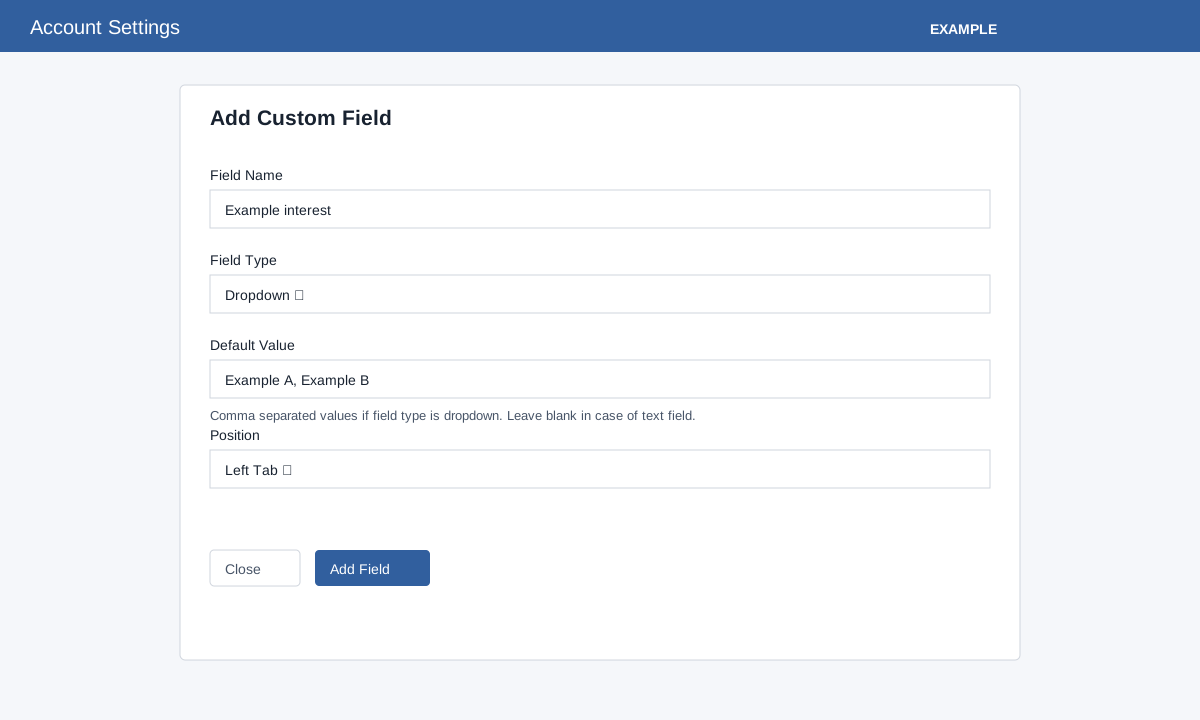
Create a field
Administrators open Account Settings → CRM Functions → Customisation → Custom Fields. Choose Add Field, enter Field Name, choose Text or Dropdown, enter comma-separated Default Value choices for Dropdown, and choose Left Tab or Right Tab Under Profile. Text fields should leave Default Value blank. Choose Add Field and verify the table after reloading. Names must be longer than five and at most 45 characters; dropdown choices cannot be blank. Refresh and verify the saved field after creation.
Categories and sources
On Lead Categories choose Add Category, supply Category Name and Description, and save. On Lead Source choose Add Source and enter a name. The tables offer Delete for eligible rows, with confirmation. Review existing usage before removing a category or source, and check the resulting table. For lead status and deal stage settings see CRM customisation.
See separate procedures for lead sources and lead categories.