CRM lead categories
Use lead categories to organize Example Co contacts consistently.
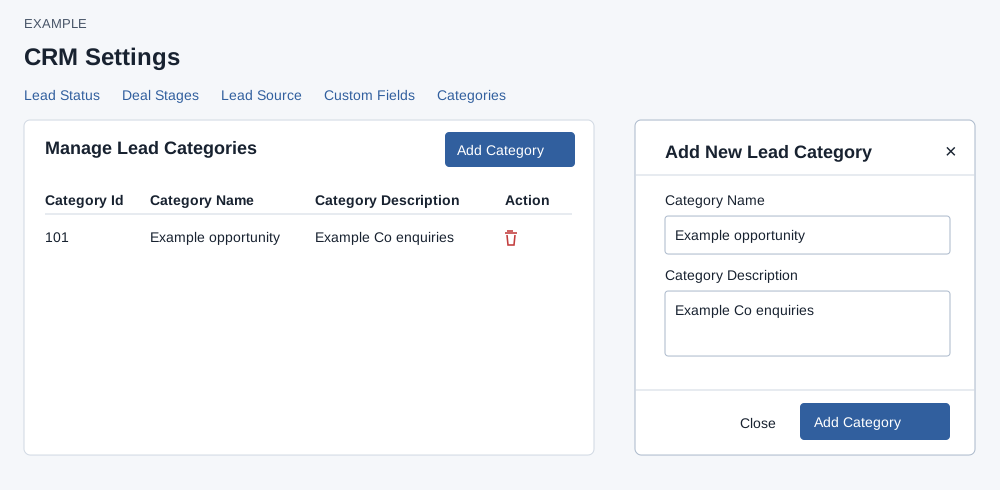
Create a category
As an administrator, open Account Settings → CRM Settings → Categories. The table lists the ID, name and description and any available delete action. The source list includes global and company entries; the category list contains company entries. Each list displays at most 100 rows.
- Choose Add Category. Enter Category Name; it cannot be empty. Category Description is optional; the service sanitizes the name to 45 and description to 90 characters.
- Choose Add Category to save, or Close or × to dismiss. On success a temporary “Updating...” row appears. Reload to verify the saved ID and available action; the temporary row has no delete control.
Remove an unused category
Choose its delete icon and confirm “Yes, delete it!”; cancel leaves it unchanged. Deletion is rejected while contacts or active saved filters reference the category; remove those references first. The error names the number of contact and saved-filter references where found. Review and remove those references, reload and retry. A failed request leaves the displayed row; check the message and administrator access before retrying.