Workflow actions
Choose the actions an event-triggered workflow performs and their recipients.
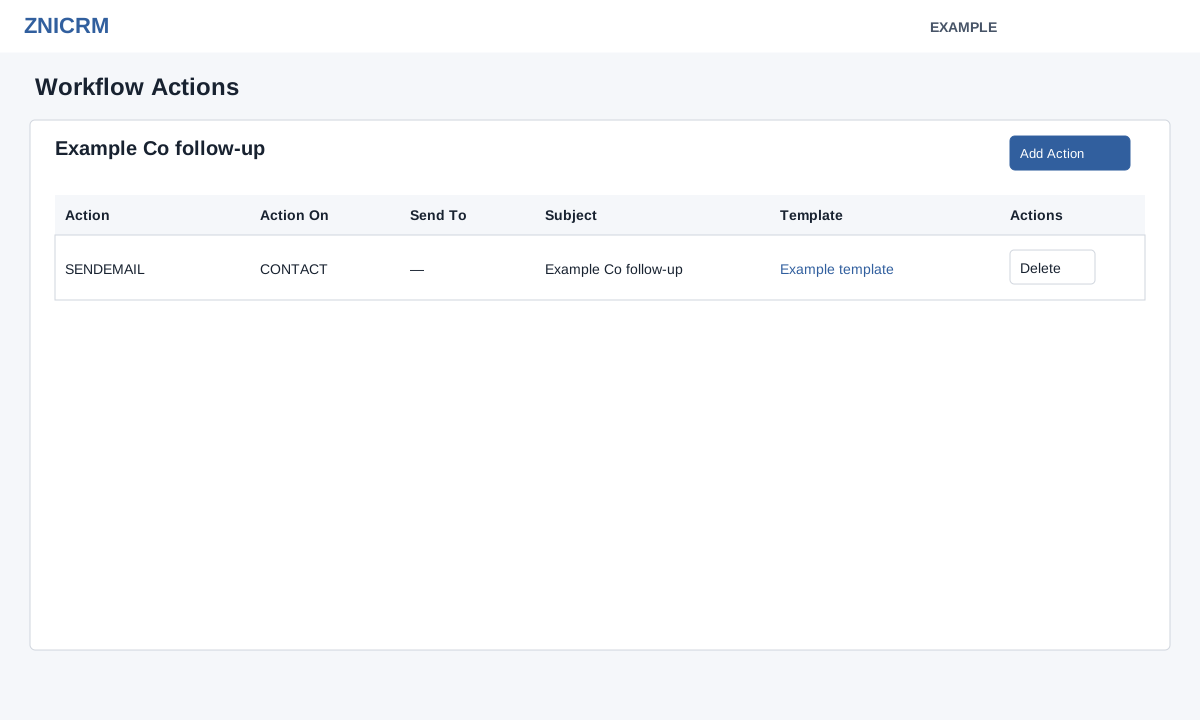
Administrators open Account Settings → Features Settings → Workflow, select a configured workflow, and choose Add Action. The table shows Action, Action On, Send To, Subject and Template, with Delete for each action. Its table search and pagination help locate an action among the loaded rows. The list shows at most ten actions without a guaranteed order; it is not a complete inventory when more exist. Actions beyond the ten shown can still run. Do not add another copy just because an expected action is absent; keep the workflow inactive until its complete action set has been reconciled. Disable the workflow from its list and verify Inactive before changing its actions; new workflows are Active by default. There is no edit control in this list: replace an action by adding the corrected one and deleting the old one after confirming the change.
- Send Email: select Email Gateway, Send Email As (CRM Generated ID, inbound ID, profile email or gateway default), Subject, recipient and template.
- Send SMS or WhatsApp: select the gateway or WhatsApp number and the applicable template and recipient. Set up the gateway, sending number and approved templates first.
- In-CRM Notification, Mobile Push and Slack Notification: select the template, recipient and any displayed subject. Recipient options include Lead Owner, Contact/Lead, Call Handler, Department Manager, All Department Users and Other User; choose the specific user or department where requested.
- Transfer Lead To Department: select the department. Add Tag / Remove Tag: select tag names. Execute Webhook: select the webhook. Recalculate Lead Score: recalculates the lead score when triggered.
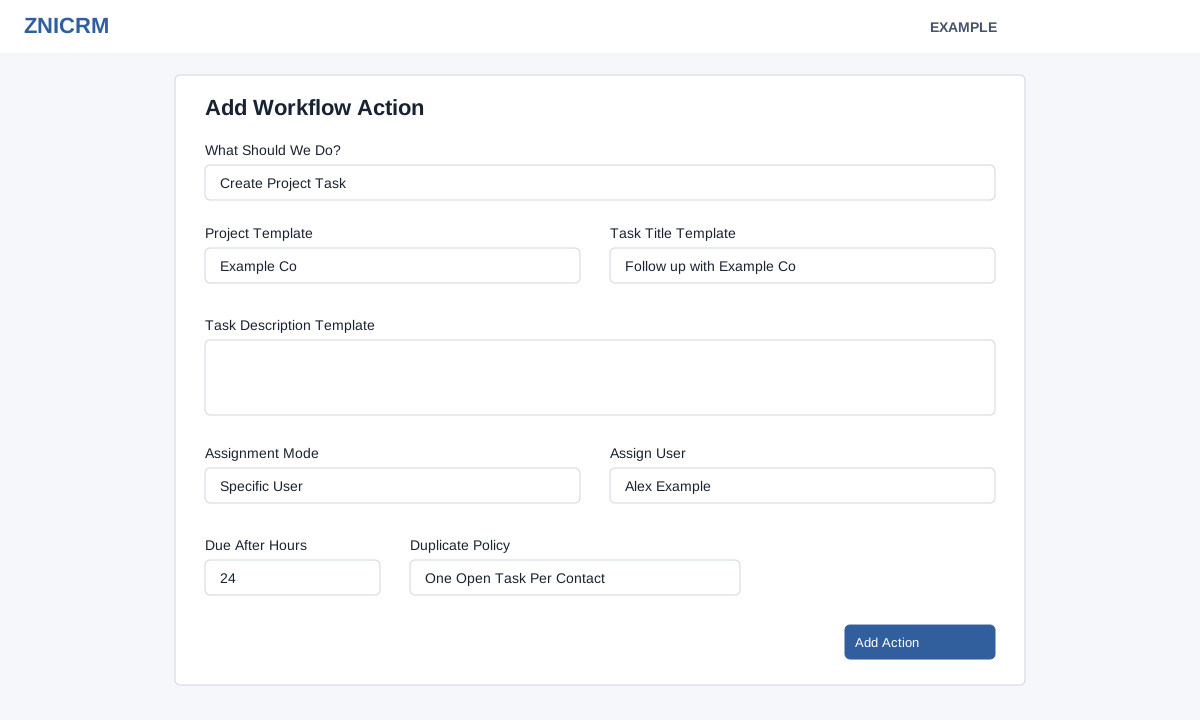
- Create Project Task appears when supported: select Project Template, Task Title and Description Template, Assignment Mode (Project Stage Default, Project Default, Lead/Contact Owner, Workflow Handler, Specific User or Department), applicable assignee, Due After Hours, and Duplicate Policy (Allow Duplicates, One Open Task Per Contact, One Open Task Per Deal or One Task Per Workflow Source).
Conditional field and validation reference
| Action | Fields and validation |
|---|---|
| Email Gateway, Send Email As, template, recipient and subject. The form requires a gateway; the form checks a subject of at least two characters. | |
| SMS | SMS Gateway, template and recipient. A gateway is required. |
| Number, WhatsApp template and recipient. The number and template must belong to the company. | |
| In-CRM Notification | Template and recipient. The current form rejects Contact/Lead and, due to its department check, also requires All Department Users with a selected department; other recipient selections report a department error. |
| Mobile Push | Template, subject and recipient. Contact/Lead is rejected; department requires a selection. The form checks subject length 2–100 characters, though its error says 5–100. |
| Slack | Template, subject and recipient are displayed. |
| Add / Remove Tag | At least one existing tag is required; picker permits up to three tags of 12 characters each and suggests Admin-scope tags; free typing is disabled. |
| Webhook | Select Webhook. |
| Transfer Lead To Department | Select Department is required. |
| Create Project Task | Shown only when project management is allowed. Project Template must allow automated task creation, and a title of at least two characters is required by the form; Description is optional. Specific User or Department mode requires the corresponding selection. Enter Due After Hours within the displayed 0–8760 range and select a duplicate policy. |
| Recalculate Lead Score | Available when lead scoring is allowed and the user has scoring, write and manage permissions. |
Delivery and recipient limitations
Blocked recipient combinations in this workflow: Email → Department Manager sends to the lead owner's address, so do not use it for manager delivery. WhatsApp → Other User uses the contact's phone number, so do not use it to contact the selected teammate. Email, SMS and Slack → All Department Users, Slack → Contact/Lead, and WhatsApp → Call Handler or All Department Users do not send through these actions. In-CRM Notification → Lead Owner, Call Handler, Department Manager or Other User cannot pass the form's department check; Contact/Lead is explicitly rejected. These are known limitations.
Email's selected gateway is used for customer email only with Use User's Profile Email ID or Use Gateway's Default ID; CRM Generated ID and inbound ID use direct email, as do messages to internal recipients. SMS uses a fixed sender and may not use the gateway selected in setup. Mobile Push and SMS/WhatsApp actions to a specific user also require a lead owner. Check CRM notification routing before relying on it.
Workflow actions run when their matching event is processed by the queue; this action editor has no per-action schedule or delay. Lead-score recalculation runs first, followed by other actions in their saved order. Lead scoring may be retried after a dispatch failure; other actions may not be retried automatically. Review downstream task or delivery records after a failure rather than assuming automatic retry.
The SMS action requires a gateway in setup, but may use a different gateway and fixed sender when it runs. For customer WhatsApp it prefers the contact’s saved WhatsApp number and otherwise uses a sufficiently long contact phone. Webhook queues a request; a queued request is not proof of downstream success. Both webhook Type choices, including Realtime, are queued by workflows. Webhook delivery supports GET and POST, treats HTTP 200 as success and can retry other responses; see workflow webhook differences. Transfer Lead To Department changes contact ownership only when an eligible user can be selected. Recalculate Lead Score queues reevaluation and may retry a dispatch failure; most other actions are not automatically retried after an error. Check actual run and delivery records before repeating or relying on an action.
Example: choose a configured webhook for an Example Co lead and verify the downstream result independently after a controlled authorized event.
Choose Add Action, then verify it appears in the table. If project task setup fails, reload the action list to check whether an action was created before retrying. Delete requires confirmation; check downstream effects before removing it. If a field or template is unavailable, check the action type, event, configuration and displayed validation error. Enabling a workflow can send messages or modify records on matching events; use an appropriate controlled test after review.