Workflow webhooks
Administrators can configure requests that a workflow sends to another service. Saving a webhook does not itself run a workflow.
Find and manage webhooks
Open Account Settings → Gateways → Webhooks. Search filters the table, which shows Name, Description, URL, Status and Actions. The list retrieves at most 100 records. Add webhook opens a new editor; a name or Edit opens that record. Suspend, Activate and Delete ask for confirmation and change the record’s status. Deletion is rejected while a workflow action references the webhook; remove or change that reference first. Suspended webhooks do not run in workflows. Check dependent workflows before changing status. Refresh after a request failure to see the resulting state; an unavailable edit record displays an error and a link back to the list.
Configure a request
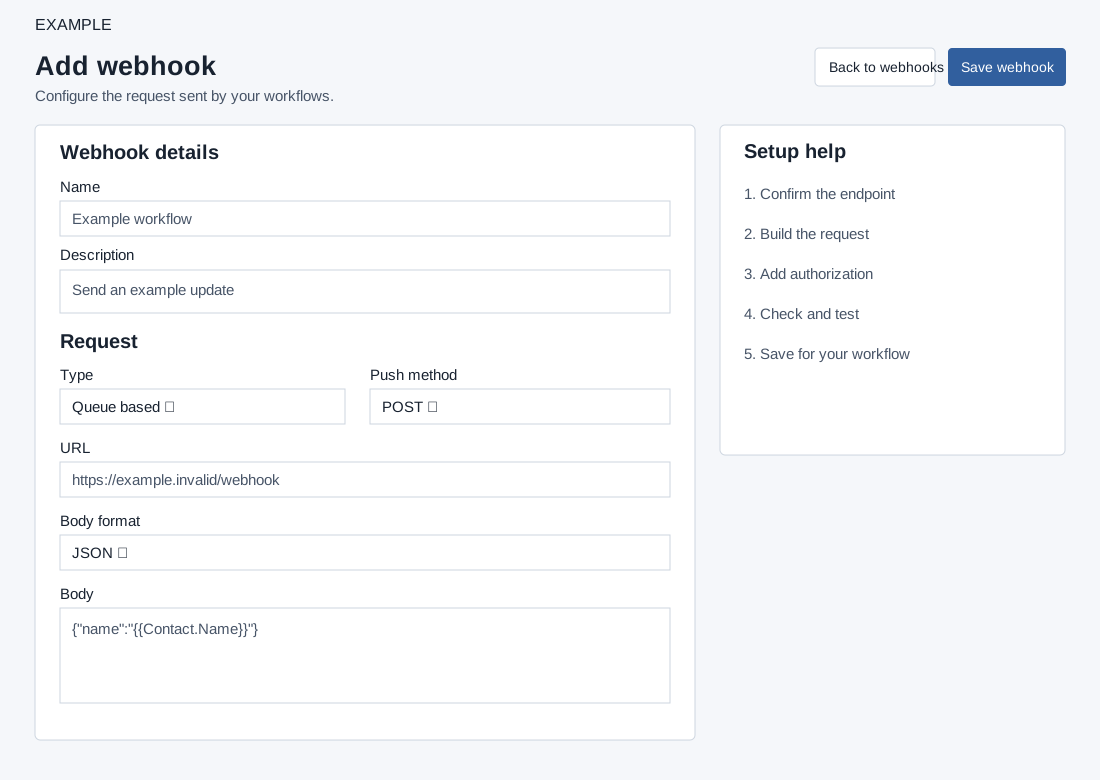
- Enter a required Name (up to 45 characters) and Description (up to 200).
- Choose Type: Queue based or Realtime. The editor describes queued requests as retryable and realtime as not queued. However, the workflow queues the webhook for either Type; do not rely on Realtime for immediate delivery in that workflow. Choose Push method GET, POST, PUT, DELETE or UPDATE. The page warns that the workflow queue currently sends GET and POST only, even though direct testing supports the selected method.
- Enter the required HTTP or HTTPS URL and Body. Choose TEXT or JSON. For GET, use TEXT and put query parameters in Body rather than the URL. TEXT uses key=value pairs; JSON must parse and variables must appear inside quoted strings. For example,
{"name":"{{Contact.Name}}"}. - Available substitutions are
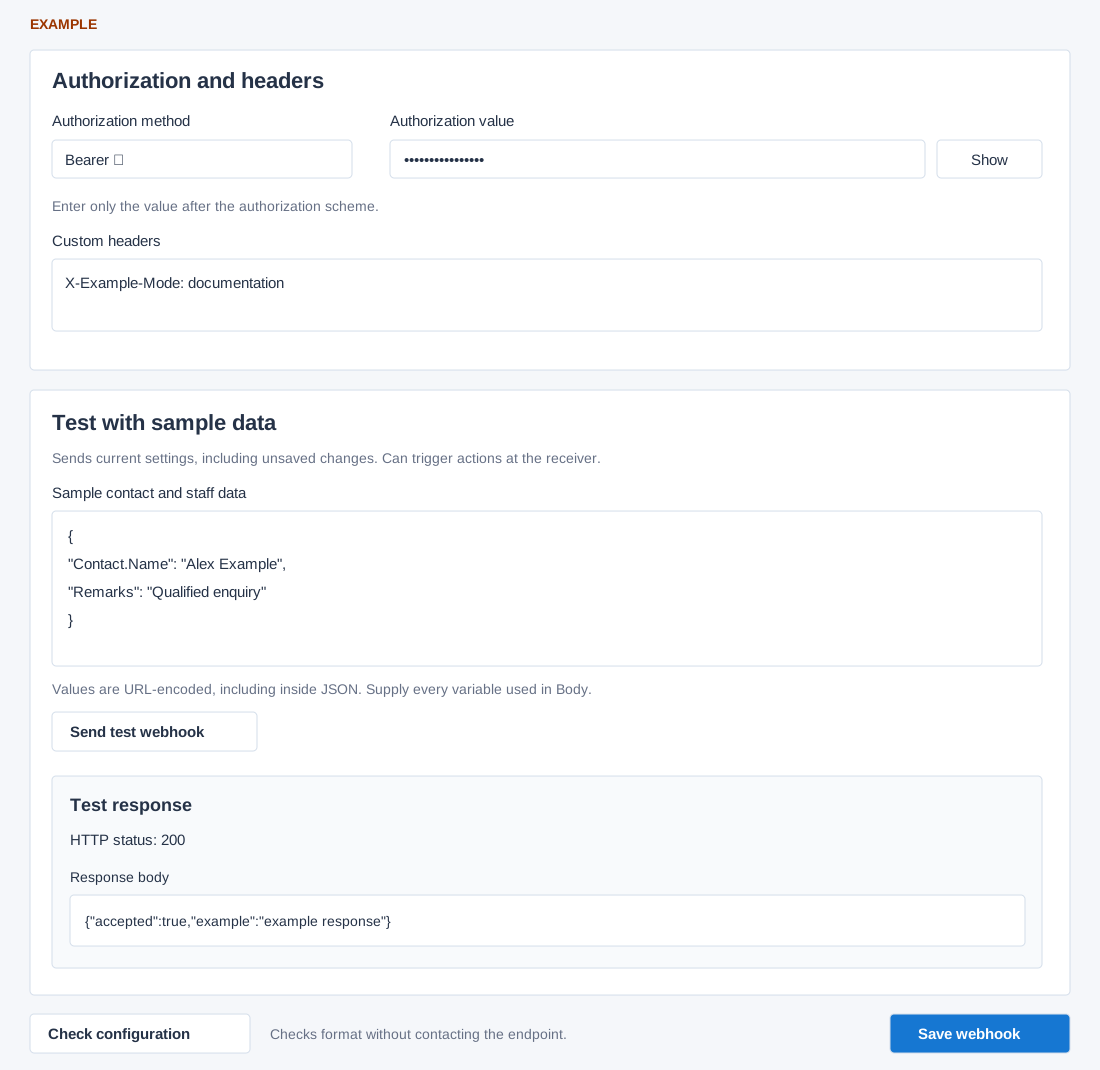
{{Staff.Name}},{{Staff.Email}},{{Staff.Phone}},{{Contact.Name}},{{Contact.Email}},{{Contact.Phone}},{{Contact.Company.Name}}and{{Remarks}}. - Select Authorization method None, Basic, Bearer or Digest. For a selected method enter the value without line breaks; Basic expects encoded credentials and Bearer expects the token, without repeating the scheme. Show reveals the value. Optional Custom headers use one
Header-Name: Header-Valueper line; Body format sets Content-Type. - Choose Check configuration for format validation without contacting the endpoint. Choose Save webhook to create or update it; a new record returns to the list, an edit displays feedback. Select the saved webhook in the appropriate workflow and verify that workflow separately.
Test and troubleshoot
Sample contact and staff data must be a JSON object with keys matching the variables without braces. Values are URL-encoded, including inside JSON. Send test webhook sends the current settings immediately, including unsaved edits; it can trigger the receiver, but does not save the webhook or contact or queue a workflow. Check HTTP status, response body and errors. The response display is capped at 64 KB. A successful HTTP response does not prove the intended downstream outcome, and a direct test does not prove queue support. Inspect the receiver before retrying a timeout because it may have processed the request.
Understand test validation and limits
| Input or result | Rule and recovery |
|---|---|
| URL | Use HTTP or HTTPS without embedded username/password or a fragment. The hostname must resolve to a public address. A local/private endpoint cannot be tested here. |
| Sample data | Provide every variable used in Body. Up to 40 names are accepted; names start with a letter and contain letters, digits or dots, at most 80 characters. Values must be text, at most 2,048 bytes each. The complete sample JSON is limited to 16 KB. |
| Request fields | Each submitted setting is limited to 16 KB. After variable replacement, the test body is limited to 64 KB. Shorten an oversized body or sample value. |
| Headers | Tests reject overrides for Authorization, Content-Type, Host, Content-Length, Transfer-Encoding, Connection, Proxy-Authorization and Expect. Use the dedicated authorization and body-format controls instead. |
| Response | HTTP status and response body are displayed. The first 64 KB is retained; a truncation notice means reading stopped, not that the receiver cancelled its work. A 2xx result can be reported as accepted even when the displayed response is truncated. |
| Timeout or redirect | The connection timeout is 8 seconds and the total timeout is 20 seconds. A timeout leaves delivery uncertain. A redirect is not followed: confirm the final endpoint with its owner. |
Workflow delivery differs from the direct test
The workflow queues both Type choices. The queue sender handles GET and POST only, follows up to three redirects and uses a five-second timeout; it treats HTTP 200 as success, while the direct test accepts any 2xx. For a non-200 response, the queue may retry after 30 minutes; 404 or an unhandled 301/302 response can disable the webhook and remove that queued item. Custom headers can be sent twice. Use an endpoint that tolerates retries and check its records before assuming a single execution. The test requires verified TLS and does not follow redirects; it does not reproduce every queue behavior.
Example: notify a service after qualification
- Agree on a receiving endpoint and required fields. For an illustrative POST, set JSON Body to
{"name":"{{Contact.Name}}","note":"{{Remarks}}"}. - Enter sample JSON
{"Contact.Name":"Alex Example","Remarks":"Qualified enquiry"}. The receiver sees URL-encoded values such asAlex+Example, including inside JSON. - Select Check configuration. This checks form syntax; it does not prove authorization or delivery.
- Only when a test action at the receiver is intended, select Send test webhook. Read HTTP status and the response body, then check the receiver’s actual result.
- Select Save webhook and attach it to the intended workflow. Verify workflow triggering separately; the direct test does not exercise the workflow queue or retry behavior.
Use a public endpoint and valid TLS certificate where HTTPS is used; redirects are shown but not followed. Check authorization for 401/403, request body for 400/422 and the response details. On save or access errors correct the displayed issue or ask an administrator; refresh the list to confirm whether a change occurred.