Connect WhatsApp
Connect a business account through the embedded signup flow.
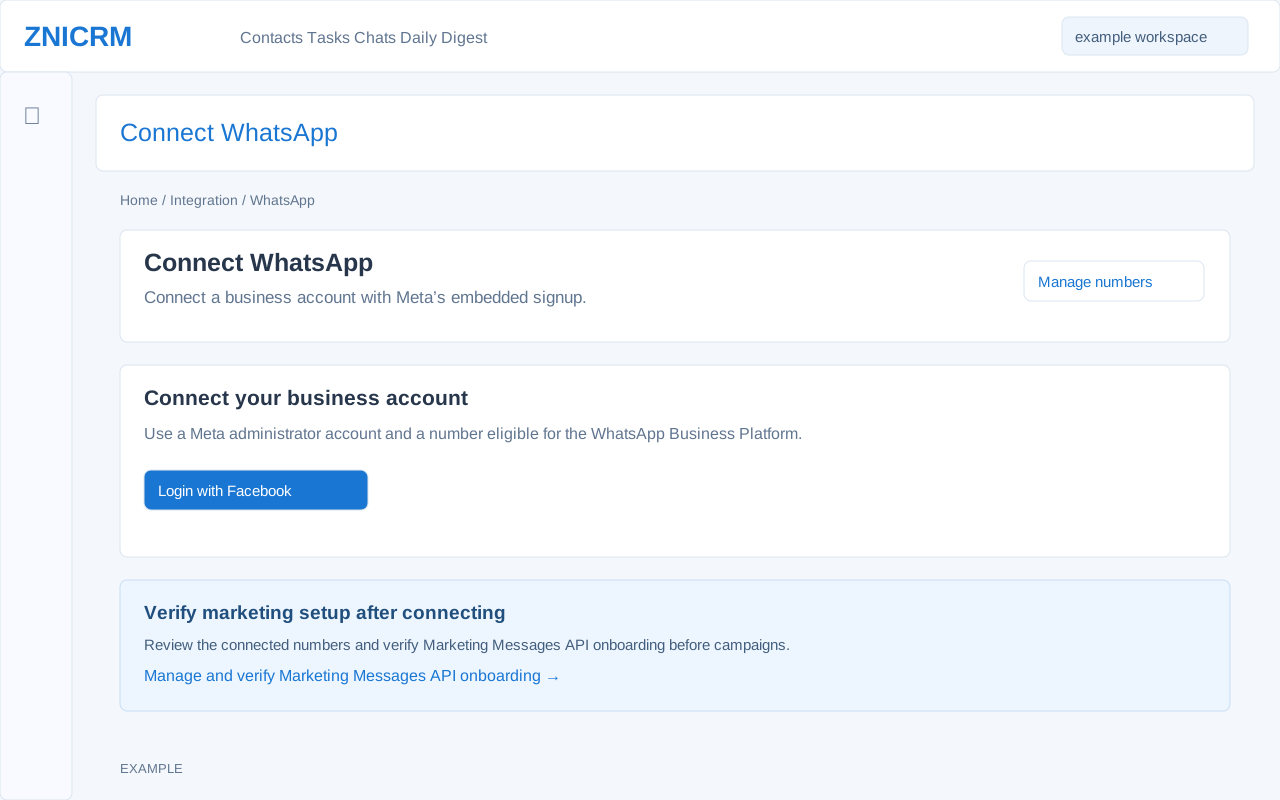
Before starting
The Connect WhatsApp route requires the WhatsApp integration in the plan and an administrator role. Use an authorized business account and an eligible number. The page has no credential-entry fields: Login with Facebook launches embedded signup, Manage numbers returns to WhatsApp Management, and the marketing setup link opens that section.
Connect and verify
- Open WhatsApp Management and choose Add number, or open the Connect WhatsApp screen and choose Login with Facebook. Complete the provider prompts with the intended business account and grant the requested access.
- Wait for completion and inspect the connected numbers in WhatsApp Management. The app verifies account access, looks up numbers, may register a number and subscribe the app for incoming messages, then stores the connection and synchronizes templates. Verify sender health, inbound route and policy before use.
- If signup is cancelled, authorization is denied, the session expires, or the provider does not return the selected account, start signup again after correcting the issue. If completion reports a registration, subscription or save failure, check the sender and provider account before retrying: external setup may already have occurred even if the local save failed. Do not repeat a provider action blindly.
After connecting, verify marketing setup and manage numbers. Marketing is blocked until the app confirms the required onboarding and routing. A connected sender or successful signup is not by itself proof that marketing is eligible or a message was delivered.