IVR service settings
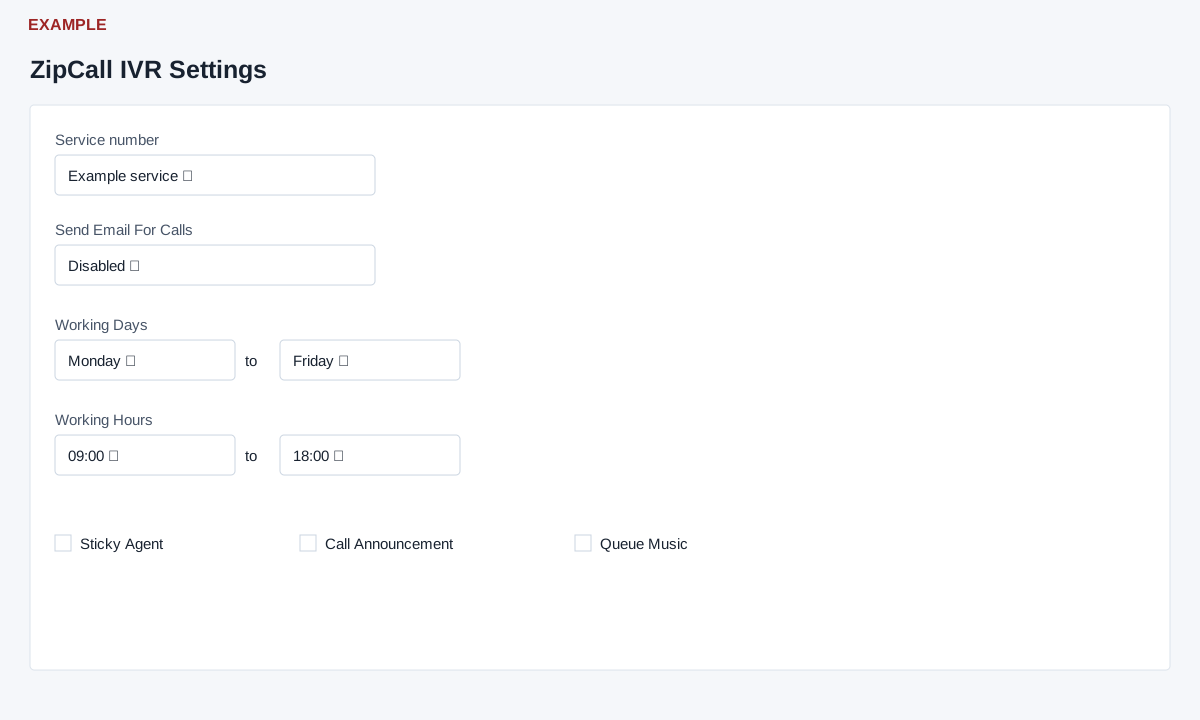
Open the page
Provider IVR settings (/v4/telephony/settings-telephony.php, if available). ADMIN role and CTEL access are required.
Select the service and inspect call behavior
- Select the intended service number. General controls include Send Email For Calls, Working Days, Working Hours, Disable Incoming After Working Hours, Disable Forwarding After Working Hours, Call Recording, No-Answer Voicemail, Sticky Agent, Call Announcement and Queue Music.
- Call-management controls include Duplicate Call Duration Limit, Duplicate Calls / DCDL Minutes, Max Call Duration, Holiday Mode and Forwarding Type. Check the page help and provider configuration for their exact operational effects.
Understand when settings save
- The page saves many dropdown and checkbox settings on change, text settings when focus leaves a changed field, and audio selections on change. There is no single review step for those controls. Choose a service and values carefully; changes can affect live calls.
- Audio options include announcement, after-hours, queue music, agent-busy, voicemail, extension, callback, callback confirmation, recording warning, thanks and invalid-option prompts. Default uses the displayed default choice.
Control reference
Working Days offers SUN, MON, TUE, WED, THU, FRI and SAT as start and end; Working Hours offers 00 through 24 for both. Send Email For Calls is Enabled/Disabled; the two after-hours controls are Yes/No. Recording, No-Answer Voicemail, Sticky Agent, Call Announcement and Queue Music are checkboxes. DCDL is in minutes, Duplicate Calls / DCDL Minutes uses zero for unlimited, and Max Call Duration is in seconds with zero for unlimited. Holiday Mode is Enabled/Disabled; the page warns that calls are rejected and charges and limits may apply. Forwarding Type offers Straight and Cyclic. The provider and plan govern actual service behavior.
The Queue Music checkbox may return a setting-not-found error and not save the change. Audio selectors show Default plus available uploaded files. If selecting Default fails, check the actual result and ask support for help. Callback Request Confirmation may not show its saved selection initially; verify the stored result rather than relying on its initial display. A service selector reloads the page; if a service or its settings are missing, check account linkage and ask support. See audio files.
Review integrations
- The API section displays Call-To-URL, Billing, Call Forwarding, Missed Call, Selective Forwarding and Call Back Request fields marked read-only in this page. Contact the responsible administrator or provider for changes.
- Example: review weekday hours and a welcome prompt for a sample support number before implementing the approved routing plan.