Personal integrations
Connect services to your own CRM account and manage personal email gateways.
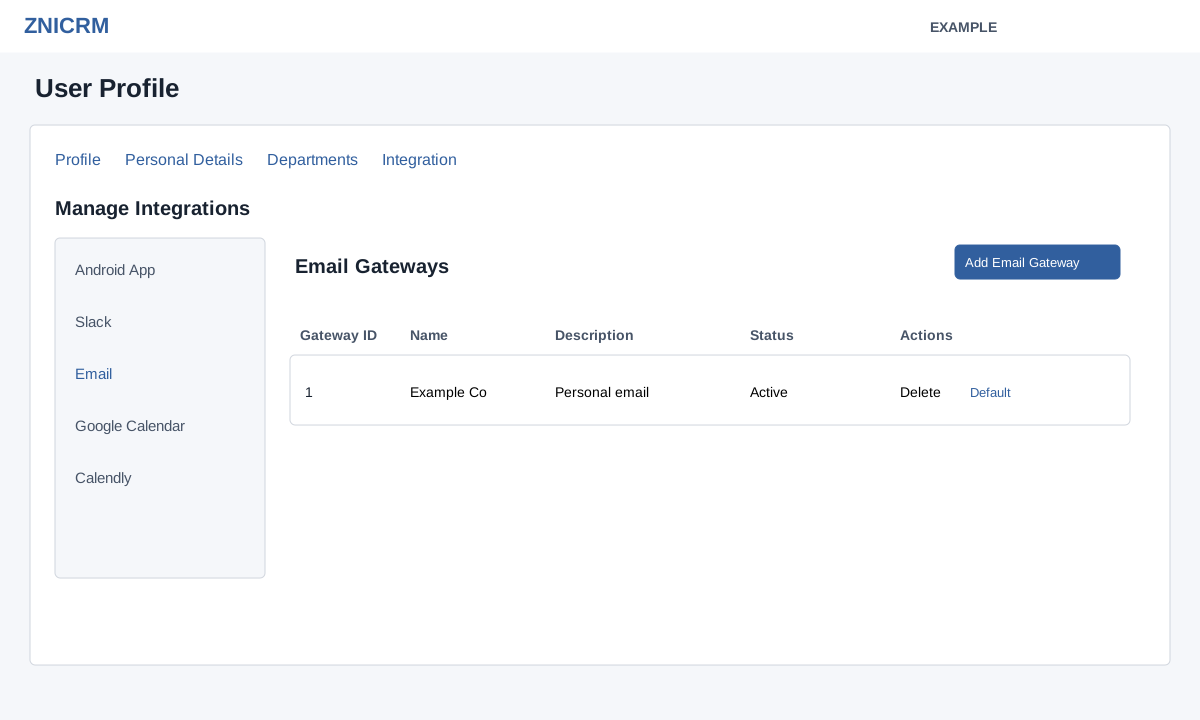
Open connections
From the account menu choose View Profile → Integration, or use Integrations in the account menu. Select Email, Slack, Google Calendar, Calendly or Android App in the integration navigation.
Email gateways
The table displays Gateway ID, Name, Description, Active or Pending status, and a Default badge or action. Make Default is available to administrators; Delete asks for confirmation. Check the resulting table after a change. The personal list shows at most ten active gateways. A user can delete a gateway belonging to that user; the service refuses deletion of the company default gateway. Deleting a Gmail gateway also invokes integration deletion. Removing a gateway can affect mail sent through it.
- Choose Add Email Gateway. Gmail or Google Workspace opens the authorization flow. Complete provider consent in the popup. The popup closes when the connection is established. Return to the gateway list and inspect its status.
- For Outlook, Amazon SES, SendGrid, MailChimp or SendInBlue, select the provider option. The dialog also offers Office 365 and Amazon SES regions. Supply a valid Name, Description, User Name, User Password and From Email; use the provider’s account details. The form requires a description and checks that username and password are each at least eight characters. Choose Save changes.
- For SMTP Account, supply Name, Description, Host, Encryption (None, SSL or TLS), User Name, User Password and From Email. The form maps those encryption choices to ports 25, 465 and 587 respectively; its host must contain at least eight characters. Choose Save changes.
- Confirm the gateway appears in the list and check its status. Send a controlled test through the appropriate email workflow to verify delivery. For Gmail, Outlook or Yahoo, the form advises using the username email as the From address.
If validation or authorization fails, read the displayed error and check the selected provider, host and credentials before retrying. See also Email gateways.
Other connections
- Slack: choose Authorise Slack or Reauthorise Slack and complete provider consent. The page describes alerts to a chosen Slack channel.
- Google Calendar: copy the displayed calendar link for use in Google Calendar; the CRM page itself displays the link and has no connect or revoke button. The page describes one-way CRM-to-Google sync.
- Calendly: choose Authorise and complete the provider flow for new-event synchronization.
- Android App: Download Now opens the app store.
Return to the relevant integration and verify the connection or a controlled event after setup.