Subscription project recurrence
Create a project binding
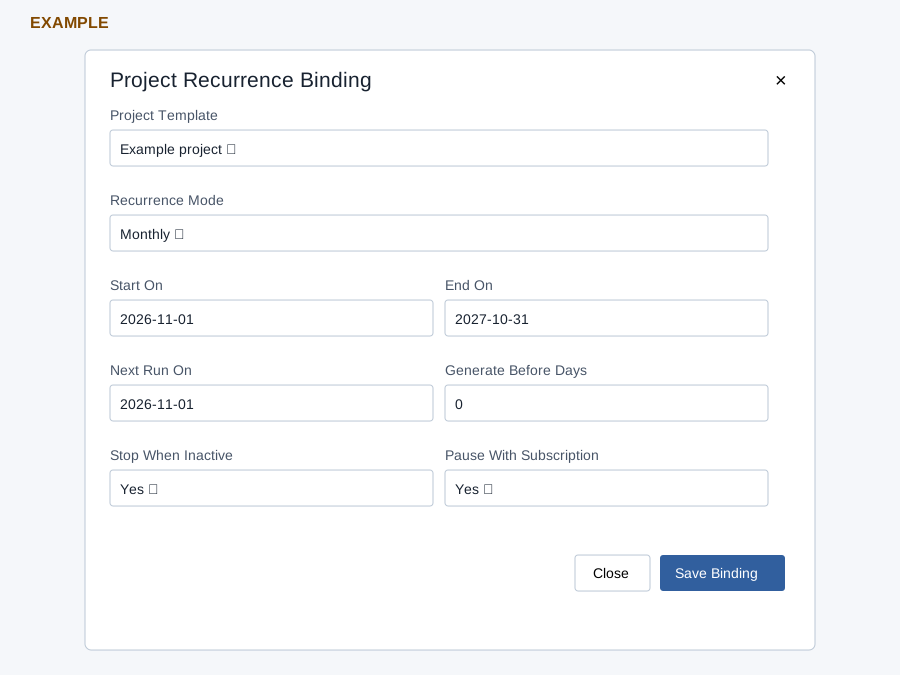
- Open the customer subscription. Project recurrence configuration permission and an active project template enabled for subscription recurrence are required. Choose Project Binding or Add Binding.
- Select Project Template and Recurrence Mode: Subscription Cycle, Monthly, Weekly or Yearly. Start On and End On default from the sold term; Next Run On defaults to its start. Set Generate Before Days from 0–365. The page uses cycle start as the anchor.
- Choose Yes or No for Stop When Inactive and Pause With Subscription. Select Save Binding to create an active binding and reload; Close or × dismisses the dialog. Check the binding’s schedule and status after reload.
Add a task rule
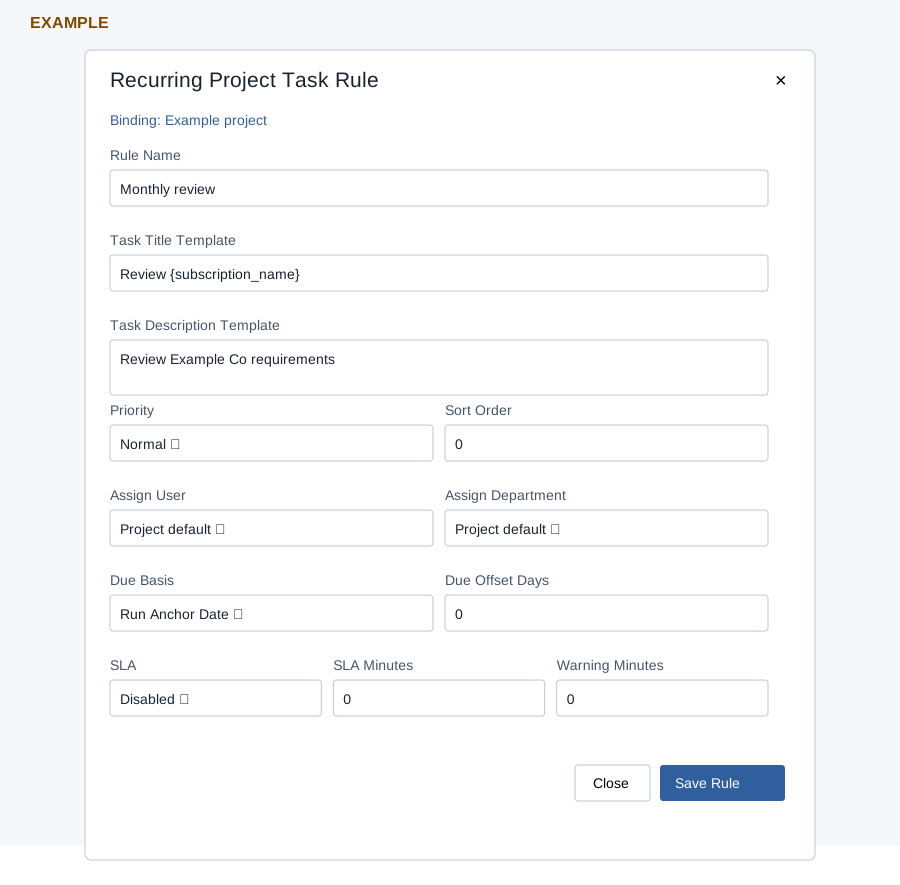
- In Project Task Recurrence, choose Add Rule for the intended binding. Enter Rule Name (2–160 characters) and Task Title Template (2–220); Task Description Template is optional.
- Choose Priority (Normal, Low, High or Urgent), Sort Order (0–999), Assign User and Assign Department (Project default or an available selection). Choose Due Basis (Run Anchor Date, Period Start or Period End) and Due Offset Days (−365 to 365).
- Choose SLA Disabled or Enabled and set SLA Minutes and Warning Minutes, each 0–525600. Select Save Rule to create an active rule and reload; Close or × dismisses it.
- Pause or Activate changes the binding’s status. Run Project Tasks / Run Due Project Tasks processes due recurrence and may create tasks. Inspect the binding and Generated Project Tasks after reload before repeating a slow or failed run. The page loads at most 100 bindings and 100 generated tasks; a loading exception can hide recurrence controls.
For Example Co, bind an enabled template and add a monthly review rule, then verify the saved schedule and generated tasks. If controls are absent, check recurrence permission and template eligibility; a saved rule alone does not prove a task was generated.