Create and manage a purchase order
Use this page
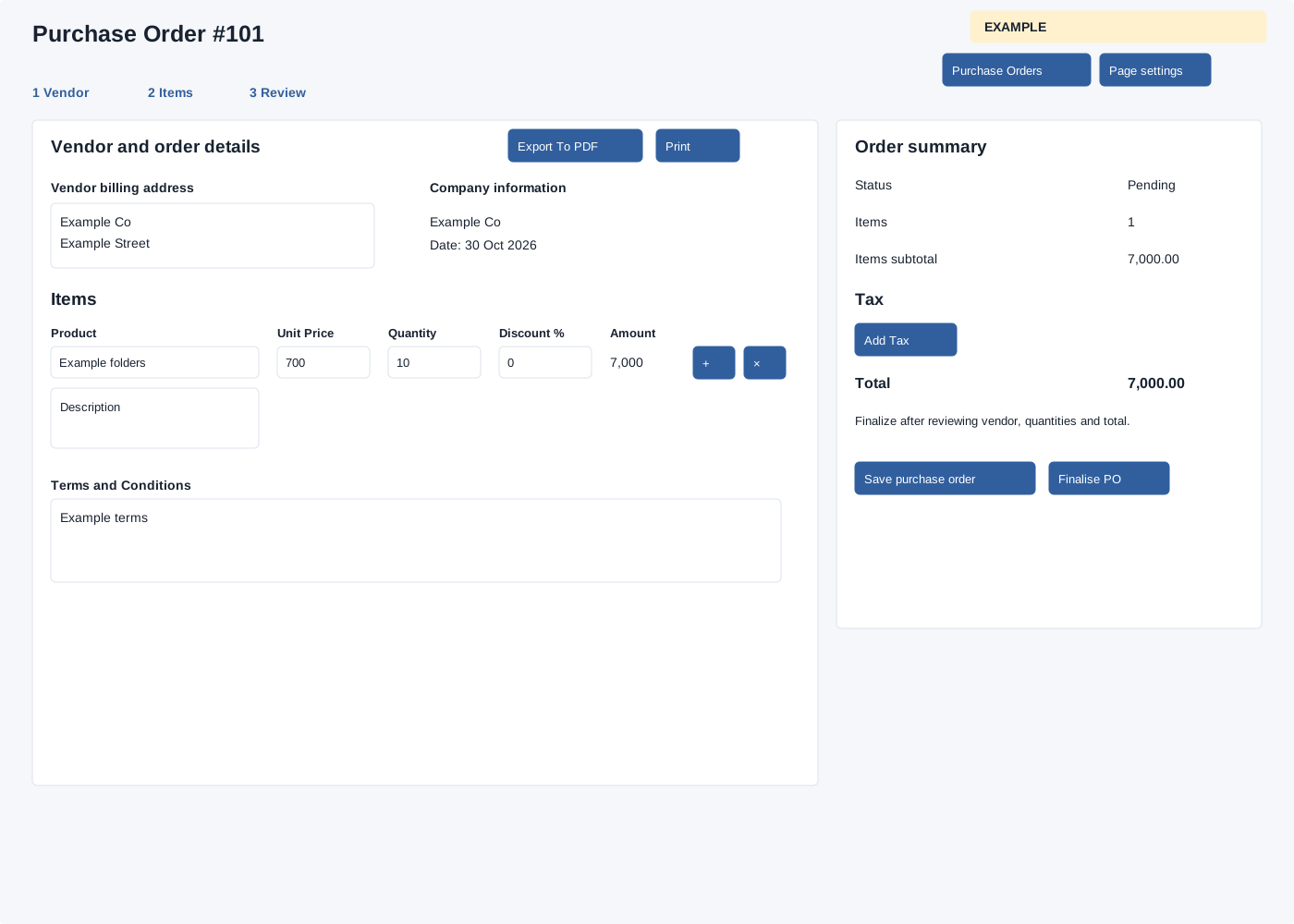
Open Inventory → New Purchase Order or a Pending order’s Edit draft. Inventory access and administrator or manage-products permission are required. A finalized or delivered order is forced to the show view even if Edit is requested.
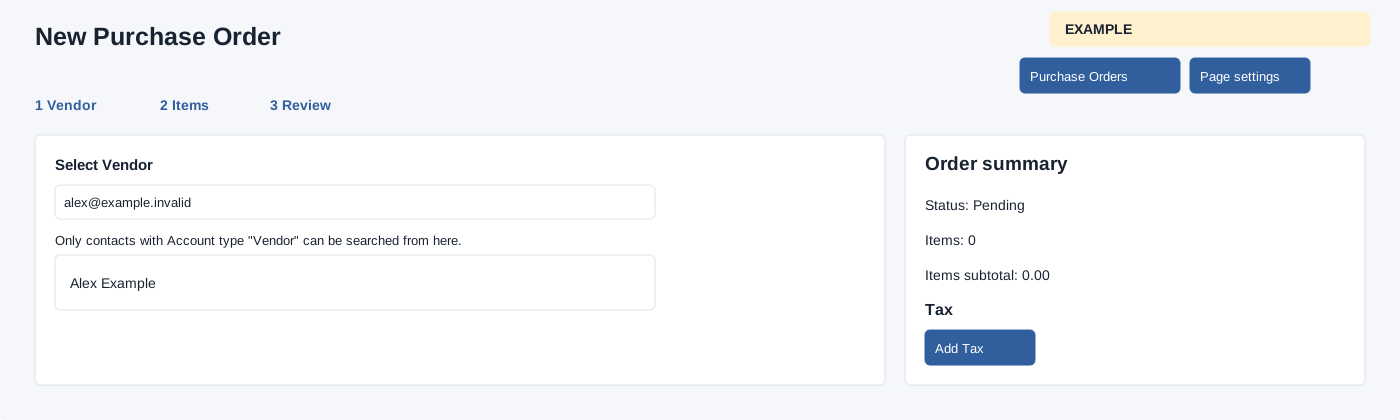
- For a new order, search Select Vendor by email or phone (suggestions require at least five characters) and select a vendor contact. A company suggestion is not accepted. Review the editable Vendor billing address and company information. For an existing order, editing the billing address sends an update immediately.
- Add a Product from suggestions, Description, Unit Price, Quantity and Discount %. Use plus to add and trash to remove a line. Removing an already saved line sends an immediate delete, rather than waiting for the main save. Review calculated line amounts and Order summary. The service rejects duplicate product rows; a discount outside 0–100 is stored as zero.
- Enter optional Terms and Conditions. Add Tax opens Select Tax; choose an available configured tax and Add Tax, or Close. Remove tax with its trash control; duplicate selections are rejected. Adding tax changes the editor until Save purchase order submits the tax list. Removing a previously saved tax only removes it from the displayed list: the save service does not delete omitted tax rows, so the tax can reappear when the order is reopened. Do not rely on this removal to correct a saved order; seek administrator support and verify the saved taxes. Review tax and gross totals, then Save purchase order. A successful save opens the order in edit mode. If an error occurs, inspect the saved order before retrying: creation, items, taxes and total are saved separately.
- For a saved order, Export To PDF and Print open output views. Finalise PO asks for confirmation; on success the page reloads and the order is no longer editable through this UI. Final orders show Receive stock, which requires Inventory add-stock permission or administrator role. Delivered orders show Delivery Date, Invoice No, Payable Amount (Pre Tax), Remarks and item-level Item Name, Rejects, Delivered Quantity, Batch Code and Expiry Date.
The last remaining item row cannot be removed. The Vendor, Items and Review section buttons scroll within the page. A Finalise PO action needs an existing saved order; the confirmation warns that it cannot be edited afterward. Use whole-number quantities; order quantities are stored as integers. Line amount is price × quantity less the percentage discount; each tax is calculated on the same subtotal and added to it. Check the saved values and totals, especially if an invalid discount was entered. A non-admin with manage-products permission may pass the order modification check for a company order; unexpectedly, an administrator is checked against the order owner in that service, so an administrator editing another owner’s order may be rejected. For Example Co, select the vendor and add ten folders at 700, then verify quantities and total in the saved draft before finalizing. If the vendor or item is missing, check CRM vendor and catalog records and permissions. If a save reports an item or tax error, review the draft before retrying.
Receive the finalized order
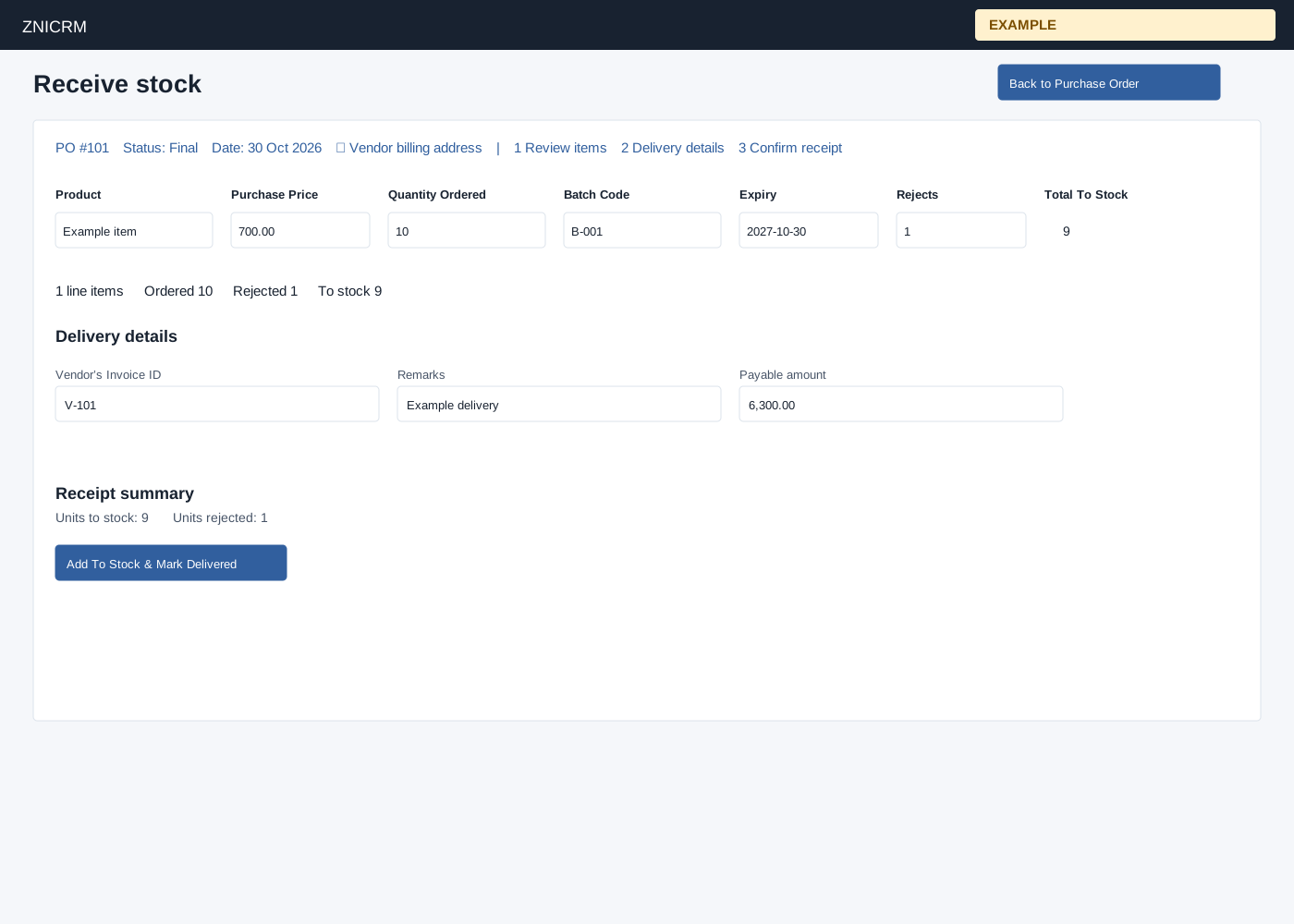
Select Receive stock on a Final order. Review read-only Product, Purchase Price and Quantity Ordered. Enter optional Batch Code and Expiry, and Rejects between zero and the ordered quantity; Total To Stock and the ordered, rejected and received summaries recalculate. Enter required Vendor’s Invoice ID and a nonnegative Payable amount; use whole-number quantities because the receipt service stores quantities as integers. Remarks are optional. Review and adjust the payable to match the vendor invoice. Add To Stock & Mark Delivered submits the stock receipt and marks the order Delivered; the button is shown for Final status. On success the status changes on screen. Reopen the order and check Delivery Details and each item’s stock audit; the service does not check stock-add errors or use a transaction, so a success or failed response may not establish that all stock movements succeeded. Inspect before retrying to avoid a duplicate credit. See receipt details.
Tax selection
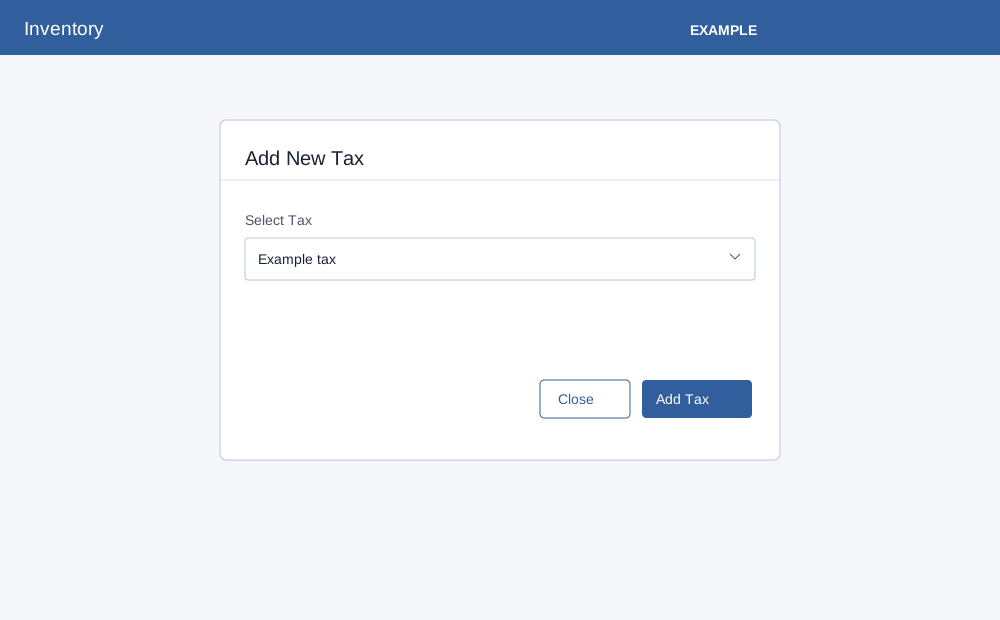
Select an available configured tax in Select Tax, then Add Tax; Close dismisses the dialog. Duplicate tax selections are rejected. Save adds or updates submitted taxes, but does not delete an existing tax omitted from the submitted list.