Receive a finalized purchase order
Use this workflow
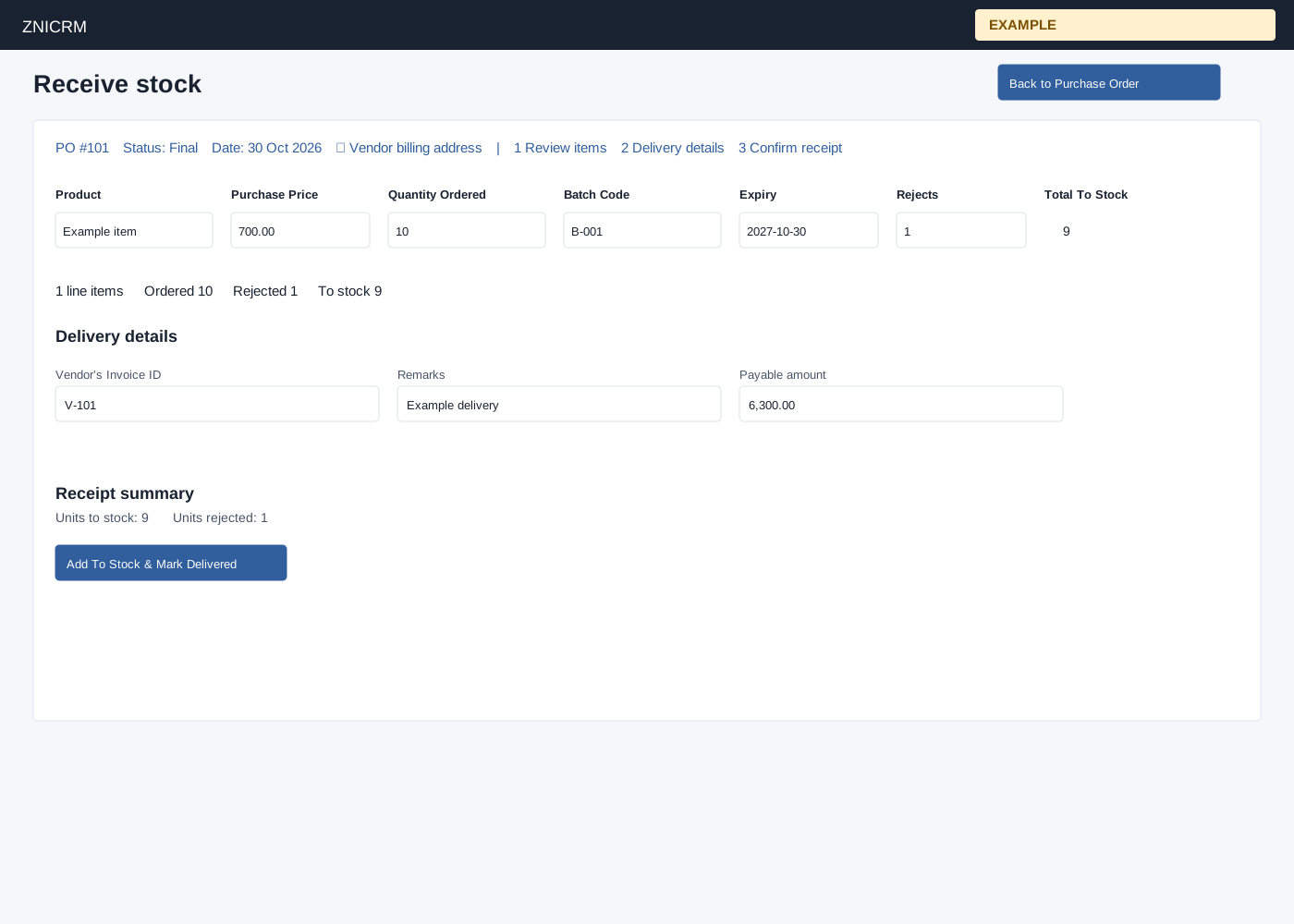
Open Inventory → PO List → the finalized purchase order → Receive stock. Inventory access and the applicable stock permission are required. The header offers Back to Purchase Order and Page settings. The receipt context shows PO number, status and date; expand Vendor billing address to review it. Review items, Delivery details and Confirm receipt move to those sections. Review each line’s Product, discounted Purchase Price and Quantity Ordered. Enter optional Batch Code and Expiry; enter Rejects between zero and ordered quantity. Total To Stock is the ordered quantity less rejects. The summary shows line items, Ordered, Rejected and To stock.
Enter the required Vendor’s Invoice ID, optional Remarks and a nonnegative Payable amount. The page calculates a pre-tax payable amount from received quantities and discounted prices; changing Rejects recalculates and overwrites the payable field, so make any invoice adjustment afterward. The entry records a payable amount; it does not itself pay the vendor. Review it before selecting Add To Stock & Mark Delivered, which is shown for Final orders. The receipt attempts to save delivery line details, credit positive received quantities to stock, and mark the PO Delivered with delivery details and payable amount. It does not check the stock-add return value and does not wrap those writes in a transaction: Delivered or a success message alone does not prove every stock credit succeeded. Only stockable products can be credited. On success the same page shows Delivered and a success message; use Back to Purchase Order to inspect Delivery Details and the item audit trail. The button remains disabled after success.
Receive an order and verify each result
- Confirm the PO is Final and matches the delivery. Review the vendor, products and ordered quantities before entering receipt data.
- For each line, enter any Batch Code and Expiry, then the number rejected. Compare Total To Stock with the physically accepted quantity. Use whole units.
- Enter the Vendor’s Invoice ID and optional Remarks. Make the final Payable amount adjustment after changing rejects, because recalculation replaces that field.
- Review all lines and the pre-tax payable. When the delivery is ready to be recorded, select Add To Stock & Mark Delivered once.
- Return to the PO and verify Delivery Details. For every received product, inspect the stock audit and resulting quantity. A Delivered status alone does not confirm that stock was updated; check the inventory quantities.
- If any line is missing or a response is uncertain, stop and have an administrator reconcile the PO and stock movement. Do not submit the whole receipt again to repair one line; repeated submissions can credit stock again.
Use whole-number quantities and rejects. Although the form accepts decimals, delivery and stock records use whole units. Fractional quantities shown in the preview are not preserved in the stock record. If a request fails or its result is uncertain, check the PO and each item’s stock audit before any retry: partial writes or repeated credits are possible. For an order of 10 units at 700 with 1 reject, check that 9 go to stock and the calculated payable is 6,300 before confirming. If blocked, check rejects, vendor invoice ID and payable amount. Do not repeat a successful receipt while investigating a display delay.