Product detail and issue stock
Use this page
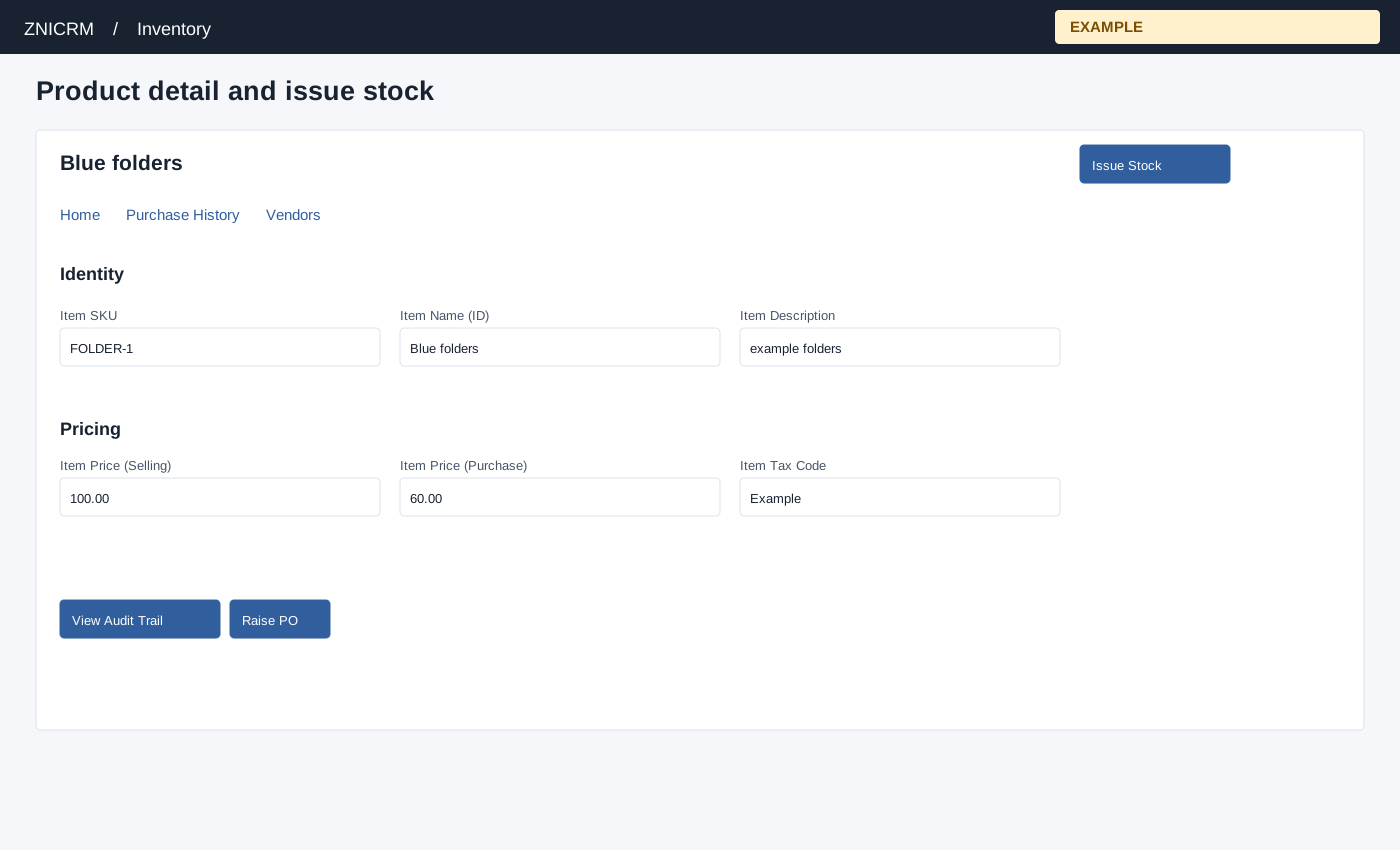
Open a product from Product List. For Goods, eligible stock users see Current Stock, Sold This Month and Purchased This Month. The monthly figures sum SELL and PURC stock log quantities from the first of this month through today, not invoice totals or all adjustments. Home also shows Identity, Pricing and Availability. Authorized managers can edit Item SKU, Item Name, Item Description, selling price, purchase price, tax code, status, search visibility, and for Goods threshold and priority. Status choices are Enabled/Deleted; visibility Yes/No; threshold is a nonnegative whole number and priority is 0–10. Select an outlined value, enter the change and use its save control. Name, description, SKU and tax code updates require a nonempty value. Price validation accepts nonnegative numbers, but the literal value 0 can be rejected as empty; if a zero price is needed, verify the saved value after entering a decimal representation such as 0.00. Editing an item name changes the name but does not update the duplicate-name hash used during creation; verify carefully before relying on duplicate checks. Purchase price and availability controls depend on permission. Delete Item asks for confirmation and marks the item inactive.
For Goods and a user with administrator, manage-products, add-stock or delete-stock permission, Issue Stock opens a dialog. Enter Item Quantity as a positive whole number no greater than current stock, optional nonnegative Price, required Debit Reason (Return, Expired, Spoiled/Damaged, Wastage, Company Recall or Other), and optional Remarks. Select Issue Stock to debit the quantity and record a stock log; Cancel closes the dialog. This adjustment is not a sale; record sales through an invoice. The quantity and submit controls are disabled when stock is zero or negative; receive or reconcile stock first. Submitting opens a confirmation; cancel returns to the dialog. On success acknowledge the message and the page reloads. Refresh if stock changed concurrently and inspect Audit Trail before retrying.
View Audit Trail opens movements, Raise PO starts an order; for receiving a finalized order see Receive a finalized purchase order, and View Vendors opens the Vendors tab. For Goods and eligible stock users, Purchase History shows Date, Quantity, Price, User and Remarks; Vendors shows Name and Company Name. These tabs are not displayed for other types. Add Images opens a multiple-file upload dialog. Travel Details is available for the Travel product type; saving requires travel product permission and the necessary storage.
Add product images
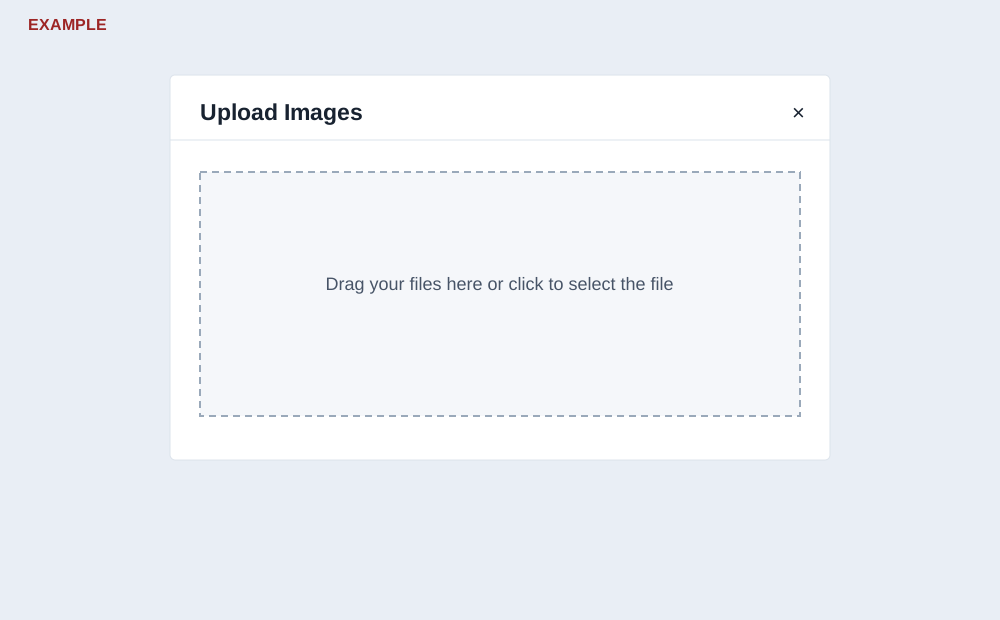
In Home, find Product Images and choose Add Images. In Upload Images, drag images into the drop area or click it to choose files; the picker supports multiple files and the page permits up to 10 files. Use an image with a PNG, GIF, JPEG or JPG filename. Uploads start as files are added; there is no separate Save button. Wait for each file to finish before closing the dialog. Close with ×; closing reloads the item page. Check that each image appears under Product Images and select a thumbnail to open it in a new tab.
If an image fails, check its filename extension and retry that file. If the result is uncertain, close and check the gallery before retrying to avoid duplicate uploads. An empty gallery says No product images yet. This page does not provide an image deletion control.
Travel Details
For a Travel item, select Travel Details. Travel CRM access, product permission and the necessary storage are needed to save; the page can show messages and disable Save Travel Details when access is unavailable. Contact your administrator if Travel Details cannot be saved. These fields enrich the same inventory item for the Travel Product Library. The form does not mark these metadata fields required:
- Travel Type: select GENERAL (default), HOTEL, FLIGHT, TRANSFER, ACTIVITY, CRUISE, RAIL, INSURANCE, VISA, MEAL or CUSTOM. Supplier: No supplier or a listed active supplier; the selector loads up to 200. A selected supplier must belong to the company.
- Duration Minutes: nonnegative number, default 0. Destination Country, State and City: text, each stored up to 90 characters; Location Name: text up to 180.
- Default Start Time and Default End Time: time inputs. Hotel Star Rating: optional number from 0 to 7 in 0.1 steps; Room Type and Meal Plan: text up to 90 characters each. Activity Difficulty: text up to 45 characters.
- Pickup Point and Dropoff Point: text up to 180 characters each. Client Description, Internal Notes, Booking Terms and Cancellation Policy: optional multiline text. Inclusions and Exclusions: one item per line, stored as lists.
Choose Save Travel Details. A success toast appears on the same page; reopen the tab or reload to verify values. Open Travel Product Library navigates to the travel catalog. For a HOTEL item, choose a supplier, set a city and room type, and save; verify them in the library. If saving is disabled, check travel access and any storage warning; if rejected, check that the supplier is valid for the company.
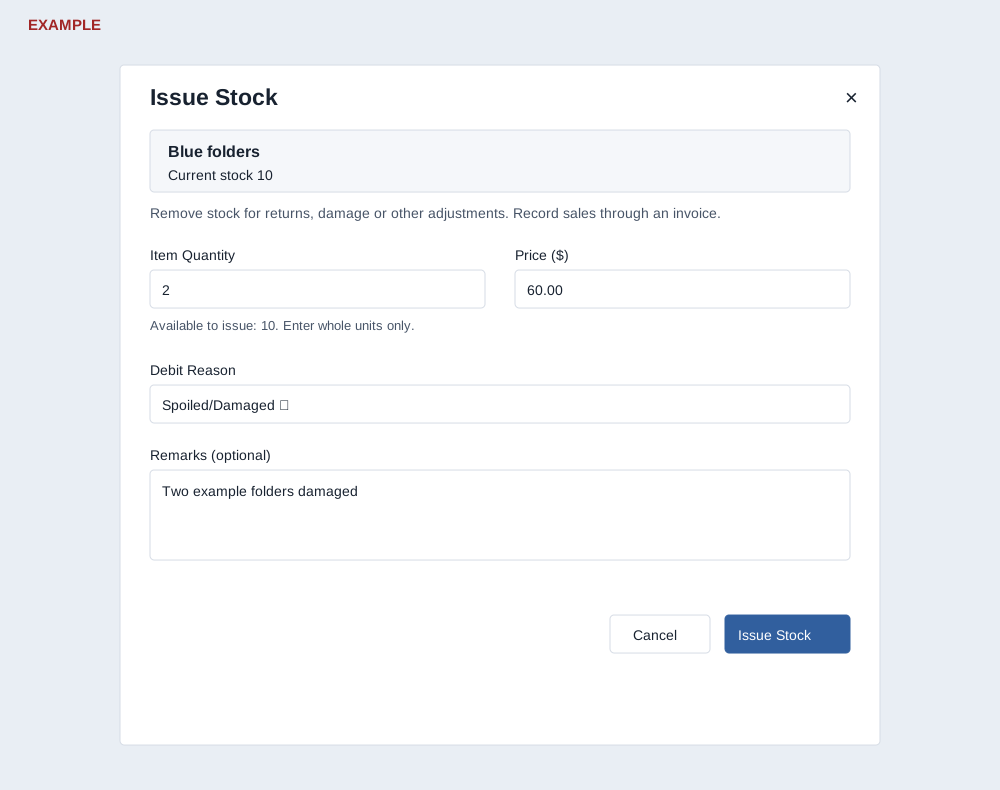
Example: issue 2 damaged folders from 10 in stock; verify 8 remain and a debit appears in Audit Trail. Do not submit again if the result is uncertain until the stock and log are checked.