Ticket workspace and customer context
Availability depends on your Helpdesk settings and permissions.
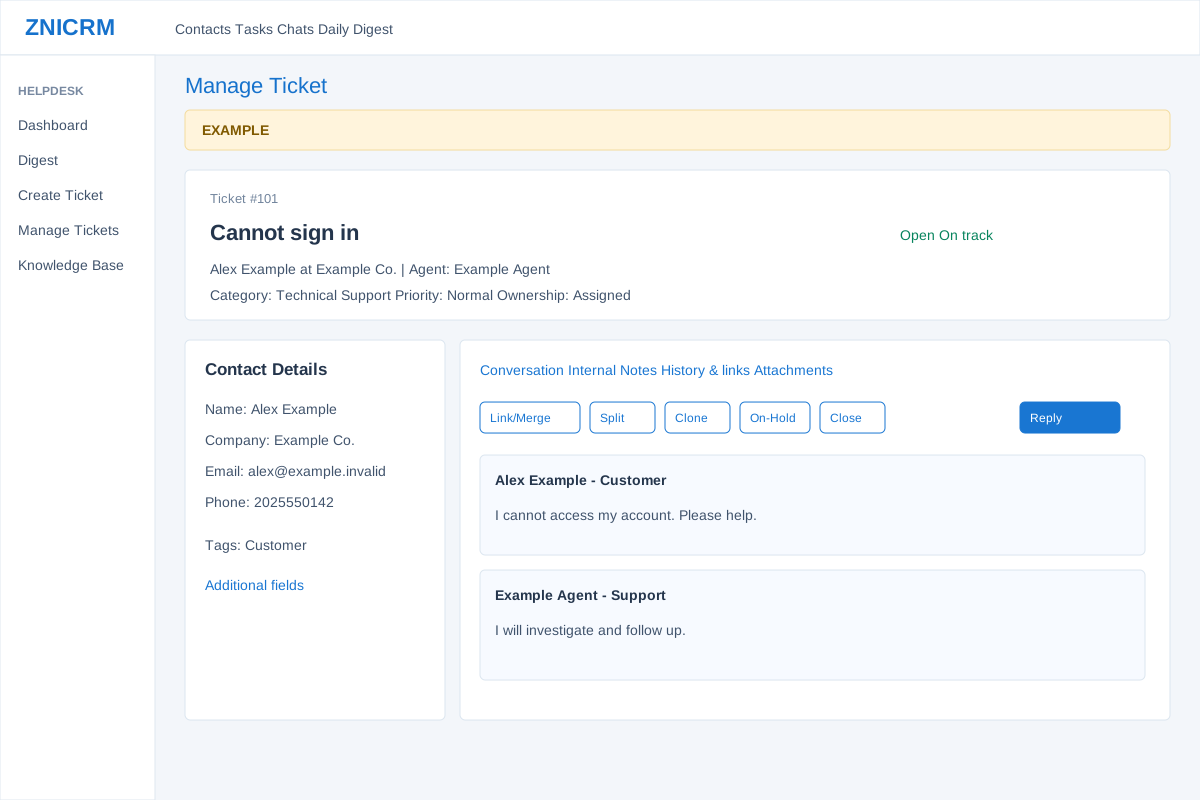
Open the page
Helpdesk → Digest or Manage Tickets → open a ticket. Helpdesk app access and a ticket available to your user are required.
Review the ticket
- The header identifies the ticket, subject, status, customer and company, agent, category, priority, ownership and SLA risk indicator. Ticket Stats shows created, captured and closed times, resolution time, and available SLA details.
- Contact Details shows name, company, email, phone, CRM manager, tags and Additional fields. Category, priority, assignment, tags and editable custom fields can update the live record; review the field and permissions before changing them. Capture is shown for an unowned ticket.
Navigate the work area
- Conversation contains customer correspondence and ticket actions. Internal Notes, when enabled, is for team-only notes. History & links includes watchers, related tickets and available lifecycle, transfer and feedback information. Attachments lists available files.
- The side panel can show Ticket Clock, Time worked and Previous Tickets. Opening a ticket records a viewed event and can update its escalation state.
- Example: Alex Example’s access ticket is open, assigned to Example Agent, and needs a response.
See Ticket fields and reply assistance for field saves, transfer and draft tools.