Follow-up Intelligence settings
Set how long a lead can wait for a response, retry or next action, and decide which follow-up alerts your team receives.
Open the page
Account Settings → Features Settings → Follow-up Intelligence. Administrator role and REMINDERS feature access are required.
Choose the scope
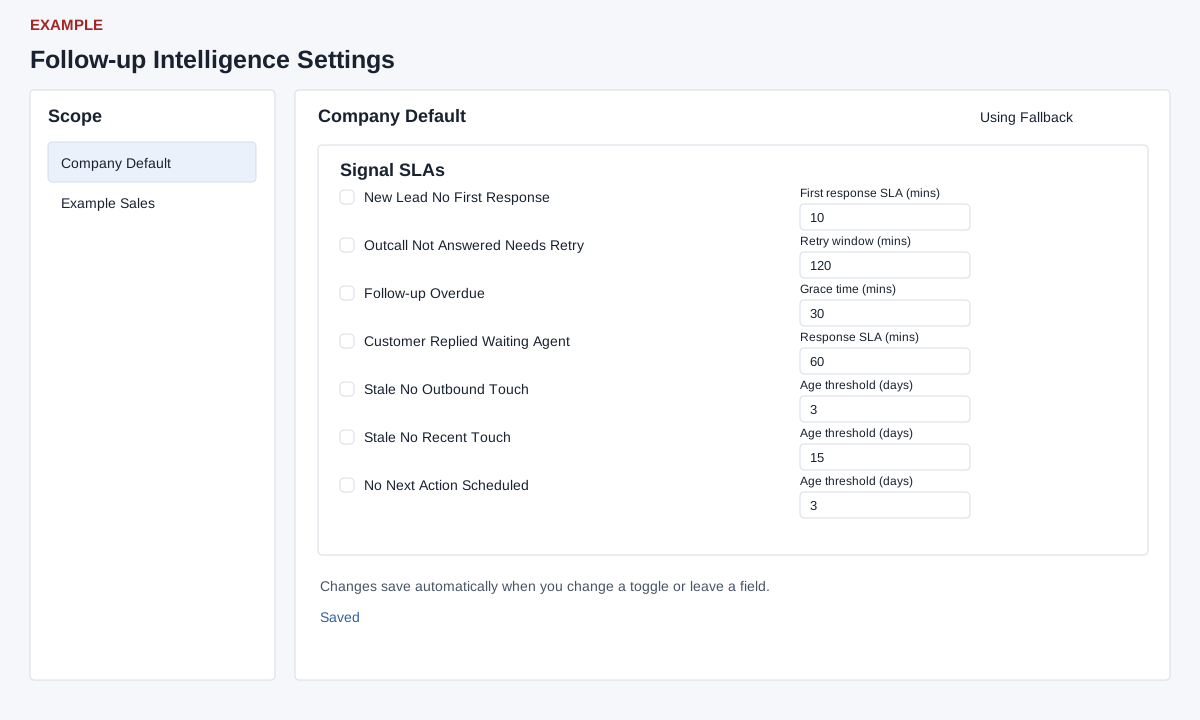
- Select the company default or a department. A department without an override shows Using Fallback. Changing its settings creates a department-specific override.
- Changes save automatically when a toggle changes or a field loses focus. Watch the save status; a failed save restores the previous displayed value. An empty numeric input also reverts. Use Company Default asks for confirmation and removes the department override, then reloads the department with fallback values. These actions change live rules.
Configure signal thresholds
Each signal has an enable switch and its own time threshold. The values below are source fallback values, not a statement of the values saved in your workspace. Read the displayed value before changing it.
| Signal | CRM meaning | Threshold |
|---|---|---|
| New Lead No First Response | A newly created lead has not received an outbound response. | First response SLA, minutes; minimum 1; fallback 10. |
| Outcall Not Answered Needs Retry | An unanswered outbound call has no newer action. | Retry window, minutes; minimum 1; fallback 120. |
| Follow-up Overdue | A scheduled follow-up on an active lead is past due. | Grace time after due time, minutes; minimum 0; fallback 30. |
| Customer Replied Waiting Agent | A customer reply is waiting for an owner response. | Response SLA, minutes; minimum 1; fallback 60. |
| Stale No Outbound Touch | An active lead has never received outbound contact. | Age threshold, days; minimum 1; fallback 3. |
| Stale No Recent Touch | There is no recent inbound or outbound activity. | Age threshold, days; minimum 1; fallback 15. |
| No Next Action Scheduled | A contacted lead has no future next action. | Age threshold, days; minimum 1; fallback 3. |
- Choose the company or department scope first.
- Enable the required signal, then enter its threshold in the units shown.
- Leave the number field to trigger autosave. Wait for Saved before changing scope.
- Reopen the same scope and confirm both the switch and threshold. A reverted value or error means the requested change is not confirmed.
Choose notifications
| Control | Effect |
|---|---|
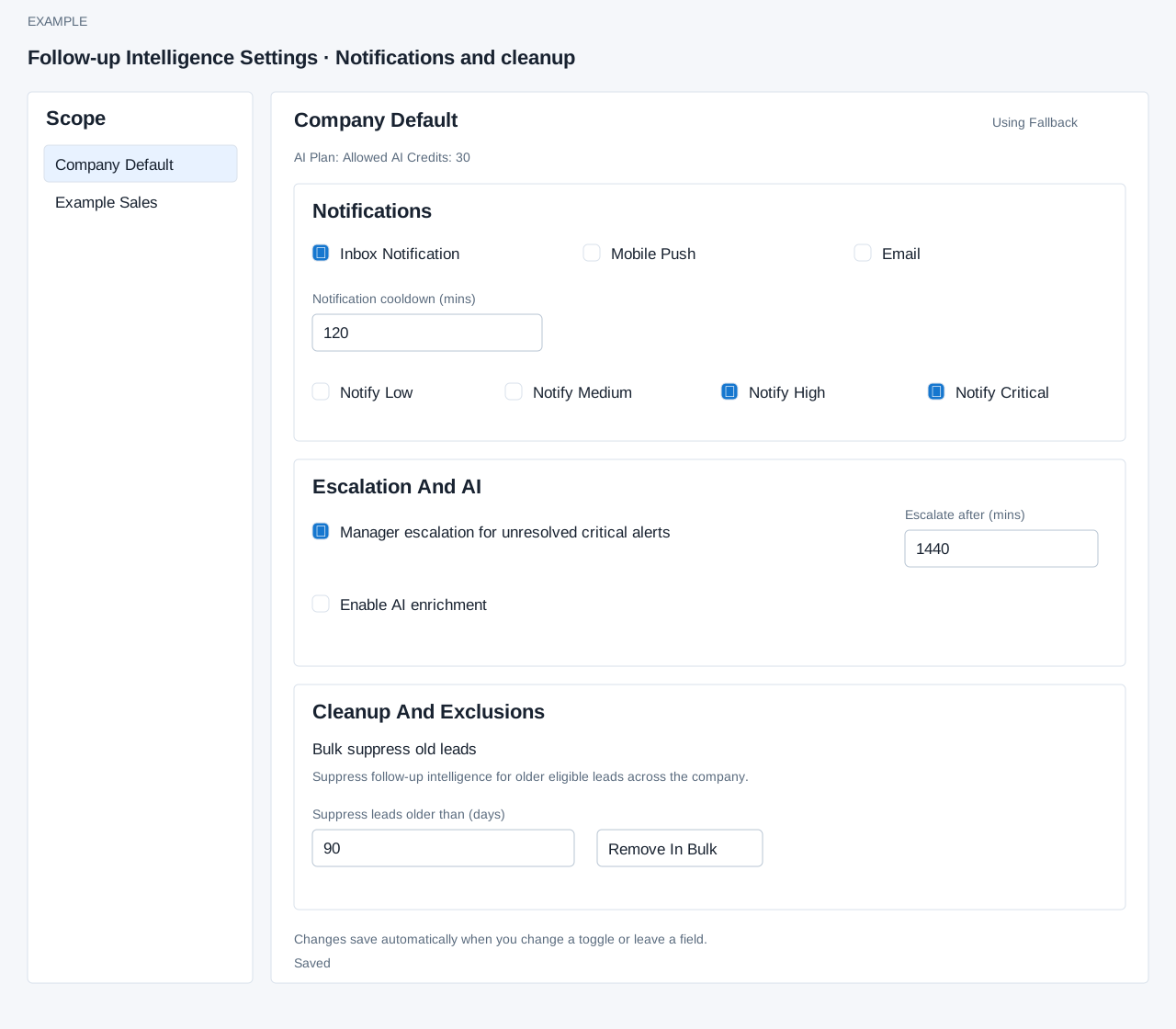
| Inbox Notification | Creates in-app notification rows and realtime inbox updates. |
| Mobile Push | Uses registered mobile devices and the configured push delivery service. |
| Uses the configured email delivery system. | |
| Notification cooldown (mins) | Minimum interval for repeated notifications for the same alert; the form minimum is 1 minute. |
| Notify Low / Medium / High / Critical | Choose which severity levels can generate notifications. These switches select alert levels; they do not set the lead's priority or a contact status. |
Enable the required channels and levels, set the cooldown, and wait for each autosave. Delivery depends on the selected channel and its infrastructure; a saved checkbox is not delivery confirmation.
Escalation, AI and cleanup
- Enable Manager escalation for unresolved critical alerts to create escalated queue items for administrators and department managers. Set Escalate after (mins) to at least 60. Check the AI Plan and AI Credits summary before using Enable AI enrichment; that switch is disabled when the plan does not allow it, and available credits are also required.
- Company-level Remove In Bulk asks for confirmation and processes at most 5,000 visible queue rows, including snoozed rows; it does not scan every company lead. For each distinct contact it compares the first available last activity, due, detected, or created timestamp with the chosen cutoff. Matching contacts are suppressed and their active alerts resolved. The screen states only INPROGRESS leads are considered; JUNK and UNQUALIFIED are ignored. Review scope and age before confirming, then read the reported suppressed-lead and resolved-alert counts.
- Example: a team sets a 10-minute first response SLA and reviews the new Daily Digest for follow-up work.
Verify the operational result
For a training team, set a 10-minute first-response SLA for the Sales department and confirm the Override Active status after saving. Reopen Sales to verify the threshold. In an authorized test workspace, review an eligible unanswered lead in the new Daily Digest after the processing cycle. Check that the signal and age match the rule; saving does not confirm that processing ran. Check scope, signal switch, lead eligibility, processing activity and delivery channel when expected alerts do not appear.