Edit a CRM filter
Build reusable contact conditions and inspect their scope before using them for reporting or a bulk operation.
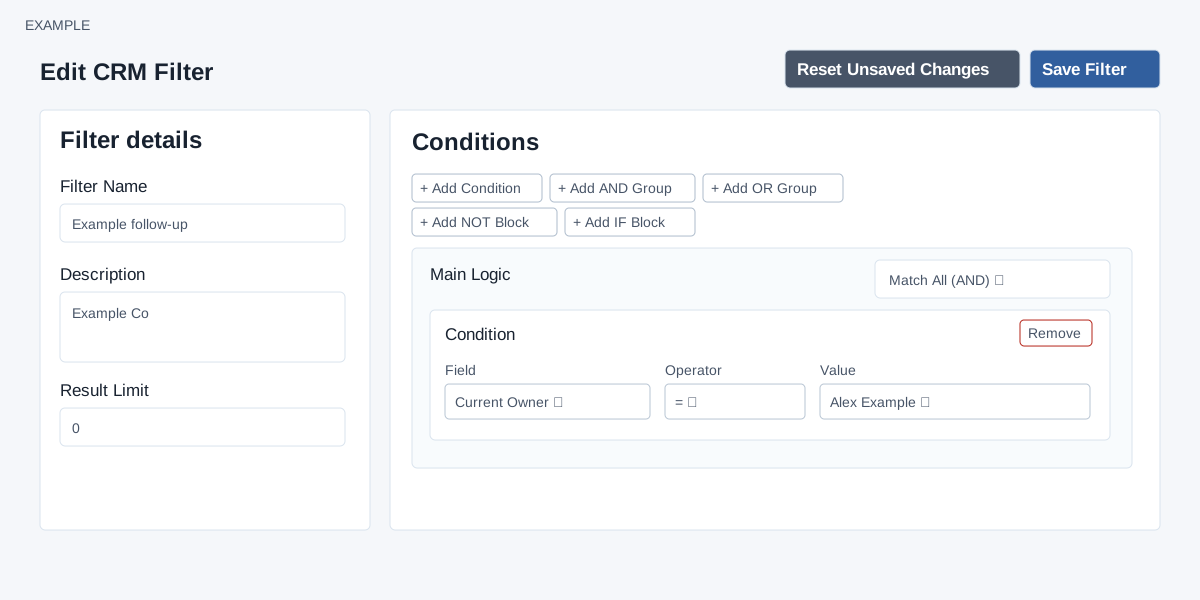
Open and configure
Open CRM → Reporting Filters → Edit on a saved filter. CRM access and a valid filter are required. The page displays the saved match count and permission scope; the count describes the saved definition, not unsaved edits. A lock disables saving and maintenance and shows its reason. A Needs Review badge can indicate a definition requiring review.
Filter Name is required, maximum 45 characters; Description is optional in this editor, maximum 1,000. Result Limit is an integer from 0 to 10,000; 0 uses the normal result size. The Contacts screen applies a positive saved limit. Background utilities do not apply that limit to advanced filters. Do not rely on Result Limit alone to restrict an export, transfer or deletion; use precise conditions and verify scope. Scope can be Admin, Self Only, Self + Team or Team + Unassigned according to permissions. This does not grant access beyond that scope.
Build conditions
Main Logic and groups offer Match All (AND), requiring every child, or Match Any (OR), requiring any child. Add Condition creates Field, Operator and Value controls; operators and value input change with the field. Add AND Group or OR Group to nest rules; Add NOT Block excludes matches to its child; Add IF Block provides When, Then and Else branches. Nested groups have their own add controls, Clear and Remove. Reset Builder and Reset Unsaved Changes both restore the original loaded editor state; neither saves.
| Fields | Operators and values |
|---|---|
| Current Owner, Created By, Lead Status, Lead Source, Product, Lead Category, Country, Industry, Deal Status, Invoice Status, Subscription Status, Account Type, Custom Form | =, !=, IN or NOT IN; choose one or, for IN/NOT IN, multiple account-specific values. Owner choices reflect scope; unassigned is available only where permitted. |
| Invoice Status | Pending, Paid or Void. |
| Subscription Status | Available lifecycle choices include Draft, Pending, Active, Trial, Grace, Past Due, Paused, Completed, Cancelled and Terminated when enabled by the subscription engine. |
| Created Date | =, >=, <= or BETWEEN; BETWEEN has From and To date inputs. |
| Created Within (Rolling) | = or !=; Today, Yesterday, Last Seven Days, Last 15 Days, This Month or Last Month. The period moves over time. |
| Last Activity On | =, != or BETWEEN and date input(s). |
| No Contact In Last (Days) | = and integer 0–999. The help describes inbound and outbound follow-ups at least that old. |
| Partner Company | = or !=, positive company ID; search a partner company to fill it. |
| Tags | IN or NOT IN with multiple tags. |
| Deleted State | = or !=, Active Contacts or Deleted Contacts. |
Definitions allow up to 250 nodes, 12 levels and 100 values in a multi-value condition. For Example Co’s team, start with Current Owner = Alex Example AND Lead Status = the configured follow-up status. Save and then check View contacts before scheduling a transfer.
Understand the match before using the filter
IN means any of the selected values; NOT IN excludes all of those selected values. For example, Tags IN “Priority” and “Renewal” matches a contact with either tag. To require both tags, add two tag conditions inside Match All. A related-record field such as Deal Status, Invoice Status or Custom Form checks whether a matching related record exists. Invoice Status = Paid can match a contact who also has a pending invoice; Invoice Status != Paid means no matching paid invoice, and can include contacts with no invoices.
Product checks both contact product associations and products on the contact’s deals. Last Activity On checks whether any conversation entry exists on the specified day or interval; it does not check only the latest conversation. Its != option means no conversation on that day. No Contact In Last (Days) compares stored inbound and outbound follow-up times against the start of day that many days ago. It is not simply an elapsed-hours counter; missing follow-up timestamps may prevent a match.
An IF block chooses which condition must match. For example, When Lead Status = Lead, Then Current Owner = Alex Example, Else Current Owner = Sam Example matches leads owned by Alex and contacts whose status comparison is false owned by Sam. A missing status can produce an unknown comparison and may match neither branch. It does not assign either owner. NOT reverses a true or false condition. A missing value may not match either side. An empty Match All group imposes no restriction; an empty Match Any group matches nothing. Fill both IF branches deliberately: an empty Match All Else branch allows contacts that do not match When, within the permitted scope.
Check custom date boundaries
Created Date = a date matches that whole calendar day. Created Date BETWEEN and <= use the selected date values directly; a date-only upper bound can stop at midnight at the start of that date. This differs from Last Activity On BETWEEN, which includes the whole final day. Review boundary records before using a custom range for a bulk operation.
To express a full custom period with the available builder controls, use Match All with Created Date >= the first day and a NOT block containing Created Date >= the day after the last day. For example, >= 2026-10-01 AND NOT (>= 2026-11-01) selects October’s creation interval. Date boundaries use stored dates and the system’s date interpretation; check records near midnight if your working timezone differs. Rolling periods are recalculated when used, so a saved audience can change before a background job runs.
Save and recover
Save Filter validates and updates name, description, limit and conditions in sequence. If a later update fails, earlier updates may already be saved; reload and inspect all fields before retrying. Clear Saved Conditions asks for confirmation and immediately clears the saved definition; it is different from resetting unsaved edits. Delete Filter asks for confirmation and returns to the list after deletion. If options fail to load, check access and retry; if locked, consult the administrator before changing dependent workflows.