Contacts list and quick view
Find contacts, inspect a summary and choose a list or status-board view.
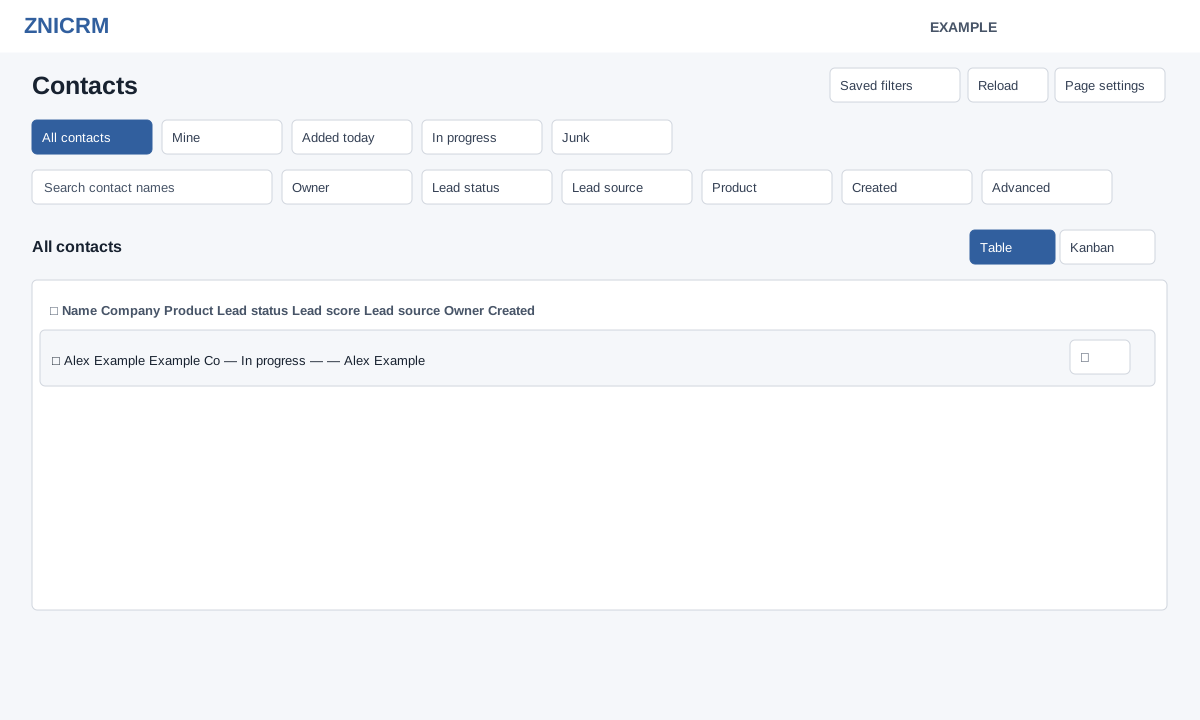
Open and filter
Choose Contacts from CRM navigation. CRM and Contacts list access are required. Some roles must launch Contacts from the new Daily Digest; if its access session expires, reopen it from Digest. Your role also limits the records returned.
- Use All contacts, Mine, Added today or In progress. Junk toggles inclusion of contacts whose configured status is named Junk. Mine selects the current owner; Added today selects the current local day; In progress matches a configured status named In progress (ignoring spaces, hyphens and underscores), and is empty if none exists. All contacts resets the search and filters as well as the shortcut.
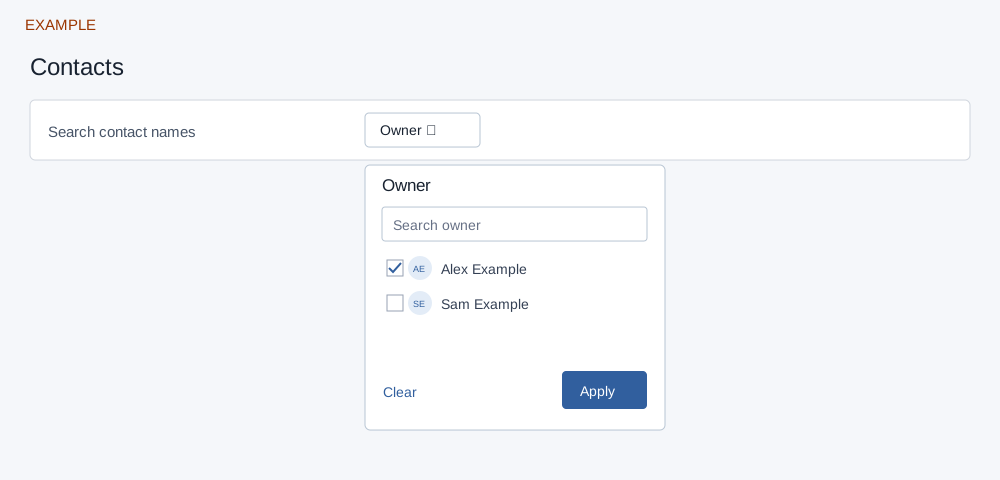
- Search contact names. For Owner, Lead status, Lead source or Product, open the filter, search its options, check desired values and choose Apply; Clear removes that filter. Created requires both From and To, with the end on or after the start. Quick Created and Added today use the user timezone converted to UTC and include the full selected final day. Up to 100 choices are accepted per other quick filter.
- Applied filters appear as removable chips; use their remove controls or Clear all. Filters combine with the current shortcut and search. Reload refreshes data and lookup options.
Views and quick view
Table displays name, company, product, status, score, source, owner and created date, with paging and selection. The initial page size is 25; the rows-per-page control and Previous / Next browse results. Column ordering is disabled: results are newest first, not sortable by clicking headings. The displayed range and “More available” indicate navigation, not an exact total. Select a row or its quick-view control to inspect Important Details, Contact Points, Products, Last Comment, Requirement Comment and address when present. Choose Open Full Contact for the record; close with the close button, backdrop or Escape. If the summary fails, close and select it again or check access. The name link opens the full record; clicking an otherwise empty row area or Quick view opens the summary.
Kanban groups cards by configured lead status, newest first. Scroll horizontally to see lanes and choose Load more in a lane when offered. No configured status yields an empty board. In Page settings, Open contacts in a new window changes how records open, and Show data in Tabular format switches Table/Kanban. The new-window preference is stored in a browser cookie.
Transfer selected contacts
In Table or Kanban select individual contacts; the Table header checkbox selects only the current page. A successful table page load clears the selection; switching view, changing a filter, searching or refreshing also clears it. Select the intended rows on the current table page immediately before transfer. Kanban selections can accumulate while loading more cards in the same view, but a refresh clears them. With bulk-transfer permission, Transfer selected appears. Choose a new owner, select Transfer Contacts and confirm. Success means the transfer has been queued, not necessarily completed. Check ownership later; if rejected, review selected records, destination and permissions. The worker transfers ownership at the account level for each selected contact, so other contacts sharing an account can be affected and access may change. A success message does not confirm that every account was transferred. Inspect affected accounts and ownership after processing before retrying.
For nested conditions see Advanced contact filters; for the record see Contact conversation.