Advanced contact filters
Build grouped contact conditions or load an existing saved filter.
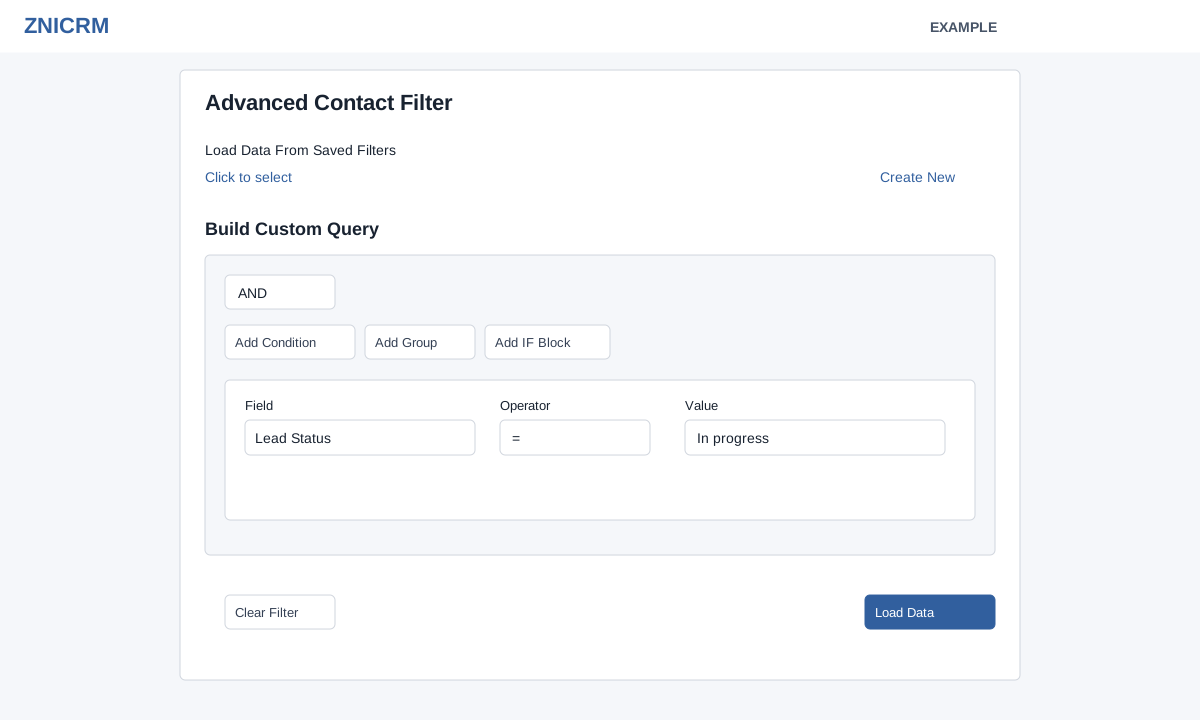
Open Contacts → Advanced or Saved filters. Under Load Data From Saved Filters choose an existing filter; selection immediately loads it and closes the dialog. Create New opens the filter management page. The custom query builder provides AND, OR and IF / THEN / ELSE groups through Add Condition, Add Group and Add IF Block; remove unwanted nodes using Remove. Although its help mentions NOT, this editor exposes no Add NOT control. To create NOT conditions use the saved filter editor and load that saved filter.
| Field | Operators and value |
|---|---|
| Owner, Lead Status, Lead Source, Product | =, !=, IN, NOT IN; select configured values, multiple for IN/NOT IN. |
| Created At | =, >=, <=, BETWEEN; enter date or range. |
| Last Activity On | =, !=, BETWEEN; enter date or range. |
| Deleted State | = or !=; Active Contacts or Deleted Contacts. |
Created At BETWEEN uses raw date upper bounds, which can stop at midnight at the start of the final day; use the saved filter editor’s documented half-open range when a full final day matters. Last Activity On tests existence of any conversation in the interval, not only the latest. For example, add Lead Status = an available status and review the resulting audience in an AND group. Choose Load Data; validation errors appear before loading. Clear Filter resets the list’s filters and search. Loading a custom query applies it to the current list; it does not create a saved filter. Access and CRM scope still apply.