Chatbot settings and routing
Configure a bot’s identity, customer options and AI behavior, then connect it to the intended channel.
Open and save
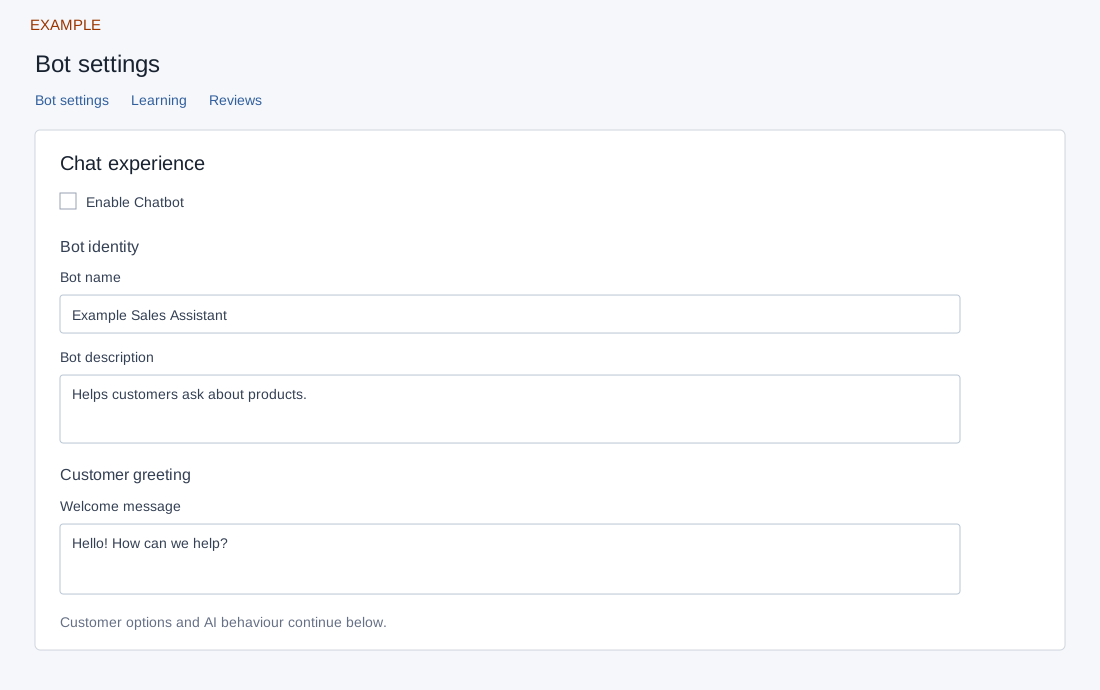
Open Account Settings → Chat Settings → Chat Bots and choose the bot name or Edit. The page checks administrator role and bot validity; each switch saves on change and each text field saves on blur. There is no single publish button. A failed switch reverts; a failed text save clears the editor field, so reload and check the stored value before retrying. All bots returns to the list; Learning and Reviews open their separate workflows. The gear opens personal notes.
Chat experience
Enable Chatbot sets the bot’s active status. Bot name is required, at most 45 characters; Bot description is required, at most 255 in this editor (the separate creation dialog limits it to 200). Welcome message is required, at most 255, and is shown at the start of a chat according to the screen. Enable Sales Chat Option offers a sales path; ensure agents have Chat access or AI is configured. Enable Ticketing Option offers support and requires a configured Helpdesk domain. These switches and text changes save independently.
Inactive display limitation: the editor may not load saved details for a disabled bot. Reopening a disabled bot can therefore show empty or fallback values instead of its saved details. Re-enable deliberately and reload before editing; do not overwrite fields based on that fallback display. The screen’s default welcome message is only a fallback, not proof it was stored.
AI behaviour
Enable AI asks the service to use AI responses; enabling it is rejected unless the account has an active learning file. That check counts account learning files, not proof the selected bot’s knowledge is suitable or that an answer will be correct. Bot avatar name is required, maximum 45; Bot company name is required, maximum 90; About bot is required, maximum 240 in the editor. The default avatar shown when empty is ZNI; other fallback text is displayed for missing About bot. Force AI Chat permits answers when no close training match is found according to the screen; review this choice against your escalation process.
Force AI display limitation: when its stored value is zero, the page’s fallback displays the checkbox checked on reload. A checked display is therefore not reliable evidence that a previous disable was reversed; ask an administrator to investigate before relying on this option.
Connect and verify
In General chat settings choose an active default bot or No chatbot for agent routing. Website Engage has its own AI Chat selection; WhatsApp setup is separate. This editor has no model selector, training upload, test-chat or publish action. Use AI Learning and the linked Reviews workflow for knowledge and review; saving settings alone does not prove training, deployment or provider delivery. For Example Co, configure a sales bot, confirm its knowledge and Helpdesk prerequisites, save each field and verify with an authorized channel test before relying on its replies.