Automation step editor
Set the order, timing, action and conditions for one journey step.
Runtime limitation: Wait, Condition, Split, Goal and Exit are builder-only in execution and are recorded as skipped. Their fields describe builder metadata; do not rely on them to pause, branch or end live execution.
Placement and action
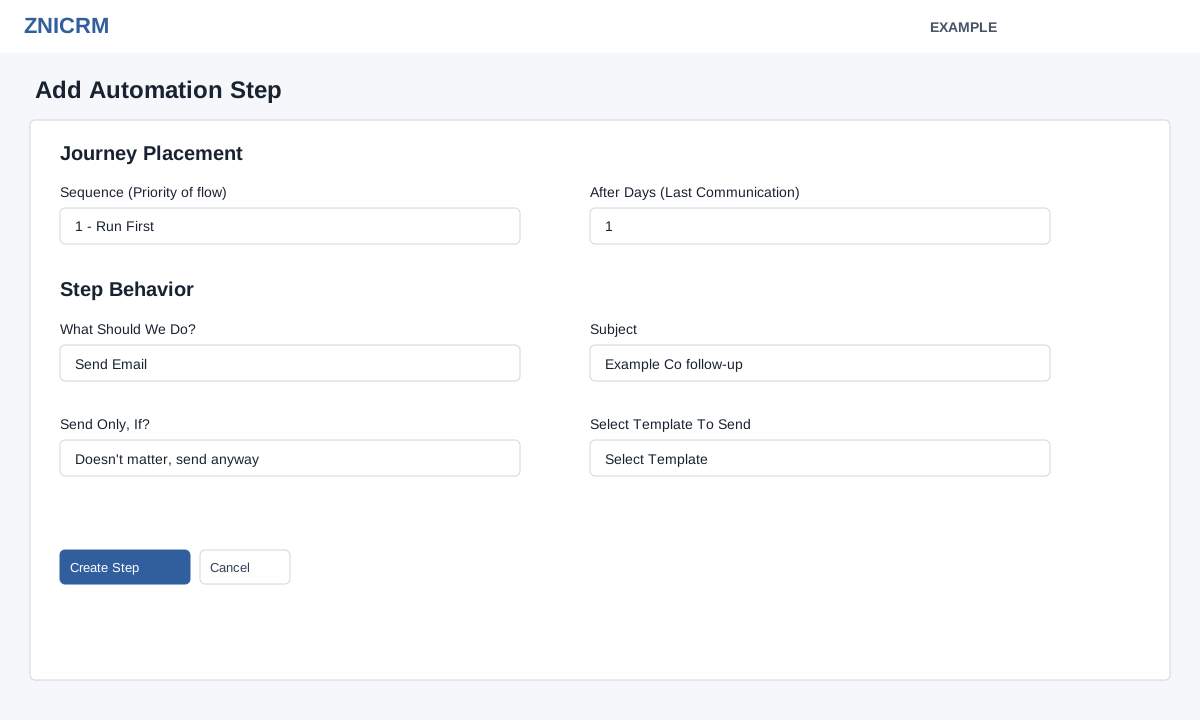
Open a rule’s Build & Configure → Add Step, or edit a step. Select Sequence 1–50; lower numbers run first. The day field depends on event: subscription expiry allows −365 to 365; lead creation, due and overdue use 0–365; other events display 1–365 after last communication. Select What Should We Do? and complete its visible fields.
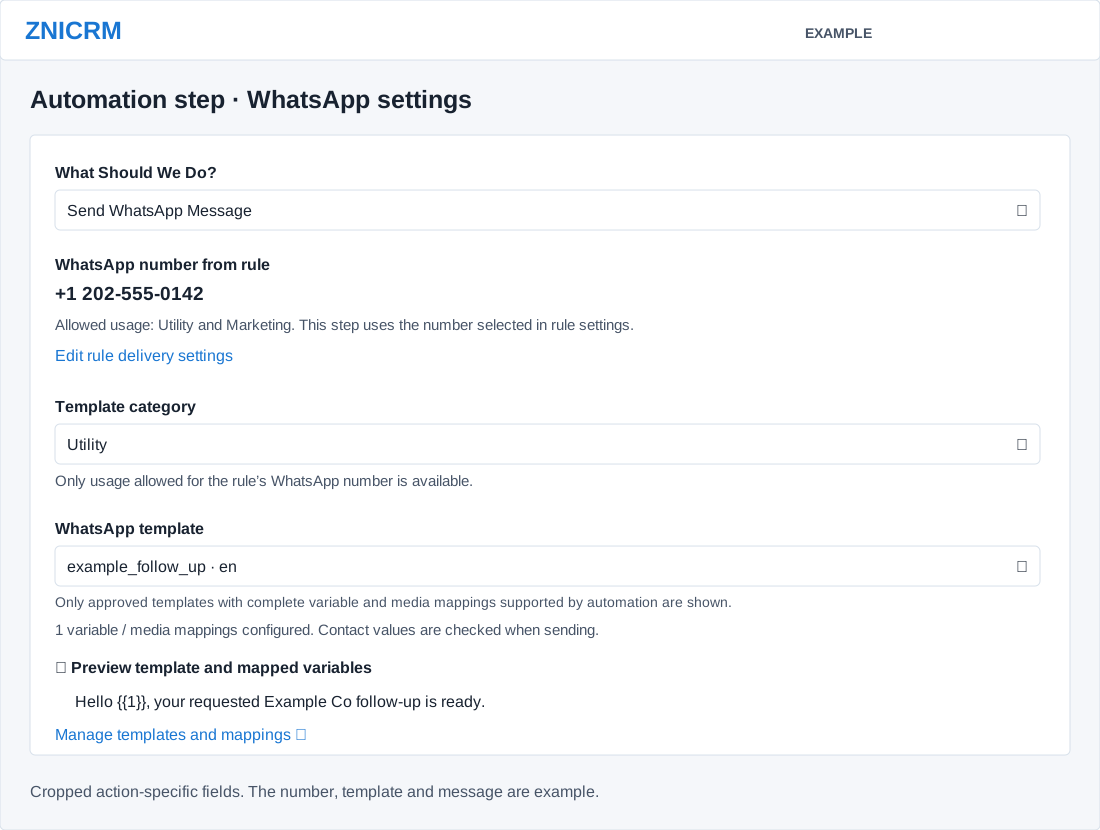
- Send Email: choose an email template and enter a subject of at least two characters. Send SMS: choose an SMS template. Send WhatsApp Message: the number comes from the rule; select an allowed category and approved template with complete supported mappings. Expand its preview to check mapped variables; manage mappings using the linked template page.
- In-CRM Notification, Mobile Push, Slack Notification: select a template and recipient: Lead Owner, Department Manager, All Department Users or Other User. Select the department or user when requested. Mobile Push also needs a title.
- Execute Webhook: select a configured webhook. Add Tag and Remove Tag: enter tag names. Transfer Lead To Department: select a department. These actions modify or trigger downstream systems when executed.
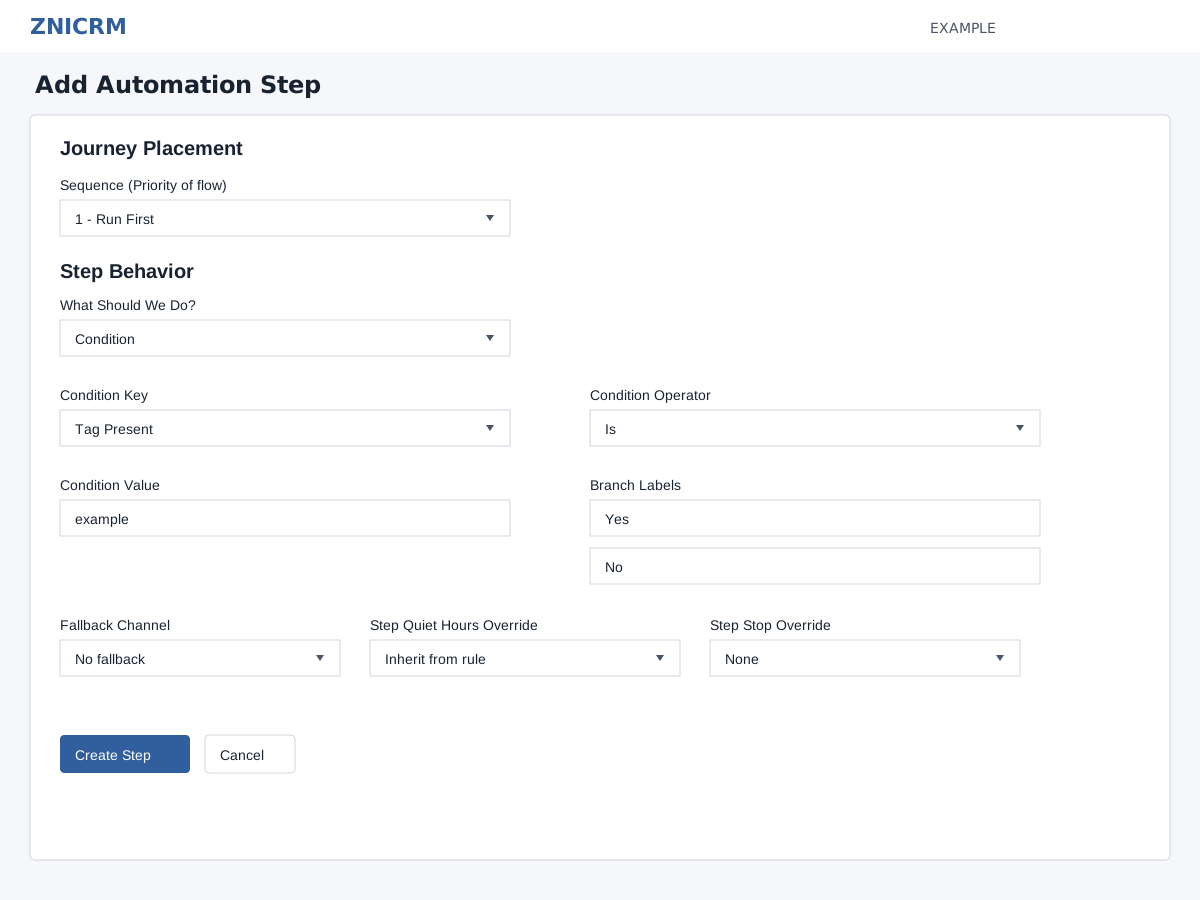
- Wait: choose days, hours, date or goal, then provide the duration, date or matching goal key. Condition: choose Replied, Tag Present, Lead Status, Email Present or Phone Present; select Is, Is Not, Contains or Exists and enter a comparison value as applicable. Split: set the branch labels.
- Goal: choose Replied, Paid, Converted, Tag Present or Custom and supply Goal Value as applicable. Exit: optionally enter an Exit Note; blank becomes “Journey Exit”. It marks a journey path in the builder.
Field reference
| Field | Purpose and options |
|---|---|
| Sequence | 1–50, lower first |
| Day offset | Event-specific timing; subscription expiry permits negative values |
| Template or webhook | Choose a configured item for the selected action |
| Recipient | Lead Owner, Department Manager, All Department Users, Other User |
| Wait | Days, hours, date or goal and corresponding value |
| Condition | Key, operator, comparison value and branch labels |
| Goal | Replied, Paid, Converted, Tag Present or Custom, with value |
Inline and standalone editors
The builder embeds the same action choices and conditional fields as the standalone editor. Both submit the advanced create or update action; inline success reloads the builder, while standalone success returns to it.
Wait, Condition, Split, Goal and Exit hide the day, response and audience-tag fields. Both editors nevertheless check that the hidden day input contains a number before setting it to zero. If an inline new node shows Invalid Delay, temporarily choose a communication action, enter a valid day value, switch back to the node and save. This works around the form check; it does not make these builder-only nodes execute.
Action fields and validation
For example, to notify Alex Example's department, add an In-CRM Notification step, select a configured notification template, choose All Department Users and select the department. For notification, push and Slack, the runner resolves Lead Owner or the selected user, managers of the owner’s departments, or users returned for the selected department; missing valid recipients causes a skip. The department lookup reads a joined row’s generic ID before its explicit user ID, so verify recipient routing before relying on it. For an email step, choose the template and enter a subject; the editor requires at least two characters. The form also checks that the selected template belongs to the company. Other User requires a selected user, and department routing and transfer require a valid department.
For Wait, use a nonnegative number for days or hours, a date picker for date, or a goal key for goal. Condition has a key, operator, optional comparison value and two labels; blank labels default to Yes and No. Split labels default to Path A and Path B. Custom Goal requires its value. These nodes are saved as builder configuration and the runtime limitation above applies. If the required setup is missing, the extra builder settings cannot be saved.
The WhatsApp number is inherited from the rule, not chosen in the step. Select the template category and eligible approved template, expand its preview and check each mapping. If no template appears, use Manage templates and mappings, finish supported variable and media mappings, then return and refresh. The WhatsApp number and template must belong to the company. If their connection cannot be saved, the change is rolled back.
Configure a WhatsApp step
- Check the rule’s selected WhatsApp number. To change it, use Edit rule delivery settings, save the rule and reopen the step.
- Choose Utility or Marketing from Template category, subject to the number’s allowed usage. The category selector is hidden when only one category is allowed; the template selector is hidden and disabled when neither is allowed.
- Select an approved, mapped template for that number and category. A previously saved unavailable template appears as a disabled choice; replace it before saving. If no ready template appears, complete its mappings using Manage templates and mappings, then reload the editor.
- Expand Preview template and mapped variables. Check the text and mapping count. The preview does not establish that every recipient has a usable value: contact values are checked at sending.
- Save the step, reopen it and verify its rule number, category and template. Use a controlled demo setup for active preview, following the activation limitation.
Filters and overrides
Where shown, Send Only, If? offers customer responded, customer didn’t respond, or send anyway; subscription and new-lead events show send anyway. Audience Tag Filter can include or exclude contacts with entered tags for supported events. Audience tag names are resolved to existing company tags when saved; unknown names are discarded, so verify the saved filter rather than assuming a new tag was created. The editor stores fallback and override settings, but automation execution does not consume these fields to apply fallback, quiet hours or stop overrides. Do not rely on them for those effects. This is separate from WhatsApp delivery governance, which can defer or reject a WhatsApp attempt. Fallback Channel offers none, Email, SMS, WhatsApp, In-CRM Notification, Mobile Push or Slack Notification. Step Quiet Hours Override inherits the rule, ignores quiet hours, blocks after-hours sends or defers to the next window. Step Stop Override offers None, reply, goal or reply-or-goal.
Choose Save Step or Update Step in the inline builder; the standalone editor uses Create Step or Update Step and returns to the builder on success. Cancel abandons the current editor changes. Review the step and path validation, then preview a sample contact. If validation fails, correct the displayed missing template, recipient, delay or action fields.