Lead Status settings
Open and review
Open Account Settings → CRM Functions → Customisation → Lead Status as an administrator. The table shows Status Name, Type, Kanban, Kanban Seq, Missed Followup, Label Color and Action. It loads up to 100 company and global statuses, newest IDs first. Company-owned rows have edit and delete buttons; global rows do not. An administrator is required to make changes.
Add or edit a status
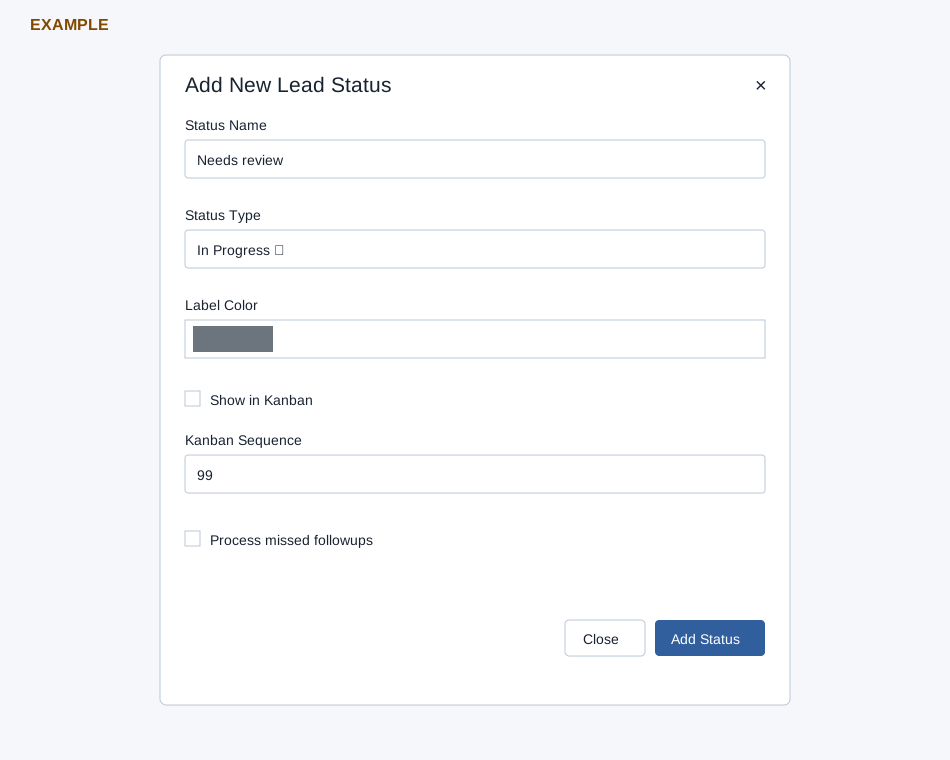
- Select Add Status, or select the pencil on a company-owned row to edit its existing values. Enter Status Name, required and at most 45 characters.
- Choose Status Type: In Progress, Won or Lost. Choose Label Color with the color picker; new statuses default to gray (#6c757d). The table shows the saved six-digit color or a dash when absent. Changing type changes the status classification used by consumers; review existing leads and reports before changing it.
- Check Show in Kanban if this status should be eligible for the lead board. Enter Kanban Sequence from 0–99; the initial value is 99, and the service clamps values outside the range. Eligible statuses sort by sequence; the board shows at most ten. Equal sequence values have no specified tie order.
- Check Process missed followups when leads in this status should be eligible for the CRM missed-followup view. The flag is one condition, not a promise that every lead creates a reminder or appears in every result; other date and eligibility conditions apply.
- Select Add Status or Save Status. On success the page reloads; confirm the row, color, sequence and flags, then check the intended board and followup view. Close or × dismisses the dialog.
Delete and recover
The trash button asks for confirmation. Yes, delete it! removes an unused company status; No, cancel plz! leaves it unchanged. Global statuses cannot be deleted. Deletion is also blocked by references in contacts, active saved filters, automation rules, SMS CRM groups or checklist items. If the error names dependencies, review and change them deliberately before retrying; deletion does not migrate leads. If a row is absent, check the 100-row limit and company scope before creating a duplicate.
For Example Co, create “Needs review” as In Progress, enable Kanban with a deliberate sequence and turn on missed-followup processing only if the team wants it considered for missed followups. Verify the board and the relevant followup view before relying on it.