Deal Stages settings
Open and review
Open Account Settings → CRM Functions → Customisation → Deal Stages as an administrator. The table shows Stage Name, Type, Kanban and Action. The table displays up to 50 global and company stages. Only company-owned rows display edit and delete actions. An administrator is required to make changes.
Add or edit a stage
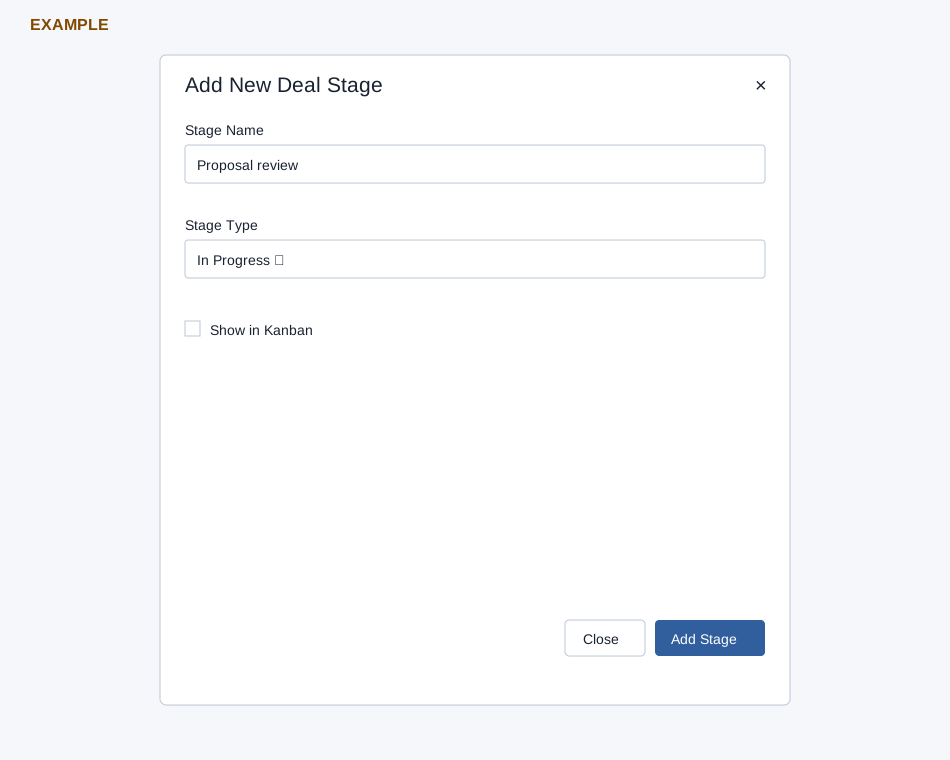
- Select Add Stage, or the pencil on a company-owned row. Enter Stage Name, required and at most 45 characters.
- Choose Stage Type: In Progress, Won, Lost or Void. In Progress is the add default. Type is used by deal outcomes and reports; moving a deal to a Lost stage can require a loss reason when deal analytics is enabled. Changing the stage definition is not itself a request to move individual deals.
- Choose whether to check Show in Kanban. The CRM report board filters to stages with this flag. This dialog has no sequence or color field.
- Select Add Stage or Save Stage. The page reloads on success; verify the row and intended board or report. Close or × dismisses the dialog.
Delete and recover
Select the trash icon, then Yes, delete it! to delete an unused company stage, or No, cancel plz! to keep it. Global stages cannot be deleted. Deletion is blocked while company deals or active saved advanced filters reference the stage; the error reports those dependencies. Review and deliberately update those references rather than assuming deletion moves deals. If a row is missing, check the 50-stage limit before making another.
For Example Co, add “Proposal review” as In Progress, enable the board flag and verify it appears in the CRM report board. Check outcome reporting before assigning Won, Lost or Void to an existing stage.