Configure CRM checklists
Define scoped checklist items for CRM work.
Checklist list and creation controls
Create and manage
Account Settings → Features Settings → Checklists requires administrator role and Checklist access. Add New requires Checklist Name; Description is optional. Save creates an active checklist and opens its Manage page. The list displays Name, Description, Scope, Items and Status; open Manage and use Enable or Disable to change availability. No delete action is shown.
Details and scope
In Manage, change Checklist Name and Description and select Save Checklist. Separately check the desired Departments and Customer Types and select Save Scope. Both lists empty means global. Scope saves department and customer-type lists in separate operations, so if an error appears, reopen and verify both before retrying. Status changes and successful scope and item changes queue a checklist refresh.
Add and edit items
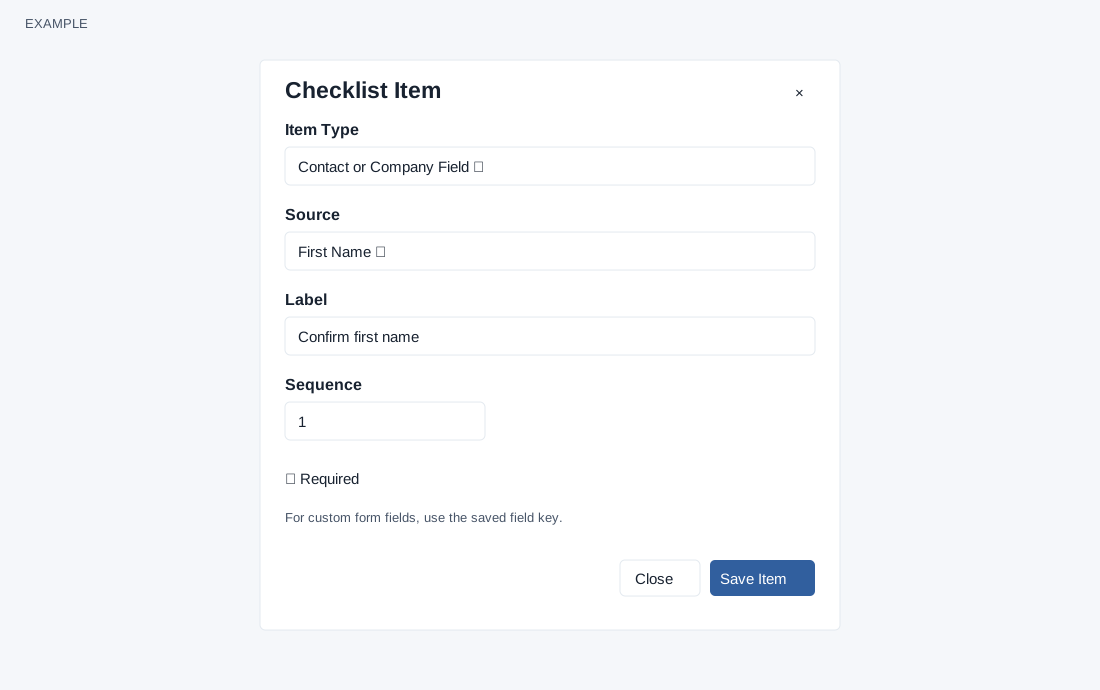
- Choose Add Item. Item Type determines Source. Contact or Company Field offers First Name, Last Name, Designation, Department, Country, Product Required, Company Name, Company City, Company State, Company Address, Company Country and Company Zip Code. Contact Profile Type offers Phone, Email, WhatsApp and Twitter. Lead Status, Company Custom Field, Custom Form and Custom Form Field use available configured records; a form field uses its saved field key. If no source is available, configure the relevant source first.
- Choose Source, enter a required Label, set Sequence (default 1; values below 1 are normalized to 1; lower displays first), and choose Required (checked by default for a new item). Source and label are required; source selection can fill an empty label. Save Item saves and reloads. Edit opens the same fields, but Item Type is locked; use Enable/Disable to change item availability. The table shows Sequence, Type, Source, Label, Required and Status.
- Verify the saved item and scope before using the checklist. For example, add a required First Name check to an Example Co onboarding checklist. If a source is missing, review its configuration and status; if saving fails, correct the displayed error and inspect the existing checklist before retrying.