Account details and relationships
Review an organization and its related contacts, deals and files.
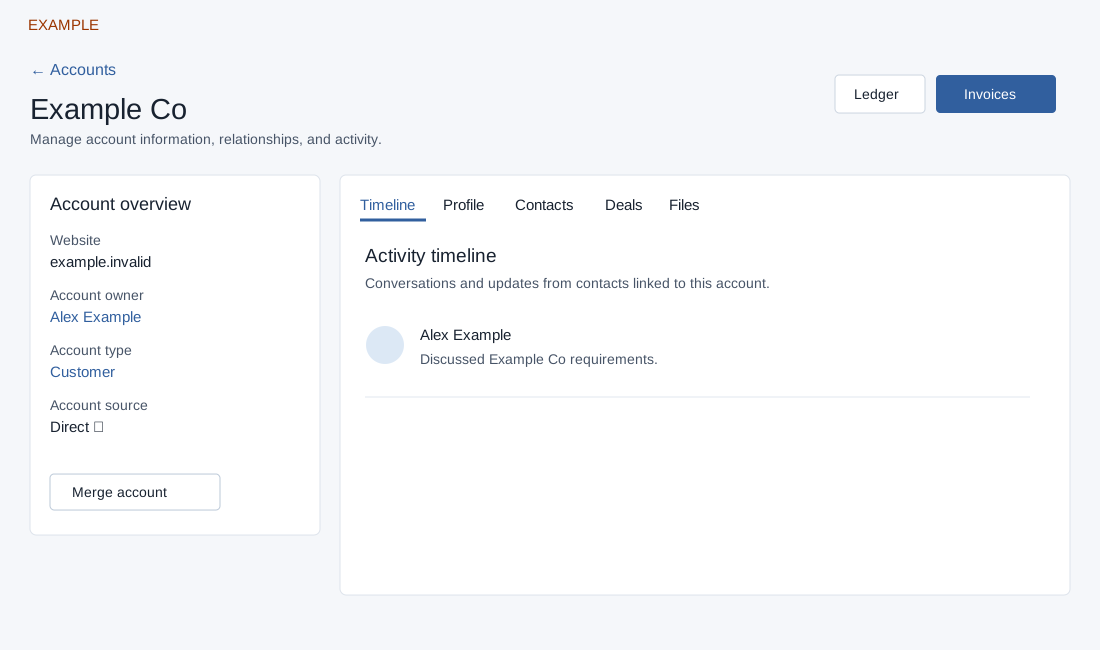
Open an account
CRM → Accounts → select Account Name. CRM access and a valid account in your company are required. Profile is shown only with CRM profile permission. Timeline shows up to 100 recent conversations from linked contacts, newest first; it has no pagination or entry-edit controls here. When empty, View contacts opens Contacts. Contacts, Deals and Files are separate tabs. Contacts lists name, email, phone, created date, manager and status; email and phone are masked without profile permission. Select a contact name to open its workspace. Deals lists product, contact, value, created date, expected closure and status. Files lists up to 500 account-linked files by name, date, size and creator, with Add File; file names open in a new tab. Add File accepts up to ten CSV, image, PDF or audio files through drag-and-drop or selection; the system also checks the extension. Closing the dialog reloads the page. Verify the uploaded file appears before retrying. Ledger and Invoices open their respective account reports.
Edit account information
Select the account name or Profile → Name or Website, enter a nonempty value and submit the inline editor. A name already used by another account is rejected. Account Type offers configured choices; changing it requires the account-type permission. Account Owner is editable for an administrator, the current owner or their department manager; choose an eligible destination and confirm. The transfer changes the account owner and up to 100 linked contact owners, and updates task and deal ownership for up to 100 contacts. These sets of contacts may differ. Notifications are attempted. Verify affected records after transfer, especially after an error, because some changes may have completed while others did not. Account Source opens a partner search: select a suggested contact by email and confirm Assign To Partner; typing alone does not select it. You can open the linked partner contact.
Profile → Additional Details → Add Profile accepts a data type and value. Both are required; Save Data submits that item. The type is uppercased and a duplicate type is rejected. Each edit is independent, so an earlier successful change remains if another fails. Reload and verify after an error. Example: update Example Co’s website and review its contacts before changing its owner.
Merge an account
Merge account searches for the destination account after at least three characters (up to ten suggestions); select a suggestion, choose Merge Companies and confirm. The original account is merged into the selected destination and the page opens the destination on success. Merging requires the account owner, an administrator or a department manager; an account cannot be merged with itself. The merge moves at most 100 contacts and 100 profile entries, changes moved contact ownership to the destination owner when present, and deletes the original account. These changes can partially complete if an error occurs. Review all linked records and consequences before confirming; inspect destination and remaining records afterwards. Do not assume all addresses or other related data moved. If the action fails, investigate the records before retrying because earlier operations may already have occurred.
For address creation and edits see Account addresses.