Account addresses
Maintain shared office addresses that can be linked to contacts.
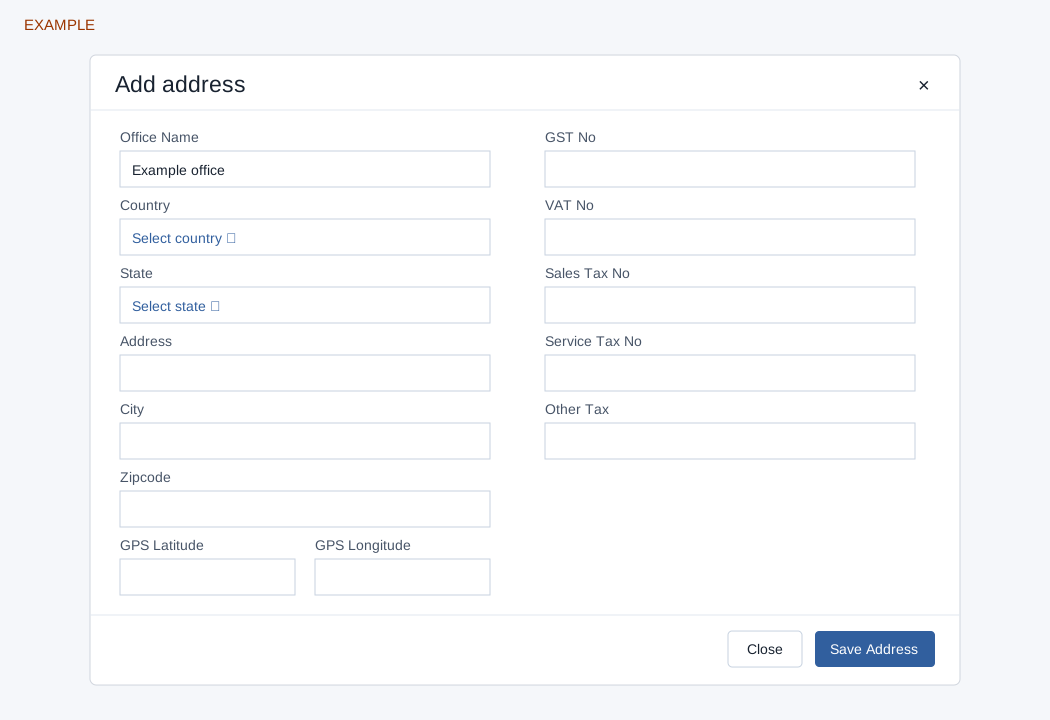
Add an address
Open CRM → Accounts → account → Profile → Add Address. Profile permission is needed to see this tab. Enter Office Name, select Country, then State; all three are required. Changing country resets the state selection. Address, City, Zipcode, GPS Latitude and Longitude, GST No, VAT No, Sales Tax No, Service Tax No and Other Tax are optional. Select Save Address and verify the row; reload to obtain its edit and delete controls. The account address list returns up to 50 entries.
Edit or delete
Select the pencil beside an address. The address page saves each changed text field separately; country and state use selection editors. Empty values are rejected, so an existing value cannot be cleared through this editor. Country changes reset the visible state selection; select and save the intended state as a separate change. Only the account owner or an administrator can update or delete an address. After an error or a series of changes reload and verify every field; previous successful fields are not rolled back. There is no default-address control on these screens.
Delete asks for confirmation and removes the address; the system does not show a check for linked contacts. Contacts can link to these shared addresses, so review affected contacts before deleting and verify their address afterwards. Example: add an Example Co office, then select that address in the appropriate contact’s Profile.