WhatsApp number policy and lifecycle
Control a sender’s permitted purposes and review its operational lifecycle.
Open and prepare
- WhatsApp Management → connected sender → Manage
- Policy and lifecycle actions require appropriate administrator permissions.
Set message purpose policy
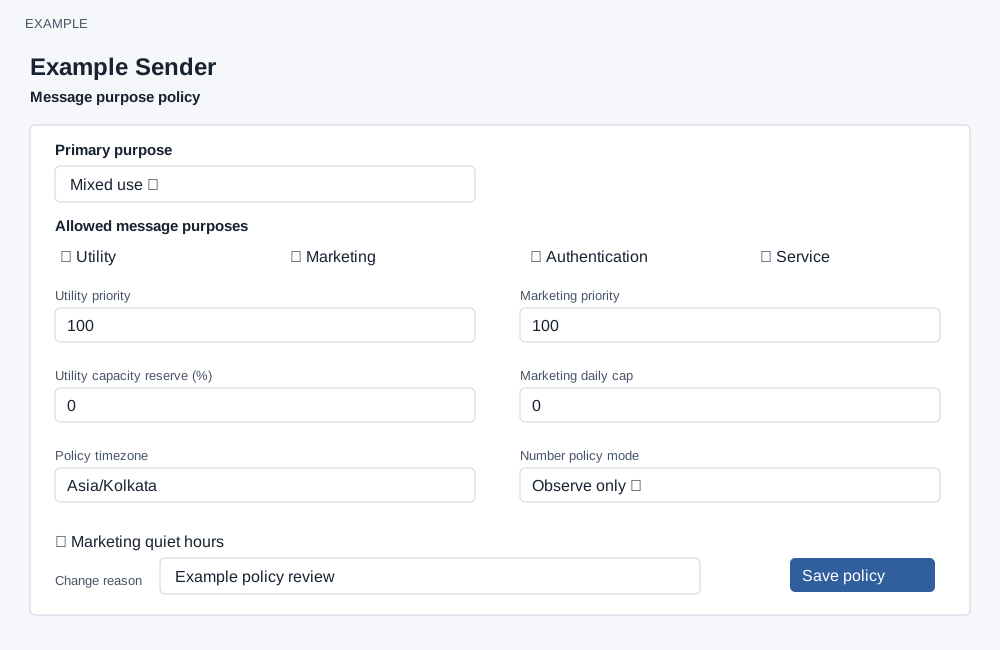
- Choose Primary purpose: Unclassified, Marketing, Utility, Authentication, Service or Mixed use. This label supports routing and reporting; it does not change the provider’s template category.
- Select the allowed purposes independently. Provider template category remains authoritative. Marketing may require verified Meta onboarding and routing.
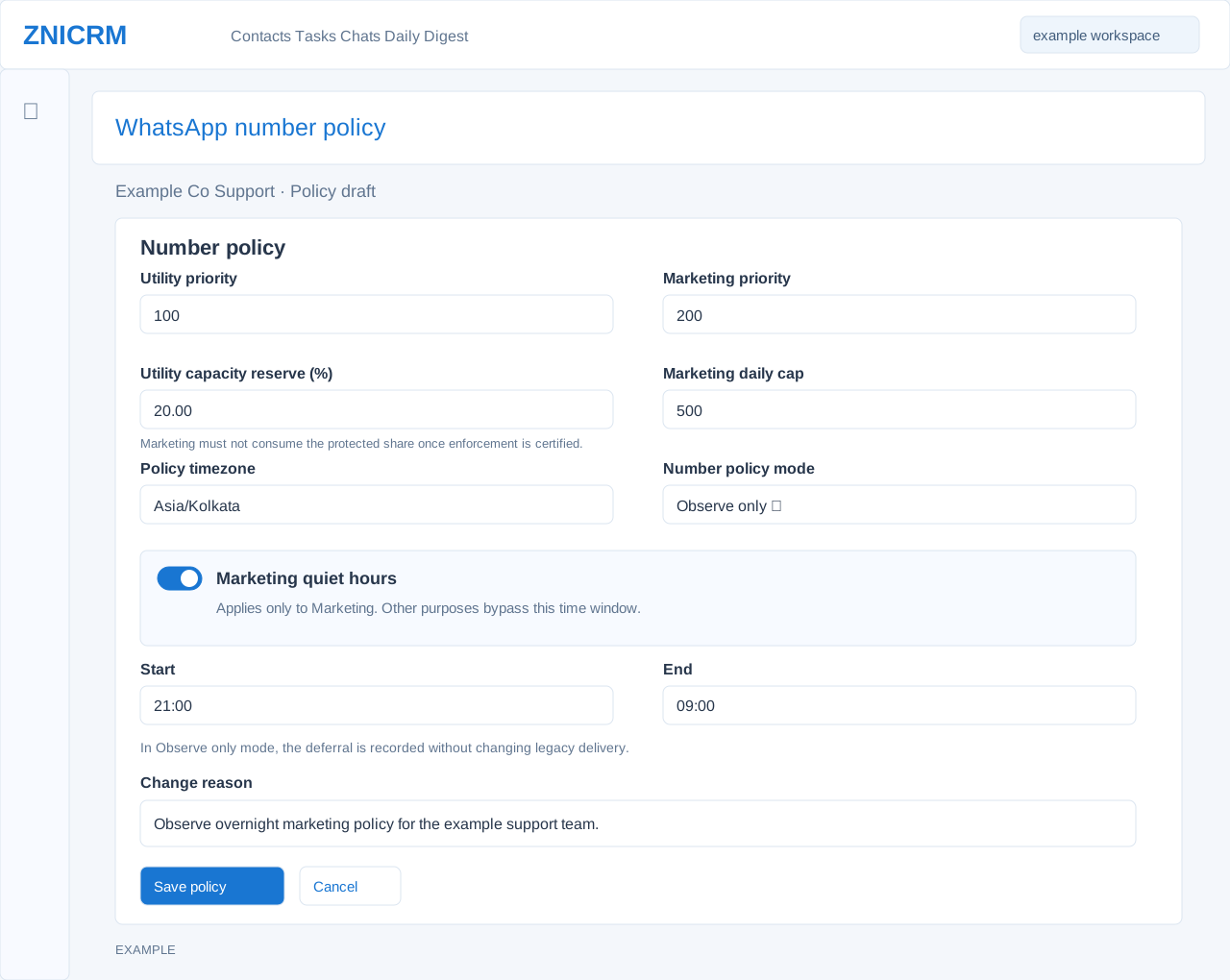
- Set utility and marketing priorities (1–9999; lower values considered first when future routing is enabled), utility capacity reserve (0–100%), marketing daily cap (0 means no additional governance cap), timezone, and policy mode. Utility reserve is a protected share once shared enforcement is certified; setting it alone does not establish enforcement.
- Modes shown include Off, Observe only and Legacy compatibility; enforcement modes appear only with the relevant capability. Marketing quiet hours apply to marketing, while utility, authentication and service bypass the window. In Observe only mode the page says quiet-hour decisions are recorded without changing legacy delivery.
- Enter a change reason of 5–500 characters and choose Save policy. Example: a service sender permits Utility and Service, uses Asia/Kolkata, and starts in Observe only while the team reviews decisions.
Review impact and lifecycle
- Review Shadow decision summary, sender identity, operational evidence and governance audit history; audit entries include actor, reason and before/after hashes. Use View impact before lifecycle changes; references are not automatically reassigned.
- Where permitted, the lifecycle area offers Resume, Pause, Start drain and Retire. Provide an operational reason and review the dependency report and readiness before a lifecycle action. Retire may be disabled until blockers are resolved. These actions change live behavior.
Choose purposes for the CRM activity
| Allowed purpose | Typical CRM use | What to check |
|---|---|---|
| Utility | Transaction, invoice, payment or subscription updates. | Use an approved template whose provider category matches the transaction. |
| Marketing | Promotions, offers, engagement and lead nurturing. | Complete marketing onboarding and routing, and check the audience's applicable preferences. |
| Authentication | One-time passwords and account verification templates. | Use an authentication template and the appropriate send context. |
| Service | Customer service replies to inbound conversations. | Check the conversation's service-window eligibility. |
Allowed purposes are independent checkboxes: selecting one does not deselect another. Primary purpose describes the sender: Unclassified means no classification yet; Mixed use describes several purposes. This label does not replace the allowed checkboxes. For example, a support number can have Utility as its primary purpose and allow Utility and Service. Selecting an option changes the draft; enter a reason and save to persist it.
What each number policy mode means
| Mode | Effect and operating limit |
|---|---|
| Off | Does not enable sender-level enforcement and does not stop existing delivery. Company observation can still record policy comparisons. |
| Observe only | Records the policy decision that would apply while legacy delivery remains authoritative. A recorded block or deferral is not evidence that a message was stopped. |
| Legacy compatibility | Keeps compatibility behavior for existing sending arrangements. This mode is below the enforcement threshold; selecting it alone does not enforce a candidate block or deferral. |
| Enforce new setup | Permits enforcement for eligible new or materially changed setup. Executions classified as existing legacy activity retain compatibility behavior. |
| Enforce all eligible | Permits enforcement for all eligible executions. Sender and sending-feature certification must be ready; a missing required certification can block an eligible execution. |
The final two options appear only when the deployment supports provider enforcement. The number selection is one limit on effective behavior: company rollout, sending feature, business domain and source also limit it. A stricter number selection cannot override a lower company or feature mode. Health and consent controls have their own enablement. Ask the administrator responsible for rollout to confirm effective behavior before relying on a saved policy to stop messages.
Set quiet hours and capacity without ambiguity
- Enter a valid timezone name, such as
Asia/Kolkata. An empty timezone uses the server's default during evaluation. Use an explicit timezone when the team's working day differs from the server's. - Enable Marketing quiet hours and set Start and End. The schedule applies every day. Start is included and End is excluded: 21:00–09:00 crosses midnight; 09:00–17:00 is a same-day window. Equal start and end times mean an all-day quiet window, not a disabled window; a retry can encounter the quiet window again. Uncheck the control to disable it.
- Set Marketing daily cap to a non-negative whole number; 0 adds no governance cap. The counter uses the sender's policy timezone and local calendar day. It counts marketing outbound records other than Blocked, Cancelled or Deferred records; it is not limited to delivered messages. At the cap, the candidate decision defers marketing until the next local midnight.
- Set Utility capacity reserve from 0 to 100 percent. When usable provider capacity is known, marketing is evaluated for deferral when remaining capacity reaches the protected share. Other purposes can use the protected capacity; exhausted or blocked provider capacity can still affect them. Unknown or unavailable capacity produces an observational allow result, not proof that capacity is available.
- Review the mode, enter the reason and Save policy. Quiet hours, cap and reserve produce policy decisions; their actual effect depends on effective enforcement. In Observe only, review the recorded decisions before relying on them operationally.
Utility and marketing priorities accept 1–9999, with lower values considered first when relevant routing is enabled. A priority change does not move existing workflow references or pending messages to another sender. Quiet hours apply only to Marketing; Utility, Authentication and Service bypass that time window.
Initialization, saving and lifecycle states
If the policy is missing, a manager can choose Finish number setup, which writes local governance setup; policy controls and Save policy are disabled until initialized. Enter timezone as a timezone name. Quiet hours has an enable checkbox and Start and End time inputs, disabled when the checkbox is off; the submitted schedule applies to all seven days. Changes stay in the form until Save policy; a successful save clears the reason and updates the version. Cancel returns to management. If another window changes the policy, refresh and review before saving again. If Marketing setup is required, open its link in a new tab, complete verification, return to the retained draft and save again.
In Auto, Pause and Start drain are available. A paused sender offers Resume and Start drain; a draining sender offers Resume and, when readiness permits, Retire. Pause, Start drain and Retire require an operational reason of 5–500 characters and confirmation; Resume clears the drain start time. Pause is advisory in Shadow mode. Drain does not move references or queued work. Retire preserves the local sender and history and cannot be reversed from this screen. A stale policy or dependency hash requires refreshing and reviewing impact again. The screen also provides Sync from Meta, View impact, Diagnostic (for managers), All numbers, shadow decisions, sender identity, recent operational evidence and audit history.