Create a WhatsApp campaign from an uploaded audience
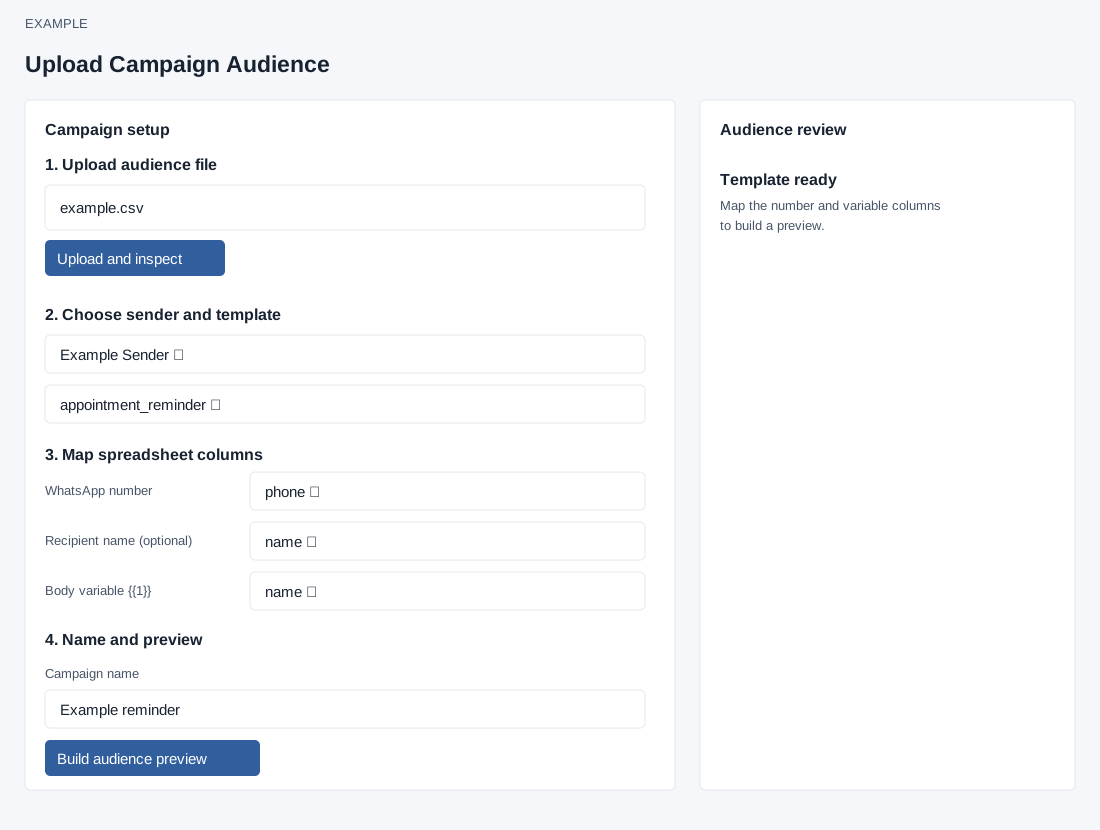
Open the page
WhatsApp → Send Message → Upload Excel / CSV. WhatsApp access and bulk permission are required; provider and marketing readiness are checked separately.
Prepare and inspect the audience
- Prepare an .xlsx or .csv file with one number per row, at most 5 MB and 5,000 data rows. The first nonempty row supplies headings; use clear unique headings, and for .xlsx the first worksheet is used. The parser assigns names such as Column A to blank headings and suffixes repeated names, so inspect the resulting headings before mapping. Choose the file and select Upload and inspect. Uploading creates or processes real audience data.
- Choose Sending number and an approved Marketing template; attach required header media from the gallery if prompted. Map the required WhatsApp number column, optional Recipient name and each required template-variable column. Enter a Campaign name of 3–150 characters and choose Build audience preview.
Mapping and file limits
The parser accepts up to 50 columns, truncates headings to 100 characters and cells to 2,000 characters, and displays up to five sample rows. Empty data rows are skipped. Legacy .xls files are rejected. The number mapping is required; Recipient name may be Not mapped. Every displayed variable must map to a column. The generated fields cover text header/body variables, dynamic URL button values and copy-code values. The upload mapping rejects carousel, limited-time offer, location header and FLOW, CATALOG or MPM buttons requiring structured data; choose a supported template or use another supported workflow.
Duplicate normalized numbers use the first row as the canonical recipient; later rows are duplicates. Suppression checks opt-outs and hard bounces. A selected header attachment may be uploaded to the provider during audience building even though no campaign messages are queued at that stage.
Review and publish
Upload and inspect stages the file and displays its name, row count, columns and sample. It does not send. Building a preview saves a draft and starts background validation of rows, suppression, duplicate numbers, variables and capacity. A blank required mapped value for an otherwise eligible upload recipient can fail the build rather than simply exclude that row; correct the source data and build a new preview. The review shows Rows evaluated, Eligible recipients, Duplicates, Suppressed, Invalid / missing and Waiting for capacity. A delayed worker notice says no messages have been queued and asks an administrator to check the queue daemon. Marketing setup errors preserve the draft and link to settings. There is no scheduling field.
- Review the normalized, suppression-checked audience counts and exclusions. Confirm and queue campaign publishes the reviewed audience for delivery. Replies can create or resolve CRM leads and remain attached to campaign reports, according to the page.
- Example: review a spreadsheet audience before confirming the campaign.