Create a WhatsApp campaign from a CRM filter
Open the page
WhatsApp → Send Message. WhatsApp access and the allow WhatsApp bulk permission are required; sender, template and marketing readiness must also pass campaign checks.
Set up the campaign
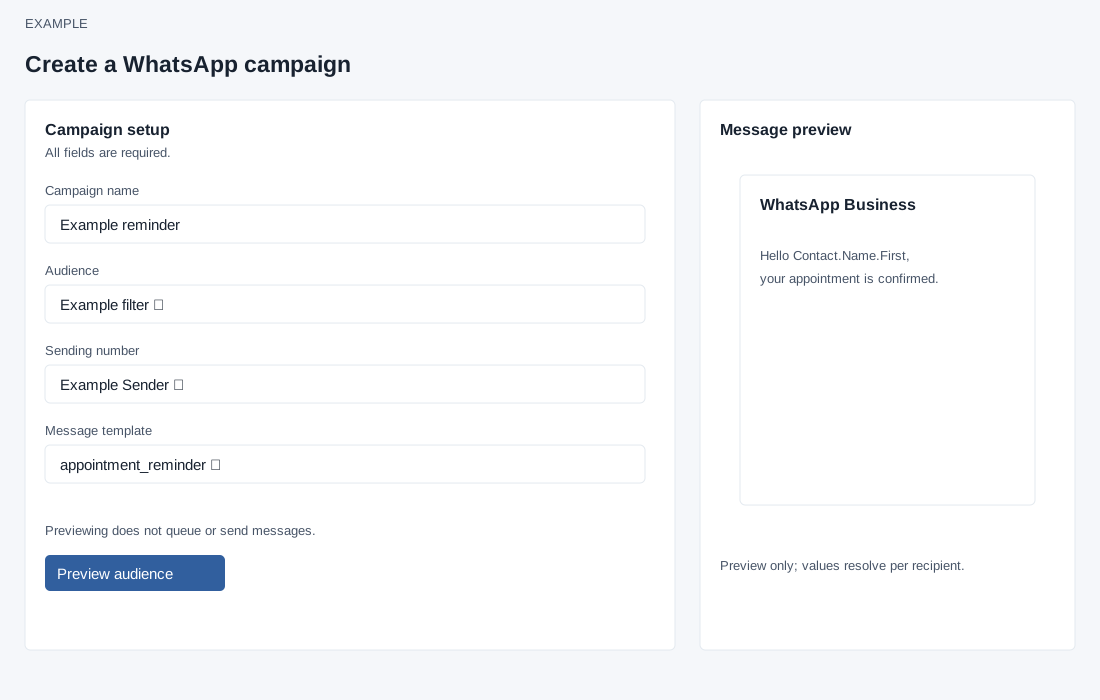
- Enter a Campaign name of 3–150 characters. Select an Audience CRM filter, Sending number and approved Marketing Message template. Manage filters and WhatsApp settings through the linked pages; map required template variables before use.
- Only connected numbers without a red quality rating are offered. If a header attachment is required, open the gallery and select the appropriate media. Message preview displays the template; contact values resolve per recipient.
- Choose Preview audience. The page says previewing does not queue or send messages, but it saves a draft and builds the audience in the background. A selected header attachment can be uploaded to the provider during that build. You can return to a saved draft.
Drafts, errors and scheduling
Campaign overview shows up to five saved drafts. Open a draft to continue; its trash action discards it after confirmation. Preview saves a draft and starts a background build; you can leave while it runs and return. If the worker stalls, ask an administrator to check the queue worker. An asynchronous preview expires after 24 hours; if confirmation says the audience changed or expired, make a fresh preview. A failed build reports the issue and may offer retry; if a template preview fails use Retry template preview. Selecting another sender reloads its eligible template list. IMAGE, VIDEO or DOCUMENT headers require matching gallery media; Remove clears the selected attachment before building.
These screens expose no date or time scheduling control. Confirm queues the exact reviewed audience for background delivery; it is not a scheduled-send form. Changes to a completed preview require discarding and building a new draft. Check Campaign Reports before retrying if the result is uncertain.
Review and queue
- Wait until the preview is ready: interim counts are provisional. Compare Matched contacts, Discovered numbers, Eligible recipients, Sendable now and Waiting for capacity. A contact may have more than one number.
- Review exclusions: invalid numbers, opted out, no number, hard bounces, duplicates and missing template data. Excluded entries will not receive the campaign.
- Choose Confirm and queue campaign only after reviewing the exact audience and message: confirmation publishes that audience for background delivery. To change the setup, the page instructs you to discard the draft and create a new preview.
- Example: a team previews an opt-in audience for a product announcement.