ZipCall number and widget settings
Manage service numbers, lead routing and website widget settings.
Number and distribution
Open ZipCall settings with ADMIN role and CTEL access for an available service. Select the service number in the page selectors to reload its settings. The multiple-service selector submits a service number while the route first validates the parameter as a relation ID; if the expected service is not selected, verify the displayed service and contact support. Search Availability is shown only while the linked number count is below the account allowance; otherwise the setup section shows the service selector. The page warns that a selected number cannot be changed. Search Availability accepts a number; the client accepts 6–13 digits but the form requires 8–15, so 8–13 satisfies both checks. Availability success opens a confirmation with Yes, book it and cancel. Confirming books a service number; a successful booking reloads. If a search or booking fails, read the error; inspect the service list before retrying an uncertain booking.
Distribution displays a read-only website script for the selected service. Copy it for an authorized website administrator to install; publishing website code is a separate action. Default Leads Routing → Assign to Department offers configured departments and Any Department when departments exist. A change sends immediately. Any Department may be rejected; if that selection fails, retain or select a valid department and seek support rather than assuming the route cleared.
Widget settings
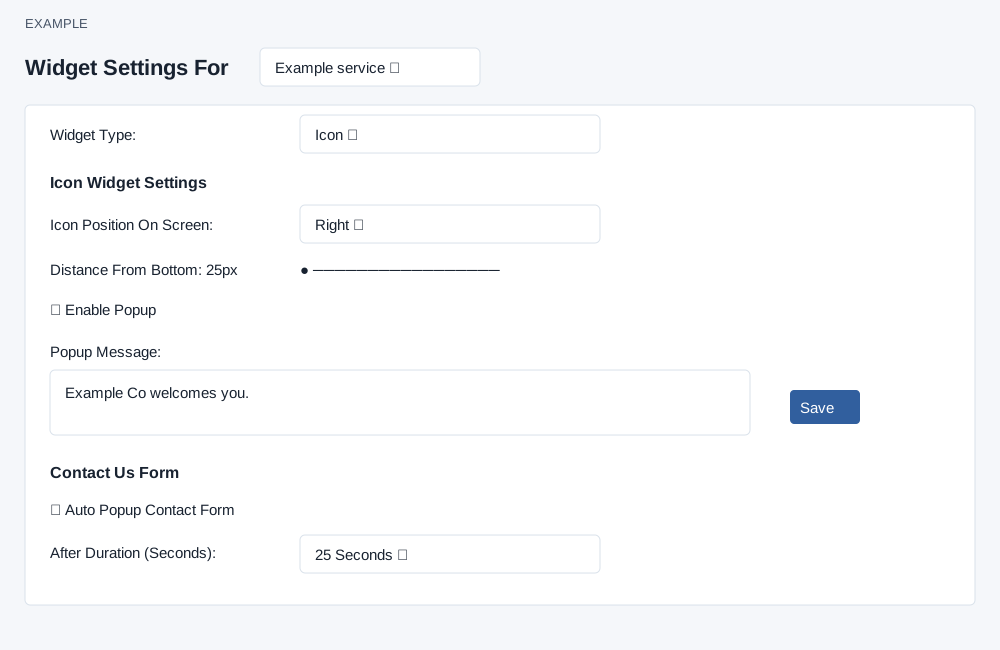
Widget Type offers Toolbar or Icon. Icon settings: Icon Position On Screen Right/Left; Distance From Bottom slider 10–100 pixels; Enable Popup checkbox; Popup Message with Save. The form requires popup text 15–90 characters. Toolbar settings: Button Type Forward To Url or ZipCall Popup; the former displays Toolbar Button URL and Save; Button Text and Toolbar Message have their own Save buttons and displayed maximums of 20 and 90 characters. Contact Us Form has Auto Popup Contact Form and After Duration choices 5, 10, 15, 20, 25, 30, 45 seconds or 1 minute. Cookies Warning has Enable Cookies Warning and optional Privacy Policy URL with Save; the client rejects a saved URL shorter than 10 characters despite its optional label. The toolbar URL save requires at least 10 characters. The message label says 90 maximum, while the form accepts up to 120 characters and rejects empty text; button text must be nonempty and at most 20. Conversion Tracking ID and Label each have a Save button; the client requires at least 6 and 10 characters respectively.
Widget type, button type, position, slider, popup and other checkboxes and duration send changes immediately; text fields use their adjacent Save buttons. Check the response and reload to verify. If a change fails, reselect the intended service and inspect its persisted values before retrying. Use example.invalid URLs in planning only.