SMS groups
Availability depends on your account configuration and permissions.
Open the page
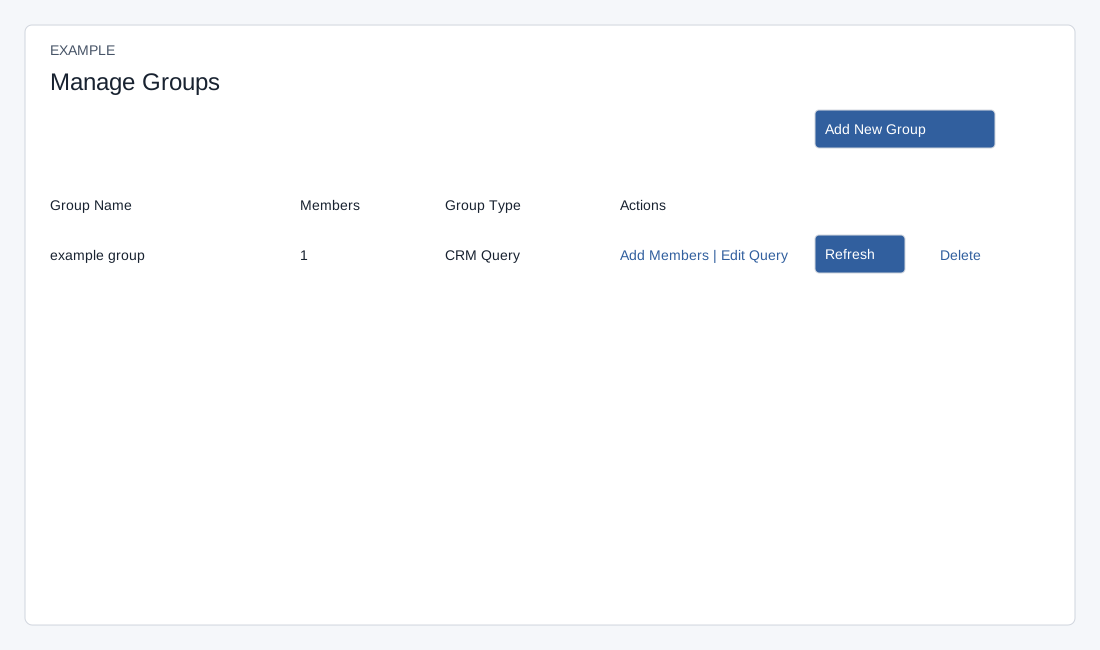
SMS → Manage Groups. SMS access and Allow SMS Groups are required; refresh, query changes, file import and deletion also require an administrator.
Create and maintain a group
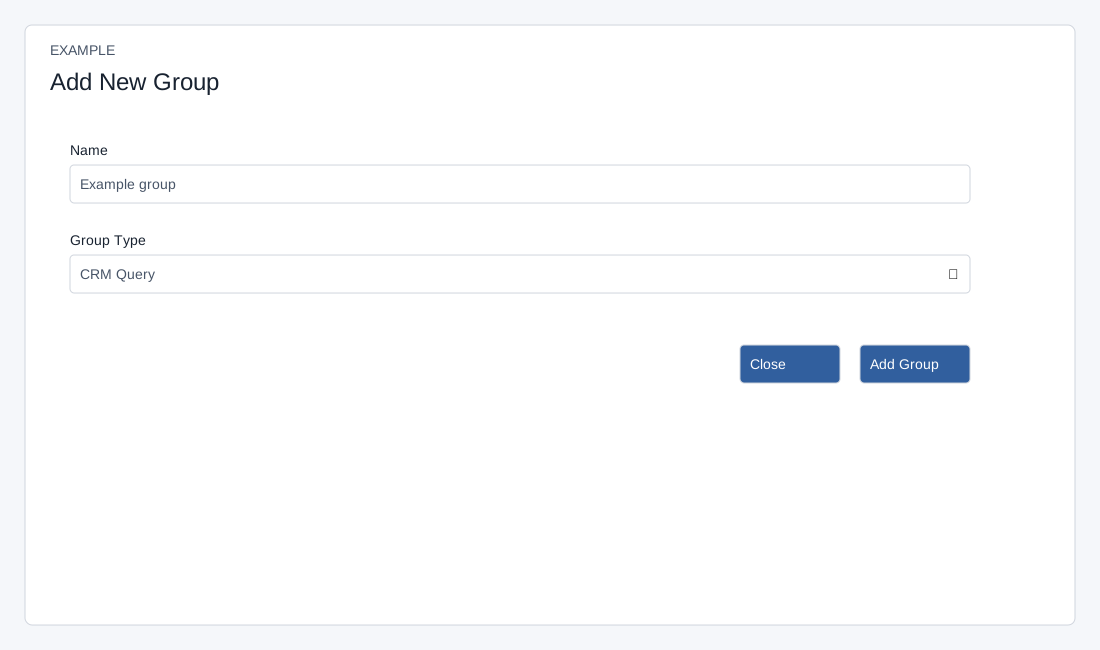
The list loads up to 100 active groups. Group names are normalized to lowercase and must be unique within the company. Close or × dismisses the creation dialog. After creating a group reload the page to obtain the normal type-specific actions.
- Choose Add New Group, enter Name and choose Group Type: Regular or CRM Query. Select Add Group to create the group. Review Group Name, Members and Group Type in the table.
- Choose Add Members to add entries to a group. For a CRM Query group, Edit Query opens criteria and Refresh runs the saved query. These actions affect membership; check the resulting group and recipients before sending.
Understand group actions
- The query adds matching phone entries that are not already members. It does not remove members who no longer match; do not treat Refresh as a full synchronization or a way to remove previous recipients.
- The delete action warns that the group and its users will be removed and cannot be recovered. Deleting a group is consequential; verify the group and effect before confirmation. Deletion is queued and the group is immediately marked inactive. Once processed, the group and its members are removed; CRM contacts remain. A success dialog indicates the deletion was queued, not that processing is complete. Verify before retrying.