Razorpay payment gateway
Configure a Razorpay gateway and payment ledger for the CRM.
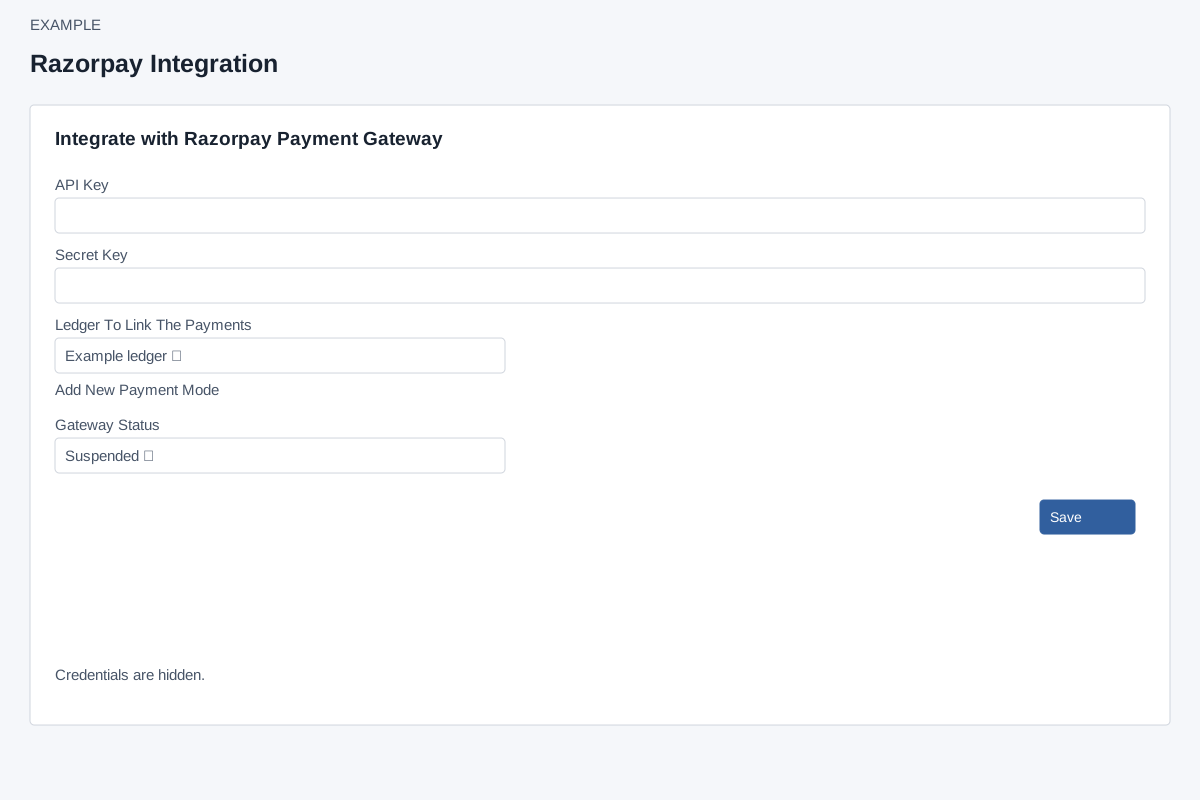
Enter and save
Account Settings → Integrations → Razorpay (PG) requires ADMIN and Standard Integration access. A custom domain and a valid payment mode must be configured before saving. Enter required API Key and Secret Key, choose Ledger To Link The Payments from the payment modes, and choose Gateway Status Enabled or Suspended. Select One is not a valid ledger; Add New Payment Mode opens invoicing settings. Save creates or updates the company configuration and displays the result. If the save result is uncertain, reopen the settings before retrying. Reopen to verify the ledger and status.
Existing credentials are displayed in ordinary text fields and are sent again when saving; blank values are rejected, not retained automatically. Handle the screen privately. There is no test, default-gateway selector or visible delete control on this page. Saving changes the gateway configuration and does not itself make a payment.
Webhook and recovery
The page instructs administrators to register https://api.intueri.io/razorpay/webhook.php in Razorpay for Payment Captured and Payment Failed events. Provider setup is a separate change; follow the provider's current interface. If saving fails, check required credentials, custom domain and payment mode. A success toast confirms the configuration request, not a payment or webhook delivery; inspect the configured ledger and provider delivery when an authorized verification is appropriate.