Lead queue and diagnostics
Diagnose why an inbound lead has not reached an eligible owner, review its assignment attempts and retry only after resolving the cause.
Open the queue and configure assignment
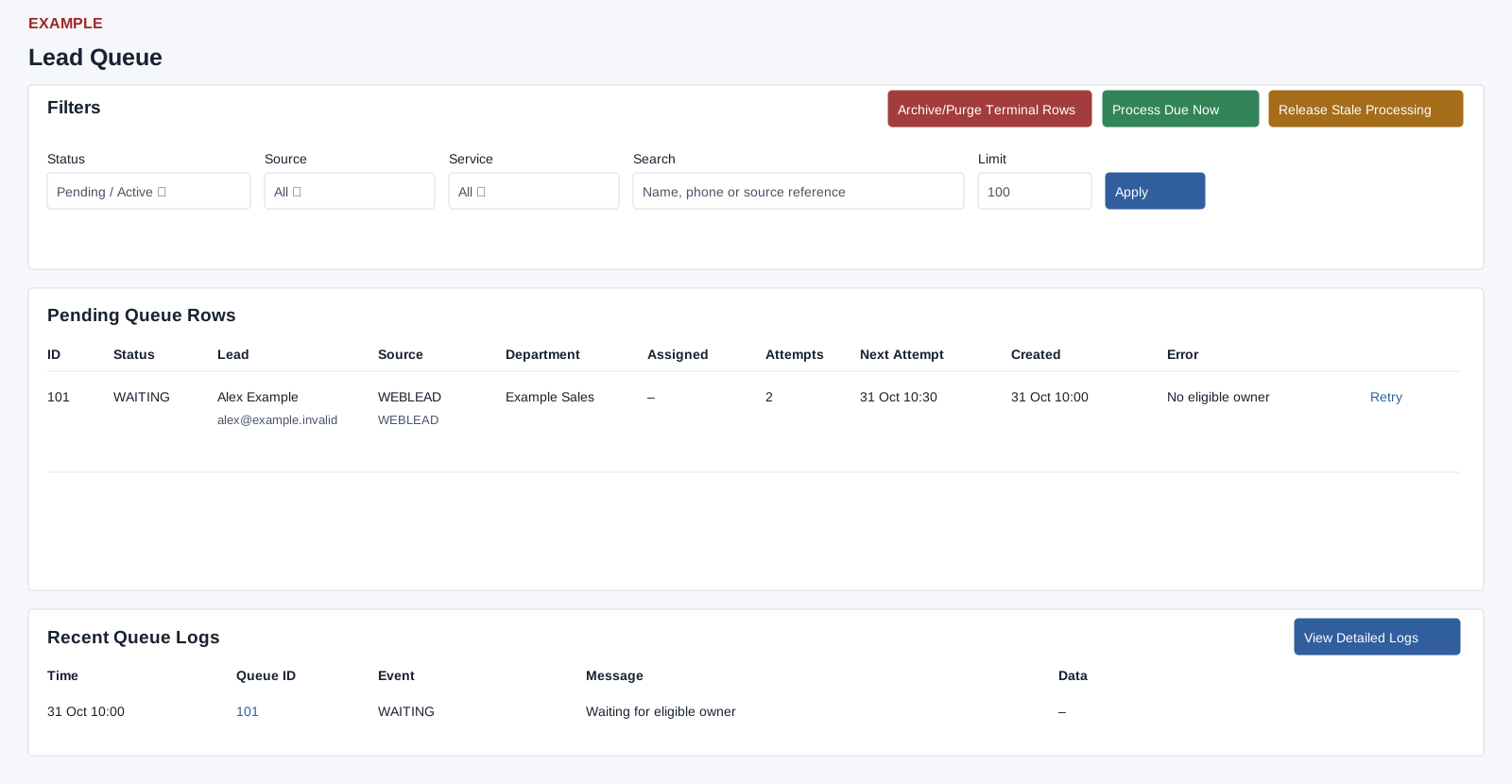
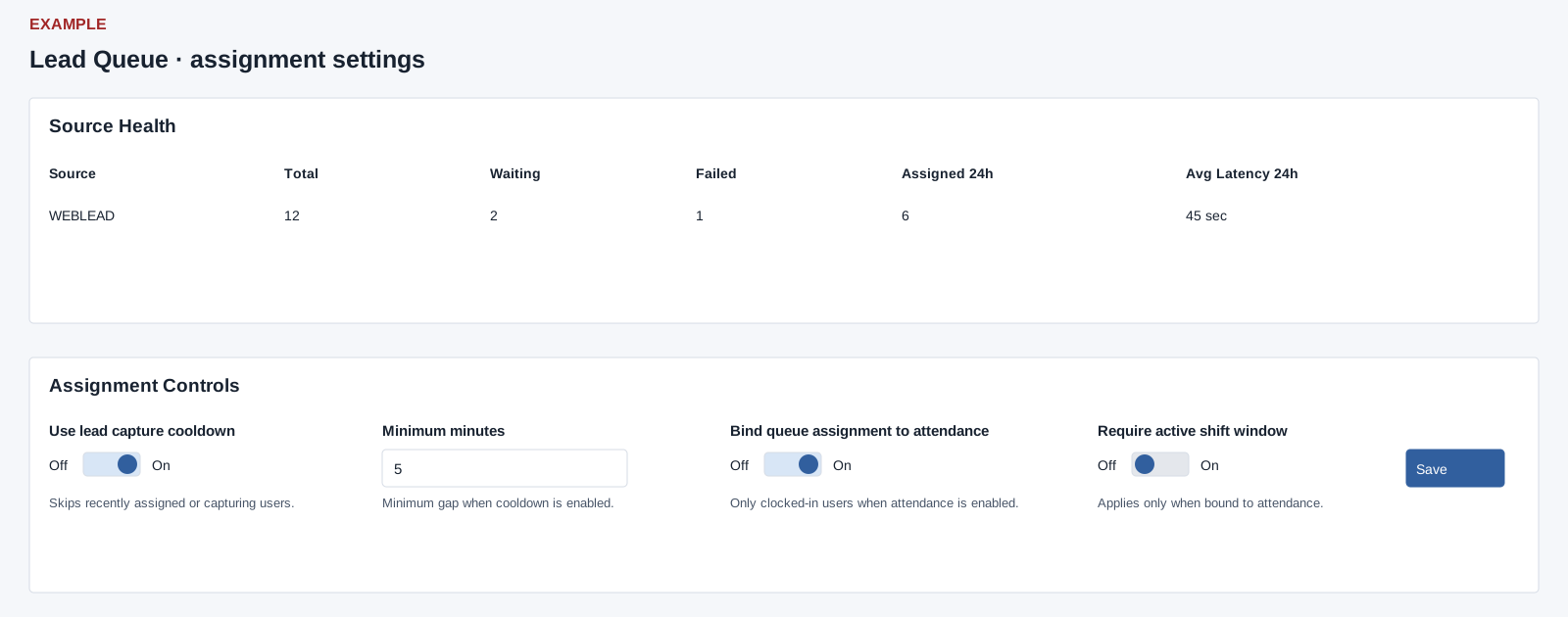
Open Account Settings → CRM Data → Lead Queue as an administrator. Summary cards and Source Health show queue state, due now, assigned and failed in 24 hours, source totals and average latency. Assignment Controls has Use lead capture cooldown (skips users recently assigned or capturing a lead), Minimum minutes 1–99, Bind queue assignment to attendance (only clocked-in users when enabled), and Require active shift window (applies when bound). Select Save and verify the message.
Find a queue item
Filters: Status defaults to Pending / Active and also offers Queued, Processing, Waiting, Failed, Terminal Archived Soon, Assigned, Discarded, Duplicate and All Current Rows. Source is All or an observed source; Service is All, Web Lead or Chats. Search name, phone or source reference; Limit is 1–250, default 100. Apply shows ID, Status, Lead, Source, Department, Assigned, Attempts, Next Attempt, Created and Error. Assigned contact links open CRM; eligible rows offer Retry.
Operational controls
Release Stale Processing releases locks stale for 15 minutes. Process Due Now requests up to 25 due rows with a 20-second budget; its result reports claimed, assigned, waiting and failed counts, not a guarantee that every queued lead was assigned. Archive/Purge Terminal Rows asks for confirmation: assigned, discarded and duplicate rows older than 48 hours and failed rows older than 30 days are archived and purged; logs remain. Each cleanup request is limited to 500 rows; check the reported archived and purged counts. These are operational changes, so review the scope before use. Recent Queue Logs links to View Detailed Logs.
Detailed queue logs
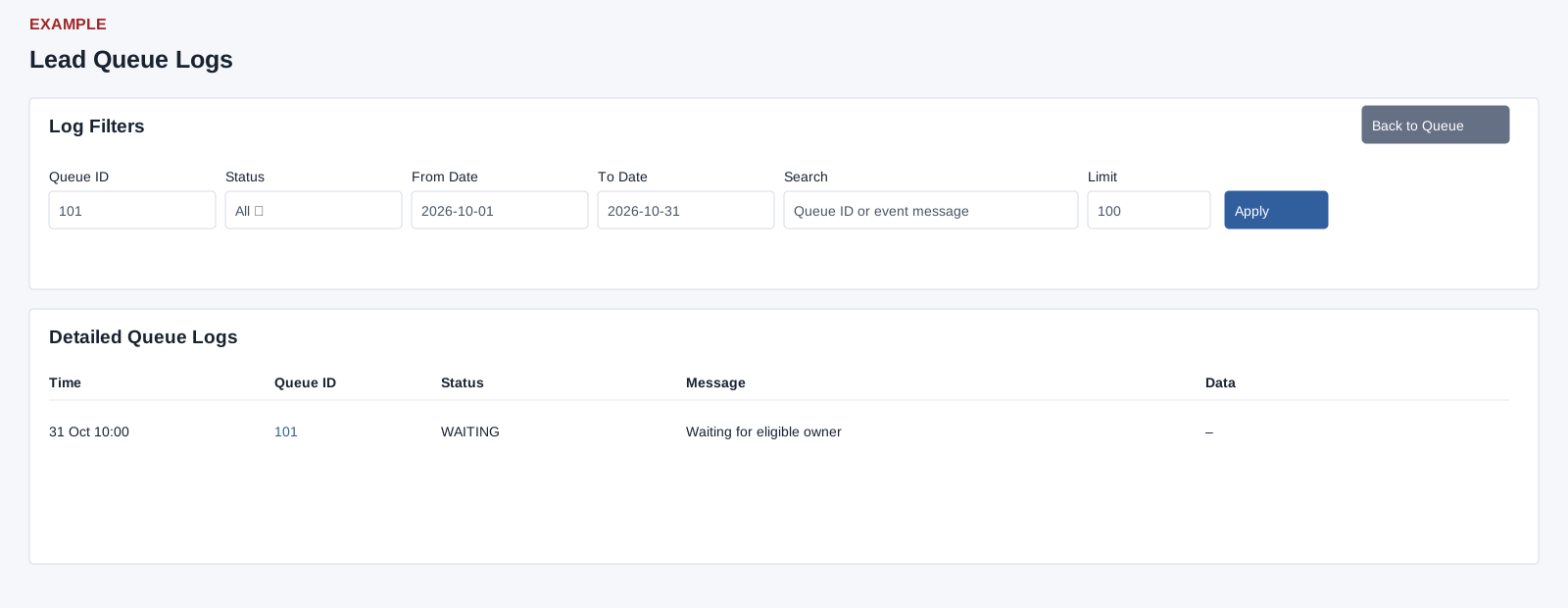
Detailed Logs filters Queue ID, Status (All, QUEUED, PROCESSING, WAITING, ASSIGNED, FAILED, DISCARDED, DUPLICATE, RETRY_NOW, SPOOL_REPLAY, POST_ASSIGNMENT and observed values), From Date, To Date, Search and Limit 1–500. Apply shows Time, Queue ID, Status, Message and Data; a queue ID links back to the queue. Use errors and attempts to investigate, then recheck after an intended retry.
Example: investigate an unassigned website enquiry
- Select the observed website Source and Web Lead Service, leave Status at Pending / Active, and choose Apply.
- Find the enquiry for Example Co. Read Status, Attempts, Next Attempt and Error before deciding whether an action is needed.
- Open View Detailed Logs, filter the Queue ID and inspect the status sequence and message. A WAITING row may need an eligible owner; PROCESSING may still have a valid active lock. Compare department/user availability with the configured cooldown, attendance and shift rules.
- After an authorized correction, use the row Retry control if offered, or Process Due Now for due work. These actions change assignments and queue state; they are not preview buttons.
- Apply the filters again and check the new row status and logs. For ASSIGNED, open the CRM contact link and confirm its department and owner. A successful processing request with waiting or failed counts is not proof that this enquiry was assigned.
If a request is interrupted, refresh the row and logs before repeating it. Terminal-row cleanup is a separate retention operation and does not repair a failed source integration. Limit and search apply to the returned queue/log view; an empty view does not establish that no historical entry ever existed.