Settle a customer invoice
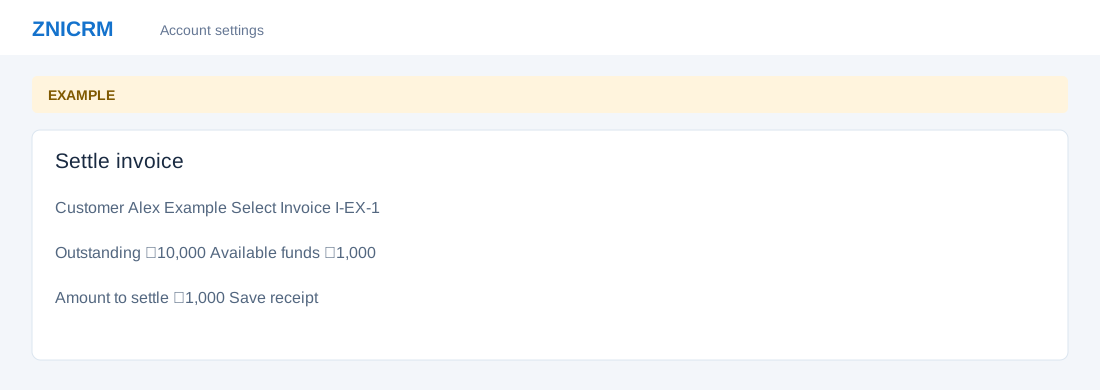
Open the page
Invoicing workspace → Settle invoice. Administrator permissions may be required.
Apply available funds
- First record the customer payment in Manage funds. Select Customer and Select Invoice, or confirm the preselected Invoice No. Review the invoice and ledger balances.
- Enter Amount to settle (minimum 0.01), optional Remarks and Change Invoice Status: Automatic, Pending, Paid or Void or Cancelled. Review the amount, customer and intended status, then choose Save receipt.
- Print or download the receipt after saving. Example: apply a ₹1,000 available credit toward an invoice. Saving creates a receipt and changes the financial records.
Validation, reset and recovery
RECEIPTS access is required. For a customer search, enter at least three characters and select a contact; the screen loads that customer’s pending invoices and account-level ledger funds. The amount must be at least 0.01 with no more than two decimal places and no greater than both outstanding and available funds. The invoice and amounts are checked again on submission. A successful save creates a ledger debit and receipt, then updates the invoice; the writes are not one transaction, so an interrupted or failed response may leave partial records. Inspect the ledger and invoice receipts before retrying.
Automatic, Pending and Paid selections do not independently force their named status: non-Void receipts update the paid amount, and a full payment marks Paid. Void debits the entered amount and marks the invoice Void without incrementing the recorded receipt amount; review the consequences before selecting it. Reset clears amount, remarks and status; a fixed invoice remains selected, while the customer-search flow clears the customer and invoice. After successful save, use the receipt links and revisit the invoice for refreshed status and balances.