Record customer ledger funds
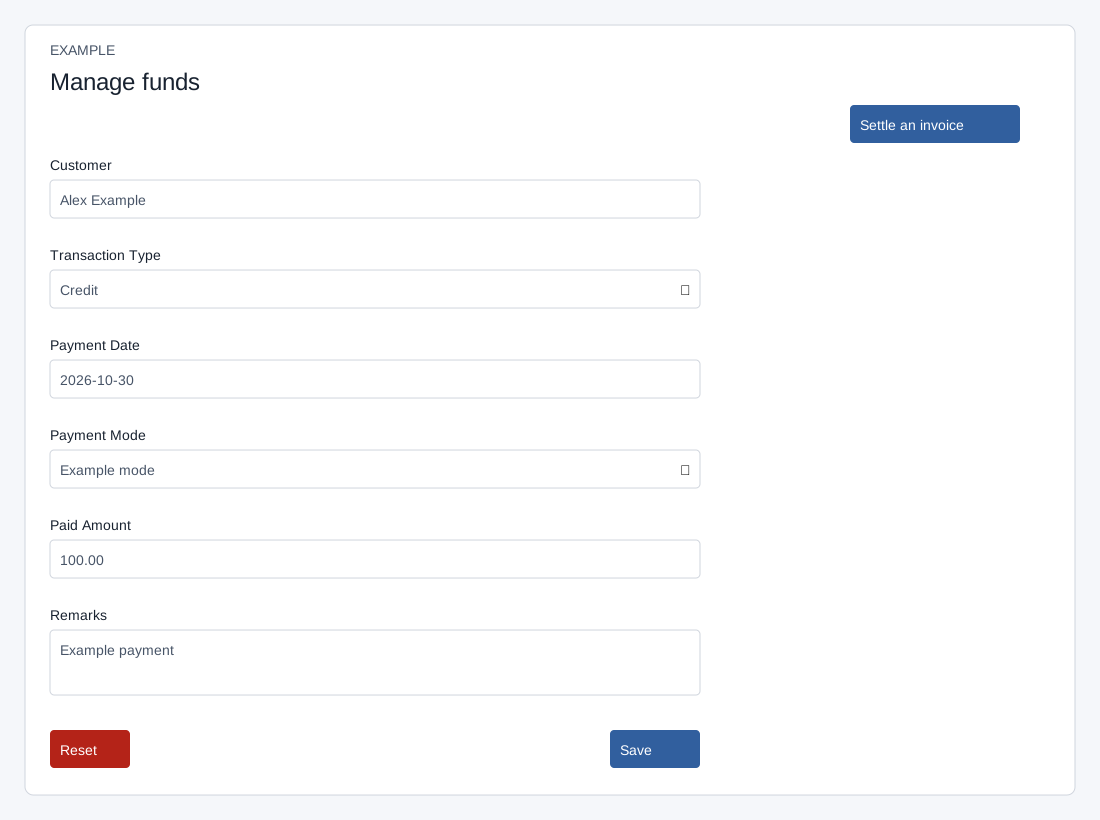
Open the page
Invoicing workspace → Manage funds. RECEIPTS app access is required.
Record a ledger entry
- Choose Customer, Transaction Type (Credit or Debit), Payment Date, Payment Mode, Paid Amount and Remarks. Select Save to record the ledger entry; Reset clears the form.
- Example: record a ₹1,000 credit only after verifying the actual payment and customer in a real workflow. This records a financial entry and does not itself settle an invoice.
- After a credit, use Settle invoice to apply available funds to the appropriate outstanding invoice.
Validation and outcome
Search at least three characters and select a contact suggestion; a company suggestion is rejected. Credit is the default, Debit is the other transaction type. Enter Payment Date (YYYY-MM-DD), choose a configured Payment Mode, enter Paid Amount and Remarks, then Save. The client explicitly checks only that a contact ID is selected; do not rely on its required field markers to validate the other values. Choose a valid payment mode and a nonnegative amount; an empty date defaults to the current date. Enter a strictly positive amount. A zero change can cause repeated retries after a ledger transaction is inserted. If zero was submitted or the response is uncertain, inspect ledger history and ask an administrator to reconcile before any retry. An entry changes the ledger balance of the contact’s account, potentially shared with other contacts: Credit adds to it and Debit subtracts from it. A debit can exceed the existing balance, so check the balance before submitting. Save success resets customer, date, mode, amount and remarks, but does not reset Transaction Type. Reset also leaves Transaction Type unchanged; check it before the next entry. Verify the entry and balance in ledger history before retrying an uncertain response.
Manage funds records an entry; it does not by itself settle an invoice. The Settle invoice link opens that separate workflow. A transaction creates a financial record, so confirm the actual customer, type, amount and payment evidence before saving.