Category Items
Use this page
Open Product Categories → select a category → Manage Items, or Add Item. The table shows Item Name, Description, Price and Action, with up to 1,000 active items. Select a name to open details; Delete asks for confirmation and marks the item inactive while retaining history. The row is removed from the table after success.
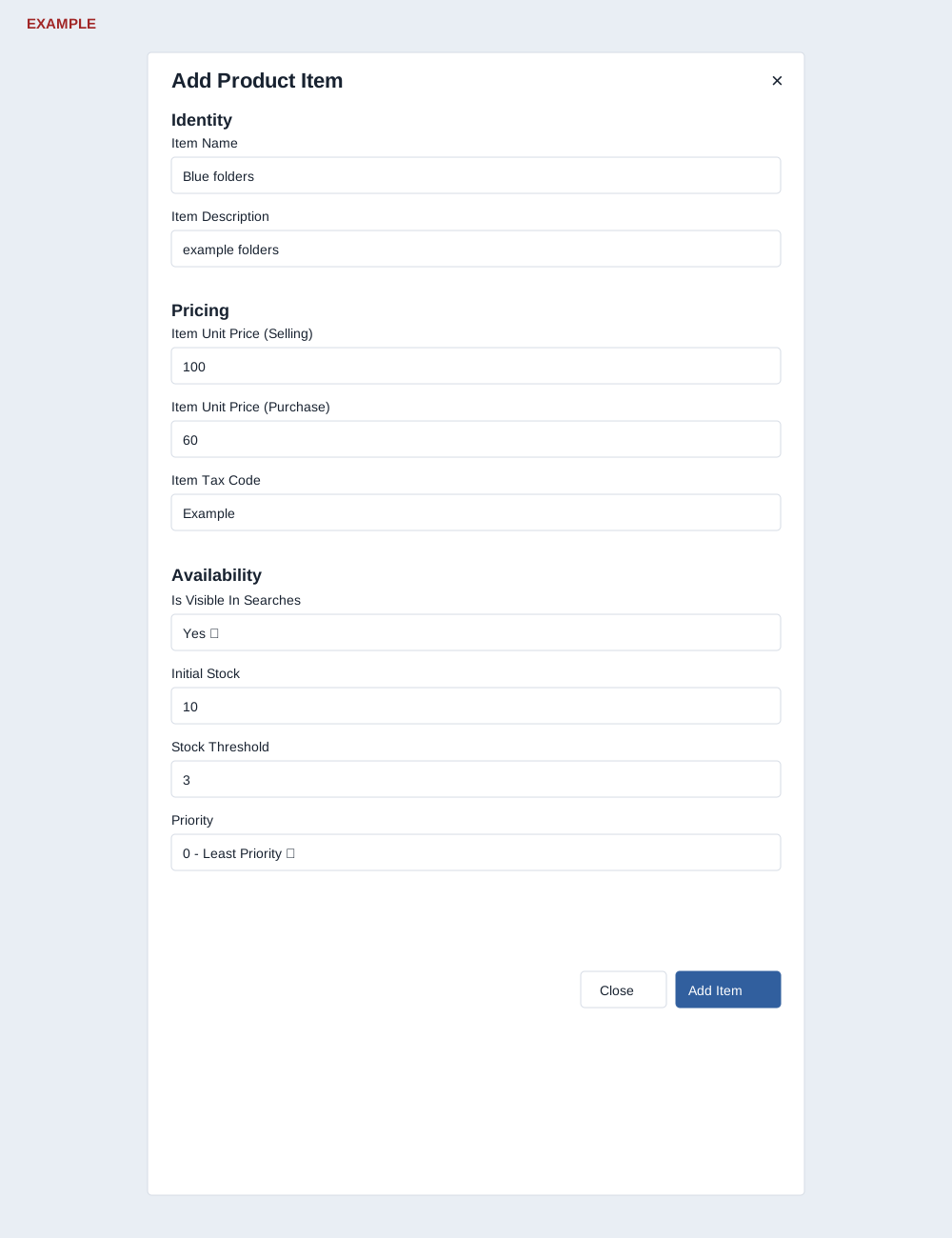
Add Item requires Item Name (page maximum 100 characters; stored name is truncated to 90), Item Description and a selling price greater than zero. Purchase price is optional and nonnegative in the form. Item Tax Code is optional text, such as a GST HSN/SAC code. The price inputs show a maximum of 9,999,999 in the form. The item form has no unit-of-measure selector. Is Visible In Searches defaults to Yes; choose No to hide from selling searches. For Goods, Initial Stock and Stock Threshold default to 0, and Priority ranges from 0 (least) to 10 (highest). Initial stock greater than zero creates a stock credit at purchase price, labelled Initial Stock. Close cancels; Add Item creates the item and returns to the category items list. Duplicate names within a category are rejected, including a previously inactive item with the same stored name hash; if its direct detail link is available, a manager can inspect its status and consider re-enabling it. Inactive items are absent from the active category list. Initial-stock credit is attempted after item creation, so verify the item and stock audit before retrying an uncertain result.
Example: create “Blue folders” at 100 selling, 60 purchase, initial stock 10 and threshold 3. Open the item and its audit trail to verify stock and initial credit. If saving fails, check required description, positive price, duplicate name and permission.