IndiaMART integration
Receive IndiaMART enquiries through a push webhook, an existing pull configuration, or email forwarding.
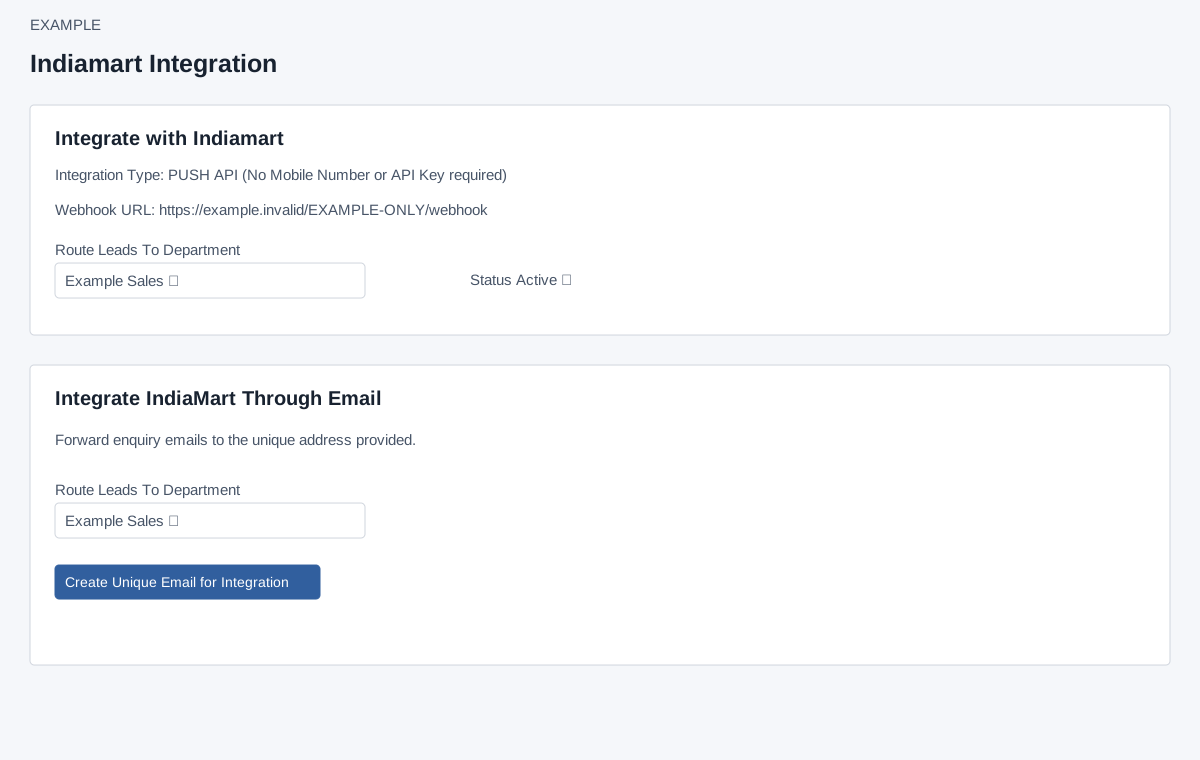
Open and choose a path
Account Settings → Integrations → Indiamart requires ADMIN and Standard Integration access. The visible API controls depend on the stored integration type. The page links to provider push and pull documentation and an email-forwarding guide; check current provider requirements there.
Push API
- If no API integration exists, Create Webhook URL generates a local integration and credential immediately. The resulting PUSH API state shows the webhook URL and says a mobile number and provider API key are not required. The URL contains a credential and should be protected.
- Configure delivery at the provider using the generated URL. Choose an available department in Route Leads To Department; in push mode the selection is saved immediately. The UI displays Default but rejects it for a route change: a positive department is required, and creation initially uses default routing.
- Status shows Active or Suspended when an integration exists. The trash icon asks for confirmation and deletes the API integration record; success reloads the page. It does not remove the separate email integration.
If routing reports an error, confirm the integration exists and the chosen department belongs to the company. The creation link creates the integration credentials. A failure can leave the URL blank without displaying the reason. If the URL is missing, inspect the page and integration state before retrying and contact support; creation is not a connectivity test.
Existing non-push configuration
For a stored non-PUSH integration, the form shows Registered Mobile Number, Indiamart API Key, Route Leads To Department and Save. The client requires digits (optional initial zero, 7–15 digits following it), a key 30–45 characters, and a nonnegative route. Changes to an existing pull integration may not save. Reopen the record to check the result and contact support if needed. Check the reported response and seek administrator assistance if it fails. The page does not expose a switch from push to pull.
Email forwarding
In Integrate IndiaMart Through Email, if no address exists, choose a department and select Create Unique Email for Integration. Although Default appears, a department must be selected; only one IndiaMART email integration can be created here. Success reloads and shows the generated address and department. Forward the relevant provider enquiries to that address as instructed by the page. Once present, this panel shows the address and route rather than a route editor or delete button. The email and API paths are separate; verify the intended ingestion path and avoid duplicate handling.
Confirm a controlled provider enquiry only when authorized, then inspect the CRM contact and routing. No test or manual fetch control appears on this page.